

9 Best Planar Tracking Tools to Elevate Your Video Editing

Best Planar Tracking Tools to Elevate Your Video Editing
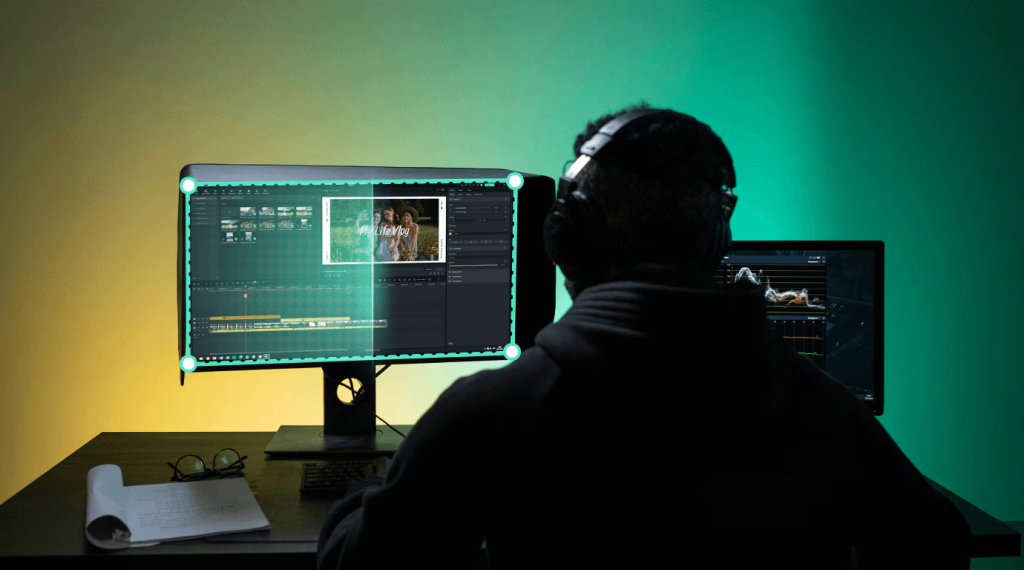
Have you ever watched a video and seen something incredible, like a blank phone screen suddenly displaying a perfect custom message or graffiti seamlessly appearing on a moving wall? That impressive trick is often achieved with planar tracking! It’s a smart technique that helps you “stick” images, videos, or text precisely onto flat surfaces in your footage, even when those surfaces are moving or changing perspective. This makes it perfect for replacing screens, adding graphics to moving objects, and creating advanced motion effects. Super useful for video editors at any skill level, planar tracking saves tons of time and unlocks huge creative possibilities.
Do you want to know which planar tracking tools are best for you? Here are some professional tools for you. Let’s learn everything about the most popular planner trackers and how they can help you.
Part 1. Top Planar Tracking Tools
Finding the right tool for your video editing process can be like looking for a needle in a haystack. So, we’ve curated a diverse collection of the best planar tracking programs available today, catering to various levels of expertise, project sophistication, and, of course, budgets. You’re bound to find something that fits your artistic vision!
1. Wondershare Filmora
Wondershare Filmora is a well-known and trusted video editor among professional users. This is one of the best user-friendly video editors that comes with advanced AI features like planar tracking capabilities. Also, it allows you to create professional-looking results without being weighed down by too complicated an interface.
Filmora is all about intuitive design, freeing your creativity to thrive. It’s made to enable creators of every experience, from first-timers scripting their very first video to advanced professionals who want streamlined workflows.
Key Features:
- Intuitive Interface: Easy to navigate, even for newcomers.
- AI-Powered Features: Leverages AI for smarter, faster editing.
- Comprehensive Effects Library: A vast collection of transitions, filters, titles, and effects.
- Advanced Editing Tools: Includes keyframing, motion tracking (now with advanced planar tracking), green screen, and more.
- Cross-Platform Availability: Works seamlessly on Windows and Mac.
- Dedicated Planar Tracking Tool: Specifically designed for stable and accurate surface tracking.
To know how easy it is to use the Planar Tracking feature in Filmora, you should follow the steps below.
Step 1: First, download and install Filmora and launch it on your system. Click on Import and drag your video clip into Filmora.
Step 2: Select the video clip in the timeline and then go to the video tab properties. Here, choose the AI tools and enable planar tracking.
Step 3: Now, define the tracker area. A tracking box will appear in the preview window. Adjust the corners to outline the flat surface you want to track.
Step 4: Next, analyze the motion. Press the “Start Tracking” button. Filmora will then analyze the movement of your chosen area frame by frame.
Step 5: Make adjustments to the parameters. Select the linked elements and change the transformation parameters to get the desired size and relative position on the tracking plane (e.g., Scale, Position).
Step 6: After being satisfied with the preview, you can export the video.
That’s all! See how quick and effortless it is to use planar tracking with Filmora. Anyone can easily and efficiently use the planar tracker in Filmora without much trouble. That’s why it is the priority of the professionals.
Filmora is unique in offering the ideal combination of strength and simplicity. If you need a program that can execute intricate planar tracking procedures without demanding a high learning curve or an astronomical price tag, Filmora is the answer for you. It’s highly effective, loaded with features, and regularly updated to address the needs of contemporary video producers. For anyone who desires to add professional effects to their videos without the hassles, Filmora provides an unbeatable experience.
2. Adobe After Effects
Adobe After Effects is the industry standard for motion graphics and visual effects. It’s an all-encompassing powerhouse cherished by professionals for its powerful toolset and easy integration with other Adobe Creative Cloud software. Its tracking features, combined with the robust Mocha AE (included), make it a force to be reckoned with for any professional visual effects artist.
Key Features:
- Strong Tracking: Includes native tracking tools and the integrated Mocha AE for sophisticated planar tracking.
- Massive Ecosystem: Smooth integration with Premiere Pro, Photoshop, and other Adobe programs.
- Keyframe Animation: No compromises on control of any aspect of animation.
- Broad Plugin Support: Thousands of third-party plugins to extend its functionality.
- Compositing Excellence: Higher-end tools for merging several visual elements.
To learn how to use Planar Tracking in Adobe After Effects, follow the steps listed below.
Step 1: Import Media – Open After Effects and drag your video clip and static object (e.g., logo) into your project. (You can add text later.)
Step 2: Arrange Composition – Drag the video into a new Composition, then place your static object on top of it.
Step 3: Add Null Object – Select your video layer, and go to Layer > New > Null Object. This creates an invisible layer for tracking data.
Step 4: Start Motion Track – Select the video layer, then go to Animation > Track Motion.
Step 5: Set Tracking Point – Place the tracker plane on a high-contrast, in-focus area of your video. Adjust its scale if needed.
Step 6: Analyze & Adjust – Click Play (or Forward frame-by-frame) to analyze the motion. Correct the tracker aim as needed.
Step 7: Apply & Parent – Click Edit Target, select Null for the layer, and click Apply > OK. Finally, position your static object and parent it to the Null Layer. Once satisfied with the tracking, render your composition (File > Export) to output the final video.
3. Boris FX Mocha Pro
Boris FX’s Mocha Pro is renowned as one of the most powerful and accurate software solutions for planar tracking and rotoscoping. It can be used as a standalone application or as a plugin within top video editing and compositing software like After Effects, Nuke, and DaVinci Resolve. A major selling point is its impressive capability to track surfaces, even when they move off-screen or are hidden.
Key Features:
- Industry-Leading Planar Tracking: Unrivaled accuracy for complex shots.
- Advanced Rotoscoping: Tools for precise mask creation and animation.
- Remove Module: For automated object removal and wire removal.
- Lens Distortion Correction: Compensates for camera lens distortions.
- Stereoscopic 3D Support: For tracking in 3D environments.
The steps below will show you how to use Planar Tracking in Boris FX Mocha Pro.
Step 1: Import Video – Import your video clip into your editing software. Planar tracking works best on flat surfaces.
Step 2: Apply Mocha Pro – From your effects library, apply the Mocha Pro effect to your video clip.
Step 3: Launch Mocha UI – Select the clip, then launch the Mocha Pro user interface from the effects panel.
Step 4: Select Reference Frame – Choose a clear, well-lit frame where your planar surface is fully visible.
Step 5: Create Shape – Draw a precise shape around the target planar surface using a spline tool.
Step 6: Track Surface – Start tracking the shape forward or backward within Mocha Pro.
Step 7: Export Data – Save your work in Mocha Pro, then export the tracking data from the effect’s settings back to your editor.
By following these steps, you can effectively track planar surfaces in your footage using Boris FX Mocha Pro.
4. DaVinci Resolve
DaVinci Resolve, by Blackmagic Design, has developed in a very short time from a top-level color grading suite to a full professional video editing, visual effects, motion graphics, and audio post-production powerhouse. Its Fusion page boasts incredibly powerful tools, such as advanced planar tracking, making it a strong rival for any video job. And it comes with a surprisingly potent free version!
Key Features:
- Integrated Workflow: All post-production tools in one application (Edit, Cut, Fusion, Color, Fairlight, Deliver).
- Node-Based Compositing (Fusion): Offers unparalleled flexibility and control for VFX.
- Advanced Tracking: Includes point tracking, camera tracking, and a dedicated planar tracker.
- Professional Color Grading: Industry-standard color correction tools.
- Fairlight Audio: Full audio post-production suite.
The steps below will walk you through how to use Planar Tracking in DaVinci Resolve.
Step 1: Import Video & Go to Fusion – Add your video clip to the timeline and switch to the Fusion page.
Step 2: Add Planar Tracker Node – On the Fusion page, right-click (or Shift + Spacebar and search) to add a Planar Tracker node. Connect it to your node flow.
Step 3: Find Reference & Draw Shape – Scrub to a clear reference frame where your target surface is visible. Draw a shape around this planar surface in the viewer.
Step 5: Configure & Track: In the Inspector, Set Operation Mode to “Track.” Click “Set” next to Reference Time for your current frame. Choose Tracker type (Point or Hybrid Point/Area) and desired Motion types (e.g., Translation, Rotation). Click the track buttons to analyze your footage.
Step 6: Review & Refine – Playback to review tracking. If needed, add occlusion masks for obstructions. For screen inserts, change to Corner Pin mode and connect your replacement image to the green input. Otherwise, click Create Planar Transform.
By following these steps, you can effectively utilize planar tracking in DaVinci Resolve.
5. HitFilm Pro
FXhome’s HitFilm Pro is a one-of-a-kind combination of video editing software and a high-performance visual effects compositor packaged into one. It is a professional-level suite of tools that is attractive to independent filmmakers, VFX artists, and YouTubers who want a complete solution. Its planar tracking is strong and can handle sophisticated composites.
Key Features:
- All-in-One Editor & Compositor: Seamlessly switch between editing and VFX.
- Advanced Tracking: Includes motion tracking, 3D camera tracking, and planar tracking.
- Extensive VFX Library: Hundreds of customizable effects and presets.
- 3D Model Import: Integrate 3D models directly into your scenes.
- Particle Simulator: Create complex particle effects.
The following steps will show you how to use Planar Tracking in HitFilm Pro.
Step 1: Create Composite Shot – Import your video, drag it to the timeline, and right-click to “Make Composite Shot.”
Step 2: Apply Mocha HitFilm – In the Composite Shot, find “Mocha HitFilm” in the Effects panel and apply it to your video layer.
Step 3: Launch Mocha UI – In the Effect Controls, click “Launch Mocha UI” to open the dedicated Mocha interface.
Step 4: Define Planar Area – In Mocha, draw a spline shape around the planar surface you want to track.
Step 5: Track Motion – Use Mocha’s tracking controls to analyze the motion of your defined shape through the footage.
Step 6: Export Data – Save your work in Mocha. Back in HitFilm, use the Mocha effect controls to apply or export the tracking data for your desired effect (e.g., corner pin, mask).
That’s how you can use the Planar Tracking in HitFilm Pro.
6. Nuke
Foundry’s Nuke is a professional node-based compositing software sold in high volume in Hollywood for films and TV shows. It’s designed for professional visual effects artists and facilities that need total control, flexibility, and scalability to work on advanced projects. Its tracking facilities, including integration with Mocha Pro, are in the class of the best.
Key Features:
- Node-Based Compositing: Industry-leading flexible workflow.
- Robust Tracking: Powerful 2D and 3D tracking capabilities, often combined with external tools like Mocha Pro.
- Deep Compositing: Handles complex multi-channel imagery.
- Python API: Extensive customization and scripting options.
- Collaborative Workflow: Designed for team environments.
The following steps will demonstrate how to use Planar Tracking in Nuke.
Step 1: Add PlanarTracker Node – Create a PlanarTracker node and connect your footage to its input.
Step 2: Set Reference Frame – Go to a clear reference frame in your footage.
Step 3: Draw Track Shape – Draw a shape (spline or box) around the planar area you want to track in the viewer.
Step 4: Track – Click the track forward or backward buttons in the PlanarTracker properties to analyze the motion.
Step 5: Create & Export Data – Once tracked, click “Create Planar Data” to generate nodes like CornerPin2D, Stabilize, or Transform, and connect them to your desired element.
That’s how you can utilize the Planar Tracking in Nuke.
7. Silhouette
Silhouette, from Boris FX, is a specialized application for rotoscoping, paint, and compositing that features an exceptional planar tracking system. It’s a top choice for high-end visual effects, especially when meticulous rotoscoping and paint work are required alongside accurate tracking. Its real strength lies in its meticulous detail and robust tracking engine.
Key Features:
- Advanced Rotoscoping: Best-in-class tools for creating precise masks.
- Industry-Leading Planar Tracking: Exceptionally accurate for complex shots.
- Paint and Cleanup: Comprehensive tools for image manipulation and cleanup.
- Keying & Matting: Professional-grade keying for green screen and blue screen.
- Shape-Driven Warping: For distorting and morphing elements.
The steps below will show how to use Planar Tracking in Silhouette.
Step 1: Load Footage – Open your project in Silhouette and load your video footage.
Step 2: Add Planar Tracker Node – In the Nodes window, add a Planar Tracker node and connect it to your footage.
Step 3: Define Area – In the Viewer, draw a spline shape (e.g., using the Bezier tool) around the planar surface you wish to track.
Step 4: Set Reference Frame – Go to a clear reference frame where your surface is well-defined.
Step 5: Track Motion – In the Planar Tracker node’s parameters, use the track buttons (e.g., Track Forward) to analyze the motion.
Step 6: Apply Data – Once tracked, apply the tracking data to a transform node, roto shape, or other elements using the Planar Tracker’s export options.
Your detailed tracks are now ready to seamlessly integrate your vision in Silhouette.
8. Blender
Blender is an incredible open-source 3D creation suite that encompasses modeling, sculpting, animation, simulation, rendering, video editing, and, yes, visual effects with a capable planar tracker. The fact that it’s completely free and constantly developed by a passionate community makes it a standout choice for budget-conscious creators and those who love open-source software.
Key Features:
- Free & Open-Source: Access to professional tools without cost.
- Comprehensive 3D Suite: A complete package for 3D creation.
- Built-in Motion Tracker: Includes robust 2D and planar tracking capabilities.
- Node-Based Compositor: Flexible and powerful for VFX workflows.
- Active Community: Plenty of tutorials and support are available.
Follow the steps below and learn how to use Planar Tracking in Blender.
Step 1: Set Up Workspace – Open Blender and switch to the Motion Tracking workspace (VFX > Motion Tracking).
Step 2: Import Footage – In the Movie Clip Editor, click Open to import your video clip.
Step 3: Add Trackers – Navigate to a good reference frame. Add multiple tracking markers to distinct, high-contrast features on your planar surface.
Step 4: Create Plane Track – Select at least four of your chosen trackers that define the plane. In the left panel, go to Solve > Plane Track > Create Plane Track.
Step 5: Track Motion – Use the Track Forward/Backward buttons in the tracking panel to analyze the plane’s movement.
Step 6: Apply Plane Track – Once tracked, use a Plane Track Deform node in the Compositor to apply the tracking data, often for screen replacement or element integration.
Planar tracking in Blender has now been completed successfully.
9. Natron
Natron is another fantastic open-source, cross-platform compositing software, often seen as a free alternative to commercial node-based compositors like Nuke. It provides a robust set of tools for visual effects, including a decent planar tracker, making it an attractive option for students, independent artists, and those on a tight budget.
Key Features:
- Free & Open-Source: Powerful features at no cost.
- Node-Based Compositing: Familiar workflow for VFX artists.
- Python API: Customizable and extensible.
- OFX Plugin Support: Compatible with a wide range of industry-standard plugins.
- Good for Basic to Mid-Level Tracking: Offers a solid planar tracking solution.
Follow the steps below and learn how to use Planar Tracking in Natron.
Step 1: Import & Add Tracker – Import your footage. To add a Tracker node, press Tab and then search for “Tracker.”
Step 2: Set Mode & Reference – In the Tracker node’s properties, set the Operation Mode to “Planar.” Go to a clear reference frame in your footage.
Step 3: Draw Shape – In the viewer, click points to draw a polygon shape (spline) around the planar surface you want to track. Close the shape.
Step 4: Track Footage – Use the tracking buttons in the Tracker node’s properties (e.g., “Track Forward,” “Track Backward”) to analyze the motion.
Step 5: Export/Apply Data – Once tracked, set the Export Mode (e.g., “Transform,” “CornerPin”) in the Tracker node. Connect a new node (like a Transform or CornerPin) to the Tracker’s output to apply the motion data.
That’s how you can use the planar tracking in the Natron Software.
Part 2. Planar Tracking Tools Comparison Table
Choosing the right planar tracking tool can feel like a big decision, especially with so many great options out there. To help you quickly weigh your choices and find the perfect fit for your projects and budget, we’ve put together this handy comparison table. It’s all about finding the tool that best empowers your creative flow!
| Tool | Learning Curve | Real-time Preview | Use Case | Price | Best for |
| Wondershare Filmora | Easy | Yes | General editing, quick VFX, social media content | Subscription/Perpetual License (Affordable) | Beginners, YouTubers, and quick professional results |
| Adobe After Effects | Medium to High | Yes | Professional motion graphics, complex VFX, compositing | Subscription (Creative Cloud) | Motion designers, VFX artists, integrated Adobe workflow |
| Boris FX Mocha Pro | Medium to High | Yes | Advanced planar tracking, rotoscoping, and object removal | Perpetual/Subscription (High-End) | Dedicated VFX professionals, advanced tracking needs |
| DaVinci Resolve | Medium | Yes | All-in-one post-production, color grading, VFX | Free / Studio ($295 One-time) | Filmmakers, colorists, independent studios, aspiring pros |
| HitFilm Pro | Medium | Yes | Indie filmmaking, VFX, YouTube creators | Perpetual/Subscription (Mid-Range) | Filmmakers, VFX enthusiasts, and all-in-one solution |
| Nuke | High | Yes | High-end film/TV VFX, studio pipelines | Perpetual/Subscription (Very High-End) | Professional VFX studios, large-scale productions |
| Silhouette | High | Yes | Advanced rotoscoping, paint, cleanup, tracking | Perpetual/Subscription (High-End) | Dedicated rotoscope artists, detailed VFX cleanup |
| Blender | Medium | Yes | 3D animation, game dev, indie VFX, general creativity | Free (Open-Source) | Budget-conscious creators, 3D artists, and experimentalists |
| Natron | Medium | Yes | Node-based compositing, general VFX | Free (Open-Source) | Students, independent artists, open-source enthusiasts |
Conclusion
There you have it! Planar tracking elevates your videos, adding that professional polish from blockbusters to viral clips. Wondershare Filmora makes this incredible power accessible, allowing you to achieve stunning effects without complex software. While tools like Mocha Pro or DaVinci Resolve offer advanced features, Filmora ensures anyone can harness planar tracking to ignite their creative spark. Choose the tool that fits your workflow and budget, and start crafting truly remarkable videos today.

