


When your Android shows a black or non-responsive screen, it is like a complete failure, and you cannot make calls or access your information. It could be a hardware malfunction or system crash, but worse than that, it poses a threat of possible data loss.
The key is acting fast and knowing exactly what steps to take for this unresponsiveness. Without further ado, go through the following article for comprehensive Android repair solutions with guides.
Part 1. Why Is Your Android Screen Going Black? Common Causes Explained
Despite running into system repair for Android directly, explore the common causes pointed out in this section for the black screen:
- Temporary software glitches or app crashes can freeze your screen and leave it unresponsive until they are repaired.
- Any interruption or defective system update can corrupt files, ultimately leading to a black screen on startup or during use.
- Occasionally, a drained battery or faulty power supply may cause your screen to appear dead, but it’s a power issue.
- When there is damage to internal components, such as the display connector or motherboard, it results in a black or flickering screen.
- Whenever your Android device overheats, as a protective measure, it shuts down, leaving you with a non-responsive screen.
Part 2. Use Dr.Fone – System Repair (Android) to Fix the Black Screen Problem
When your Android screen goes black and nothing else seems to work, Dr.Fone – System Repair (Android) comes to play. This advanced repair for Android automatically fixes various Android system issues, including the infamous black screen of death. This program excels at repairing the Android system to normal without requiring any technical skills. Besides, it claims to achieve a high success rate in resolving nearly all Android problems.
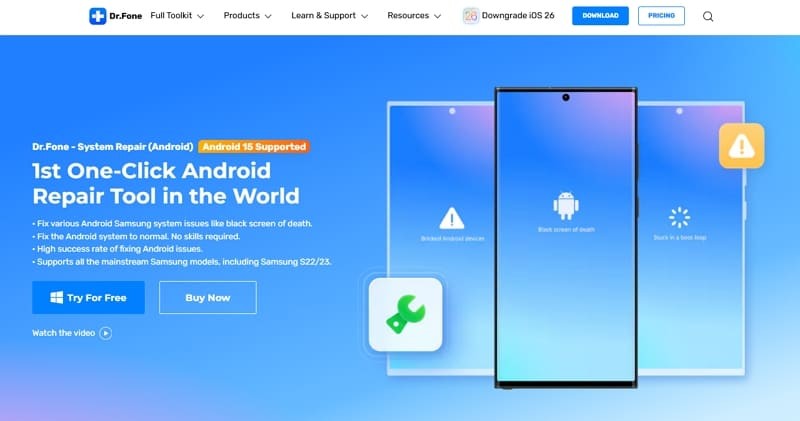
For a complete repair, the program requires complete details about your device, including its name, model, and carrier. Apart from the black screen, it facilitates users in addressing problems like being stuck in a boot loop or apps crashing. This program saves all the effort to discover the proper firmware to flash your phone. Overall, it requires a few clicks to resolve most Android-related issues, even if your Play Store isn’t working.
Key Features
- Screen Unlock (Android): It allows users to remove the lock screen from their Android devices without any data loss and utmost security.
- Data Eraser (Android): This program facilitates erasing all photos, contacts, and even call logs to free up phone space and secure privacy.
- Diverse Range of Device Support: The Android repair software enables you to resolve system issues for over 1000 Samsung models within minutes.
Detailed Tutorial to Fix Black Screen Issue via Dr.Fone – System Repair (Android)
To address this recurrent black screen issue, adhere to the provided Android repair tutorial and get back to smooth functioning:
Step 1. Install the Repair Program and Pair Up Devices
Once installed, access the “Toolbox” section and select the “System Repair” option from the main screen. Here, select the “Android” option and hit the “Start” button to connect your device to the computer.

Step 2. Download the Latest Firmware on the Computer
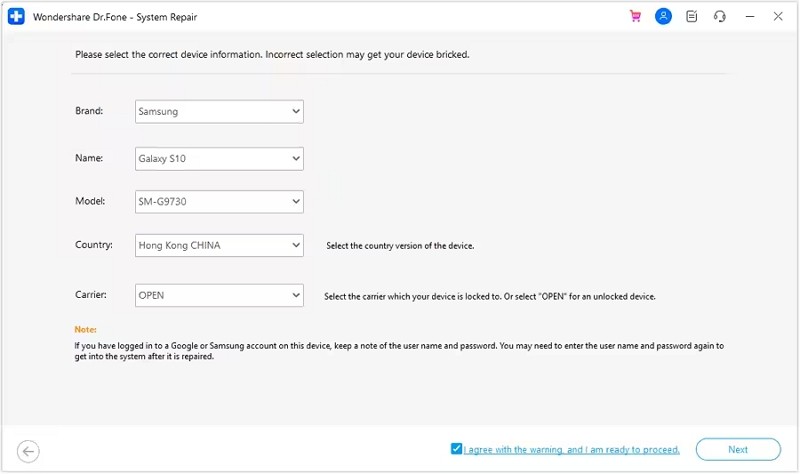
After this, type in your device details and follow the instructions as displayed to put your device into “Download Mode.” When the task finishes, the program begins installing the updated firmware for your Android phone.
Step 3. Fix Your Black Screen Issue by Repairing the Device
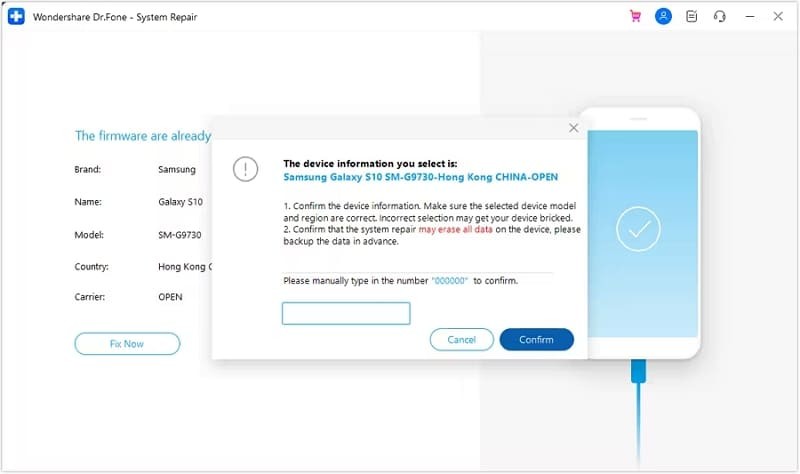
Once installed, navigate to the “Fix Now” button and click the “Continue” button after typing “000000” in the upcoming confirmation to repair.
Part 3: Quick Solutions to Fix Black Screen Issues on Android
Sometimes you don’t need a complete revamp; the practical methods given below can restore your device without needing system repair for Android:
1.Replace the Screen
When your Android device suffers a fall or any form of physical stress, the screen might be damaged, but internal components still function. In such circumstances, a visit to a certified technician is important because ignorance leads to internal damage over time.
Even proceed with a screen replacement using the original or high-quality parts through an authorized service center. Additionally, avoid attempting DIY screen replacement unless you have the necessary tools and experience.
2.Force Restart
Periodically, your device might be operational but stuck in a system freeze, causing the screen to remain unresponsive. For this, a force restart helps break that freeze by forcing the device to shut down and reboot on its own. To learn how to process Android repair for a black screen, explore the provided instructions:
Instructions: At first, long-press the “Power” and “Volume Down” buttons for several seconds until your phone vibrates, and you see the manufacturer’s logo. Later, release the buttons and allow the phone to complete the entire reboot process to start functioning again.
3.Factory Reset the Phone
Once all else fails and the issue seems tied to deep system corruption or incompatible settings, a factory reset is a convenient approach. This method wipes your device clean and reinstalls the original system settings, providing a completely new start. Follow the tutorial for more guidance on system repair for Android:
Step 1: On your turned-off smartphone, press the “Power” and “Volume Up” buttons until you enter the Recovery Mode. Here, use the “Volume Down” key to navigate to the “Wipe Data/Factory Reset” option by pressing the “Power” button.
Step 2: After this, confirm the “Factory Data Reset” option and choose the “Reboot System Now” option to complete the task.
Conclusion
To sum up, an unresponsive or black screen can feel like the end, but it doesn’t have to be, thanks to the solutions discussed. From simple tricks like a force restart to deeper solutions like a factory reset, you have options to regain functionality. Besides, when you need complete Android repair software, consider Dr.Fone – System Repair (Android) for its ability to repair all types of Android problems.
Email your news TIPS to Editor@Kahawatungu.com — this is our only official communication channel
