

How to Change WiFi Name

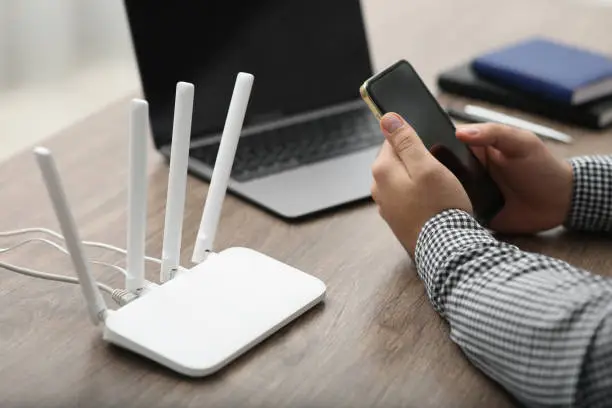
Changing your WiFi name can make your wireless network easier to identify and manage. The WiFi name, also known as the SSID, is the name that appears when you search for available wireless networks on your phone, computer, or smart TV. Learning how to change WiFi name can help you personalize your network and distinguish it from nearby connections. The process usually involves accessing your router’s settings or using an official router app.
-
Connect to Your WiFi Network
Start by connecting your phone, computer, or tablet to the WiFi network whose name you want to change.
You can also connect directly to the router using an Ethernet cable if your router provides a suitable port.
- Connect to the correct WiFi network
- Make sure the router is switched on
- Confirm that your device is connected
-
Find Your Router’s Login Address
Open your router’s information or check the label on the router to find its administration address.
Common addresses include 192.168.1.1 and 192.168.0.1, although the address can vary depending on the router.
- Check the router label
- Look at the user manual
- Check your device’s network settings if necessary
-
Open the Router’s Settings Page
Open a web browser and enter the router’s administration address into the address bar.
You should see a login page where you can enter the router administrator username and password.
- Open your preferred browser
- Enter the router address
- Log in with the administrator details
-
Find the Wireless Settings
Once you are logged in, look for an option such as Wireless, WiFi, WLAN, Wireless Settings, or Network Settings.
The exact menu name depends on the router manufacturer and model.
- Open the wireless settings
- Look for the SSID field
- Identify the current WiFi name
-
Enter Your New WiFi Name
Replace the existing SSID with the new name you want to use.
Choose a name that is easy for you to recognize without including unnecessary personal information.
- Enter the new WiFi name
- Check the spelling carefully
- Avoid sensitive personal information
-
Check the 2.4 GHz and 5 GHz Networks
Some routers display separate WiFi names for 2.4 GHz and 5 GHz networks.
If they are managed separately, decide whether you want to change one name or both.
- Check both wireless bands
- Use different names if you want to distinguish them
- Keep the names consistent if preferred
-
Save the New WiFi Name
After entering the new name, select Apply, Save, or the equivalent option shown by your router.
The wireless network may temporarily disconnect while the router applies the change.
- Review the new name
- Save the settings
- Wait for the router to restart the wireless connection
-
Reconnect Your Devices
After changing the WiFi name, your devices may no longer automatically connect because the network is now identified by a different SSID.
Search for the new name and connect using your existing WiFi password.
- Open WiFi settings
- Find the new network name
- Select it
- Enter your WiFi password
-
Use Your Router’s Mobile App
Some modern routers allow you to change the WiFi name through an official mobile application.
If your router supports this feature, the app may provide a simpler way to manage your wireless network.
- Open the router’s official app
- Sign in if required
- Find WiFi or wireless settings
- Change and save the SSID
-
Choose a Recognizable Network Name
Your new WiFi name should make it easy to identify your network without revealing unnecessary personal information.
For example, you can use a simple household or business name rather than your full name, phone number, or address.
- Keep the name easy to recognize
- Avoid sensitive information
- Use a name that is appropriate for your home or business
-
Check Your Connected Devices
After changing the WiFi name, check your devices to make sure they can connect to the new network.
You may need to update the saved WiFi information on phones, computers, printers, cameras, smart TVs, and other connected equipment.
- Reconnect important devices
- Update saved network information
- Check smart devices individually
-
Contact Your Internet Provider if Needed
If you cannot access your router’s settings or the WiFi name is controlled by your internet provider, contact customer support.
They can provide instructions specific to your router or service.
- Check your router model
- Contact customer support
- Follow the provider’s instructions
Also Read: How to Introduce a Dog to a New Baby

