

How to Check Data Balance on Vodacom WiFi Router

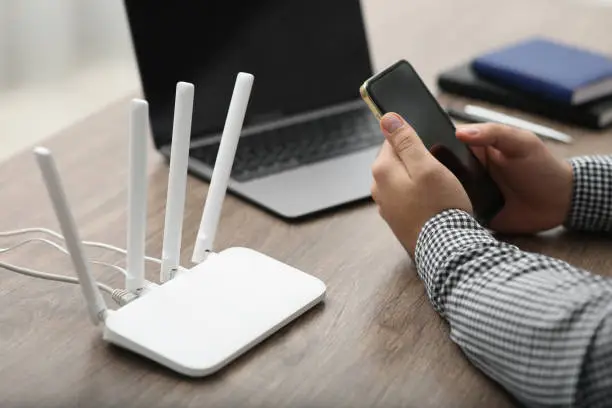
Knowing how to check data balance on a Vodacom WiFi router is useful for monitoring your remaining data and avoiding unexpected interruptions. Whether you use a Vodacom 4G or 5G router, you can usually check your data usage through the router’s management page, the SIM card’s account, or the Vodacom customer service channels.
-
Connect Your Phone or Computer to the Router
Start by connecting your phone, tablet, or computer to the Vodacom WiFi network.
Make sure the device is connected before opening the router’s settings.
- Turn on the router
- Connect your device to the WiFi
- Confirm that you have an active connection
-
Open the Router Management Page
Open a web browser on your connected device and enter the router’s management address.
The exact address depends on the router model. You can usually find it on a label attached to the router or in its user manual.
- Open your browser
- Enter the router’s management address
- Log in if requested
-
Check the Data Usage Section
After logging in, look for options such as Data Usage, Statistics, Internet Usage, or Traffic Statistics.
The router may show how much data has been used, although this does not always represent your remaining Vodacom bundle balance.
- Open the data usage section
- Review the amount of data used
- Check the usage period if displayed
-
Check Your Vodacom SIM Balance
If your router uses a Vodacom SIM card, you can remove the SIM and place it in a compatible cellphone if necessary.
You can then use the available Vodacom balance-checking service to check the remaining data bundle.
Alternatively, you may be able to manage the SIM through the Vodacom account or self-service options available to you.
- Check which Vodacom SIM is in the router
- Use a compatible phone if required
- Check the remaining data balance
-
Monitor Your Data Regularly
Keep track of your data usage, particularly if several people or devices connect to the router.
Checking the balance regularly can help you identify heavy usage and know when you need to purchase another data bundle.
- Check your balance regularly
- Monitor connected devices
- Purchase additional data when necessary
Also Read: How to Check Balance on RCS Card

