

How To Connect Chromecast To WiFi

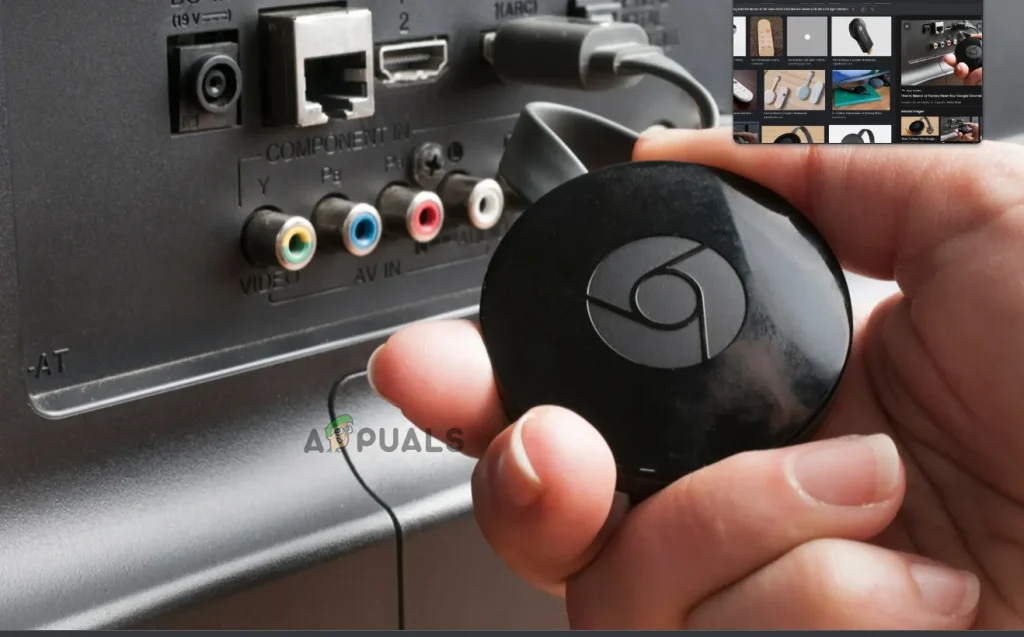
Google Chromecast allows you to stream movies, music, and videos directly from your phone or computer to your TV. For it to work properly, it must be connected to a stable WiFi network. Setting up Chromecast to WiFi is a simple process that only takes a few minutes if you follow the correct steps.
- Prepare Your Chromecast and TV
Start by plugging your Chromecast device into your TV’s HDMI port. Connect the USB power cable to the Chromecast and plug the other end into a wall socket or a powered USB port on your TV. Make sure your TV is turned on and switched to the HDMI input where the Chromecast is connected. You should see the Chromecast setup screen displayed on your TV.
- Install the Google Home App
To connect Chromecast to WiFi, you’ll need the Google Home app. If you haven’t installed it yet, download it from the Google Play Store (for Android) or App Store (for iPhone). This app is essential for managing and setting up your Chromecast device.
- Connect Your Phone to the Same WiFi Network
Before beginning the setup, ensure your smartphone or tablet is connected to the same WiFi network that you want your Chromecast to use. This is important because the Chromecast and your device must be on the same network for communication during setup.
- Open Google Home and Add Chromecast
Open the Google Home app on your device and sign in using your Google account. Tap the “+” icon at the top left corner of the screen, then select “Set up device” followed by “New device.” Choose your home or location, and the app will start scanning for available Chromecast devices. Once it detects your Chromecast, tap on it to start the connection process.
- Verify the Code on Screen
The app will display a setup code. Make sure the code shown in the app matches the one displayed on your TV screen. If they match, tap “Yes” to continue. This step ensures you’re connecting to the correct Chromecast device.
- Connect Chromecast to WiFi
After verifying the code, the app will prompt you to choose a WiFi network. Select your preferred WiFi from the list, enter the correct password, and tap “Connect.” The Chromecast will take a few moments to link to the network. Once connected, you’ll see a confirmation message on your TV and in the app.
- Test the Connection
Once setup is complete, you can test your connection by casting a video or music from your phone. Open YouTube or another casting app, tap the Cast icon, and choose your Chromecast device. The video should start playing on your TV, confirming that the WiFi connection is working correctly.
- Troubleshooting Connection Problems
If your Chromecast fails to connect, try the following solutions:
- Make sure your WiFi network is active and the password is correct.
- Restart your router, Chromecast, and phone.
- Move your Chromecast closer to the router to improve signal strength.
- If the device was previously connected to a different WiFi, perform a factory reset and try setting it up again.
Also Read: How To Clean A Throttle Body Without Removing It