

How To Connect To Eduroam UCT

Connecting to Eduroam at the University of Cape Town (UCT) allows students, staff, and visitors from other participating institutions to access secure Wi-Fi on campus. Eduroam (short for “education roaming”) is a global wireless network service designed for academic institutions, providing seamless internet access using your university credentials. Knowing how to connect to Eduroam correctly helps you stay connected for online classes, research, and communication anywhere on campus.
- Understanding Eduroam at UCT
Eduroam provides encrypted, high-speed Wi-Fi access across UCT’s campuses. Once connected, your device can automatically log in to Eduroam not only at UCT but at any other institution that supports Eduroam worldwide. This makes it convenient for students and staff who travel or collaborate with other universities.
At UCT, access is linked to your UCT network credentials (username and password). Visitors from other Eduroam institutions can also connect using their home university login details.
- Requirements Before You Connect
Before connecting to Eduroam, ensure you have:
- A valid UCT network account (username@uct.ac.za) and password.
- A device with Wi-Fi capability (laptop, smartphone, or tablet).
- Updated device software or operating system.
- Access to the internet for initial configuration (optional).
If you recently changed your UCT password, remember to update it in your Eduroam settings to avoid connection errors.
- How to Connect to Eduroam on Windows Laptop
- Turn on Wi-Fi and open the list of available networks.
- Select “Eduroam” from the Wi-Fi options.
- When prompted for login credentials, enter:
- Username: your UCT email address (for example, username@uct.ac.za).
- Password: your UCT network password.
- Click Connect and wait for the connection to establish.
- If asked to verify a security certificate, choose Connect or Trust to confirm.
Your device should now connect automatically whenever Eduroam is available on campus.
- How to Connect on macOS
- Click the Wi-Fi icon on the top-right of your screen.
- Choose Eduroam from the available networks.
- Enter your UCT email address and network password when prompted.
- If a security certificate appears, click Continue and enter your Mac password to save the setting.
Once connected, your Mac will remember Eduroam and reconnect automatically.
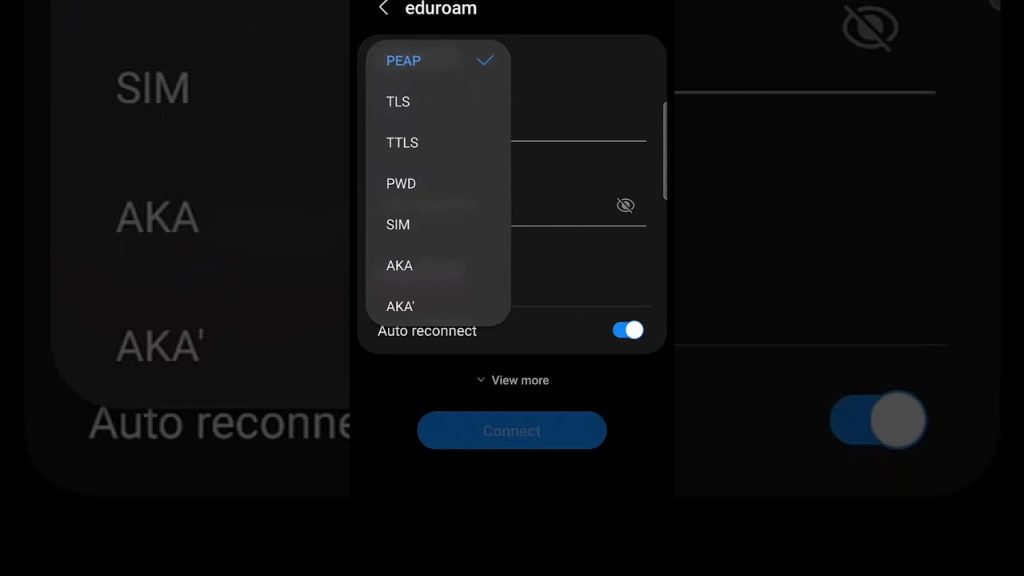
- How to Connect on Android Devices
- Open Settings and select Wi-Fi.
- Tap on Eduroam in the list of networks.
- Set the following details:
- EAP method: PEAP
- Phase 2 authentication: MSCHAPV2
- CA certificate: Use system certificates (if unavailable, select “Do not validate”).
- Identity: your UCT email (username@uct.ac.za)
- Password: your UCT network password
- Tap Connect.
If successful, your phone will display Eduroam as “Connected,” and it will automatically reconnect in the future.
- How to Connect on iPhone or iPad
- Go to Settings > Wi-Fi.
- Select Eduroam from the list.
- Enter your UCT email address and network password.
- When the certificate warning appears, tap Trust.
- Wait for the connection to establish.
After this setup, your iPhone or iPad will automatically reconnect to Eduroam whenever it is in range.
- Troubleshooting Connection Issues
If you cannot connect to Eduroam, try these quick fixes:
- Check credentials: Ensure you entered your UCT email address (not just your username).
- Forget the network: Go to your Wi-Fi settings, select Eduroam, and tap Forget before reconnecting.
- Update password: If you changed your UCT password recently, remove and re-enter your details.
- Restart your device: Sometimes a simple reboot solves connection errors.
- Contact UCT ICTS Helpdesk: If issues persist, email icts-helpdesk@uct.ac.za or visit the ICTS offices on campus for support.
- Security and Best Practices
Always ensure your device’s Wi-Fi is set to connect securely using WPA2-Enterprise encryption. Avoid sharing your UCT credentials with others, and log out or disconnect from Eduroam if you are not using your device for extended periods.
- Benefits of Using Eduroam
Once configured, Eduroam provides a reliable and secure internet connection across campus and at thousands of educational institutions worldwide. It eliminates the need for guest Wi-Fi access requests and simplifies academic collaboration for UCT students and staff.
Also Read: How To Clean Pewter