

How To Fix A Corrupt DStv Hard Drive

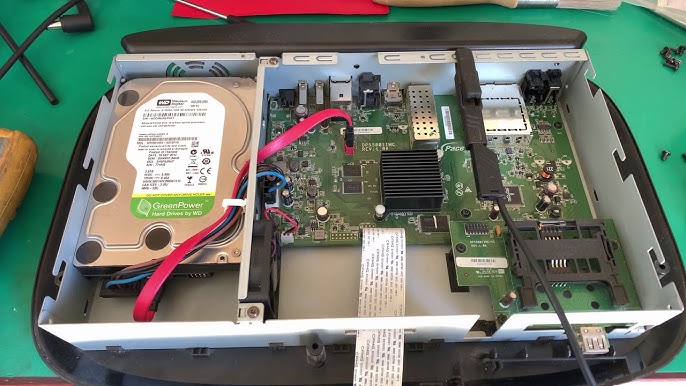
A corrupt DStv hard drive can be frustrating, especially when it affects recording, playback, or normal viewing. This problem is common on DStv decoders that use internal or external hard drives to store recorded content and system data. Corruption can happen due to power outages, sudden shutdowns, software errors, or hardware wear over time. While some cases require professional assistance, many DStv hard drive issues can be identified and fixed at home using simple troubleshooting steps. This guide explains how to fix a corrupt DStv hard drive in a clear, practical, and beginner-friendly way.
- Understand What a Corrupt DStv Hard Drive Is
Knowing the symptoms helps you confirm the problem.
- Decoder freezing or restarting repeatedly
- Recordings failing or disappearing
- Error messages related to recording or storage
- Decoder not responding to remote commands
- Channels loading slowly or not at all
These signs often point to hard drive or software issues.
- Common Causes of DStv Hard Drive Corruption
Understanding causes helps prevent future problems.
- Power cuts or load shedding
- Unplugging the decoder while it is running
- Software update interruptions
- Aging or damaged hard drive
- Overheating due to poor ventilation
Most corruption issues are linked to power and system interruptions.
- Restart the DStv Decoder Properly
A restart can fix minor corruption issues.
- Switch off the decoder using the remote
- Unplug the power cable from the wall
- Wait at least 2 to 5 minutes
- Plug the decoder back in and power it on
This allows the system to reset safely.
- Check and Secure All Cable Connections
Loose connections can cause system errors.
- Check the power cable
- Ensure satellite cables are firmly connected
- Inspect HDMI or AV cables
- Tighten all connections gently
Good connections improve system stability.
- Allow the Decoder to Perform a System Check
Some decoders fix issues automatically.
- Turn on the decoder
- Wait during startup without pressing buttons
- Allow system checks to complete
- Do not interrupt the process
Interrupting startup may worsen corruption.
- Format the DStv Hard Drive
Formatting can fix corruption but deletes recordings.
- Open the decoder menu
- Go to settings or system settings
- Select hard drive or storage options
- Choose format hard drive
Formatting clears corrupted data but removes saved content.
- Confirm Successful Formatting
Make sure the process completes properly.
- Wait until formatting reaches 100 percent
- Do not switch off the decoder
- Restart the decoder after formatting
- Test recording and playback
Successful formatting restores normal operation.
- Check Available Storage Space
Low space can cause errors.
- Open storage or recording settings
- Check used and available space
- Delete old or unwanted recordings
- Keep sufficient free space
Adequate space helps the system function smoothly.
- Update the DStv Decoder Software
Outdated software can cause problems.
- Ensure the decoder is connected properly
- Leave it on standby overnight
- Allow automatic updates to install
- Restart the decoder after updates
Software updates fix bugs and improve performance.
- Inspect for Overheating Issues
Heat can damage hard drives.
- Ensure proper ventilation around the decoder
- Do not place it inside closed cabinets
- Keep it away from other heat-producing devices
- Clean dust from vents regularly
Good airflow extends hard drive lifespan.
- Test Recording Functionality
Testing confirms whether the issue is resolved.
- Record a short program
- Play it back after recording
- Check for freezing or errors
- Repeat with another channel
Successful recording indicates a healthy hard drive.
- Try a Power Surge Protector
Power protection prevents future damage.
- Use a surge protector or UPS
- Protect against sudden power cuts
- Prevent voltage spikes
- Reduce risk during load shedding
Power protection is highly recommended.
- Recognize Signs of a Failing Hard Drive
Some issues cannot be fixed at home.
- Persistent errors after formatting
- Loud clicking or unusual noises
- Decoder failing to detect storage
- Repeated system crashes
These signs often indicate physical hard drive failure.
- Replace the DStv Hard Drive (If Applicable)
Some models allow replacement.
- Check if your decoder supports external hard drives
- Use recommended specifications
- Install carefully following instructions
- Format the new drive through the decoder
Replacement may restore full functionality.
- Contact DStv Customer Support
Professional help may be necessary.
- Contact DStv support or visit a service center
- Explain the issue clearly
- Follow technician instructions
- Ask about repair or replacement options
Support teams can diagnose deeper problems.
- Backup Important Recordings (If Possible)
Backups reduce data loss risk.
- Watch important recordings early
- Avoid storing critical content long-term
- Understand that recordings may not be recoverable
- Plan viewing schedules accordingly
Prevention is better than recovery.
- Prevent Future Hard Drive Corruption
Simple habits protect your decoder.
- Always shut down properly
- Avoid unplugging during operation
- Use power protection devices
- Keep software updated
Preventive care extends device life.
- Final Tips for Fixing a Corrupt DStv Hard Drive
Keep these tips in mind.
- Try simple fixes before formatting
- Expect data loss when formatting
- Protect against power issues
- Seek professional help when needed
Also Read: How To Edit Videos On Your Phone