

How To Lock Formulas In Excel

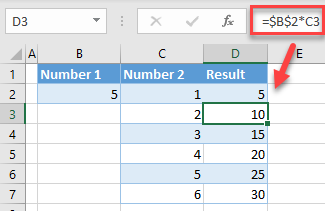
lock-freeze-cell-formula-4
Locking formulas in Excel protects them from being accidentally edited or deleted. This is useful when you’re sharing a file or building a spreadsheet where certain calculations must remain unchanged. Excel allows you to lock cells containing formulas and restrict editing using worksheet protection. Here is how to lock formulas in Excel.
- Select All Cells and Unlock Them First
By default, all cells in Excel are locked, but this only takes effect when the sheet is protected. To lock only specific cells (like formulas), you must first unlock all the others:
- Press Ctrl + A to select the entire sheet
- Right-click and choose Format Cells
- Go to the Protection tab
- Uncheck Locked and click OK
- Find and Select the Formula Cells
Next, you need to highlight only the cells that contain formulas:
- Go to the Home tab
- Click Find & Select on the far right
- Choose Go To Special
- Select Formulas and click OK
Now all cells with formulas will be selected.
- Lock the Formula Cells
With the formula cells still selected:
- Right-click and choose Format Cells
- Go to the Protection tab
- Check the box labeled Locked
- Click OK
This marks those cells as protected, ready for the next step.
- Protect the Worksheet
To enforce the lock:
- Go to the Review tab
- Click Protect Sheet
- Set a password (optional) and choose what actions users can still perform (e.g., select cells, format columns)
- Click OK
Now, only the unlocked cells can be edited. Any attempt to change the locked formula cells will prompt an error message.
- Test the Protection
Try editing both a formula cell and a normal cell. The formula cell should be protected, while the other can still be edited. If you need to make changes later, go to Review > Unprotect Sheet and enter your password if you set one. - Save Your Work
Always save your file after locking formulas to keep the protection active. You can also apply this method to specific sheets in a workbook.
Also Read: How To Grow Strawberries In Pots

