

How to Lock Hidden Photos on iPhone

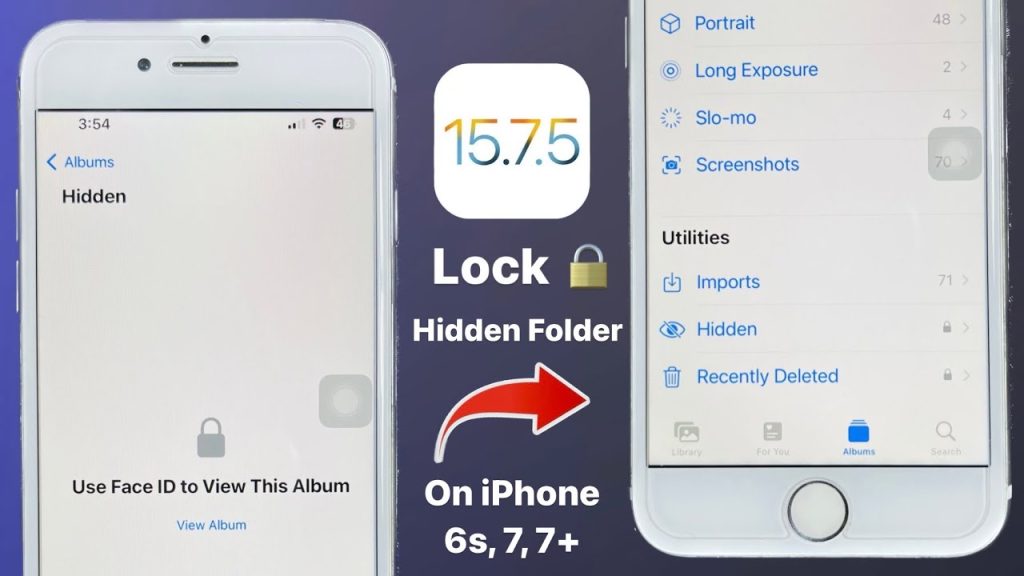
How to Lock Hidden Photos on iPhone
iPhones offer a feature to hide photos from the main gallery, but for extra privacy, you can also lock those hidden photos using Face ID, Touch ID, or a passcode. This ensures that even if someone accesses your phone, your private images stay protected and unseen. Here is how to lock hidden photos on iPhone.
- Use the Photos App to Hide Photos
To begin, move the images you want to hide into the Hidden folder:
- Open the Photos app
- Select the photo(s) you want to hide
- Tap the Share icon
- Scroll down and tap Hide
- Confirm by tapping Hide Photo
The photo will now be moved to the Hidden album, which is not visible in your main albums.
- Enable Face ID or Passcode for Hidden Album
To lock the Hidden album with Face ID, Touch ID, or your passcode:
- Go to Settings
- Scroll down and tap Photos
- Turn on Use Face ID (or Use Touch ID depending on your model)
This setting automatically locks both the Hidden and Recently Deleted albums, requiring biometric authentication or your device passcode to open them.
- Hide the Hidden Album (Optional)
For an extra layer of privacy, you can make the Hidden album itself disappear from the Photos app:
- In Settings, under Photos, turn off Show Hidden Album
Now, the Hidden folder won’t even appear in the Albums tab, although your photos remain stored securely.
- View Hidden Photos
To access your locked photos:
- Open the Photos app
- Go to Albums and scroll down
- Tap on Hidden
- Authenticate using Face ID, Touch ID, or your passcode
Only then will your private photos be revealed.
- Unhide Photos If Needed
To move a photo back into your main gallery:
- Open the Hidden album
- Select the photo
- Tap Share, then tap Unhide
It will now reappear in your photo library.
Also Read: How To Grow Strawberries In Pots