

How to Remove Someone from Your WiFi

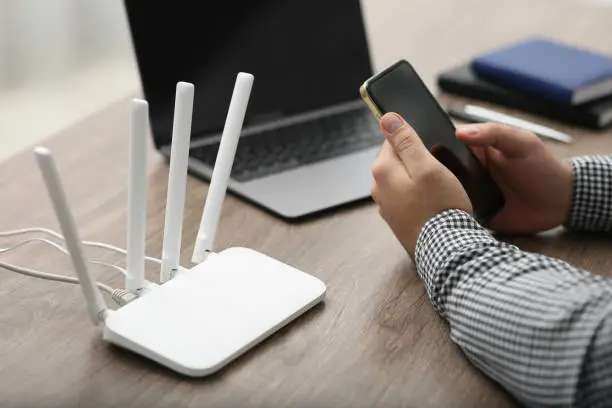
Sharing your WiFi can be convenient, but there are times when you may want to limit access to certain users. Too many connected devices can slow down your internet speed or raise security concerns. Understanding how to remove someone from your WiFi helps you take control of your network and keep it secure. With a few simple adjustments, you can manage who has access and ensure your connection runs smoothly.
-
Log In to Your Router Settings
Start by accessing your router’s control panel. Open a web browser and enter your router’s IP address, which is usually found on the back of the router or in the manual.
Log in using your admin username and password.
- Use the correct IP address
- Enter valid login credentials
- Avoid sharing your router password
-
View Connected Devices
Once inside the router settings, look for a section labeled “Connected Devices,” “Device List,” or “Attached Devices.”
This will show all devices currently using your WiFi network.
- Review all connected devices carefully
- Identify unfamiliar or unwanted users
- Note device names or IP addresses
-
Remove or Block the Device
Select the device you want to remove and choose the option to block, disconnect, or remove it from the network.
Some routers allow you to blacklist the device so it cannot reconnect.
- Choose the correct device
- Use the block or deny option
- Confirm the action
-
Change Your WiFi Password
To ensure the person cannot reconnect, it’s a good idea to change your WiFi password.
After updating the password, only users with the new credentials will be able to access your network.
- Create a strong, unique password
- Share it only with trusted users
- Update all your personal devices
-
Enable Network Security Features
For added protection, enable security features such as WPA3 encryption or MAC address filtering if your router supports them.
These features help prevent unauthorized access in the future.
- Use the latest security settings available
- Enable encryption for your network
- Monitor connected devices regularly
Also Read: How to Remove Password from iPhone