

How to Set Up OpenView Decoder

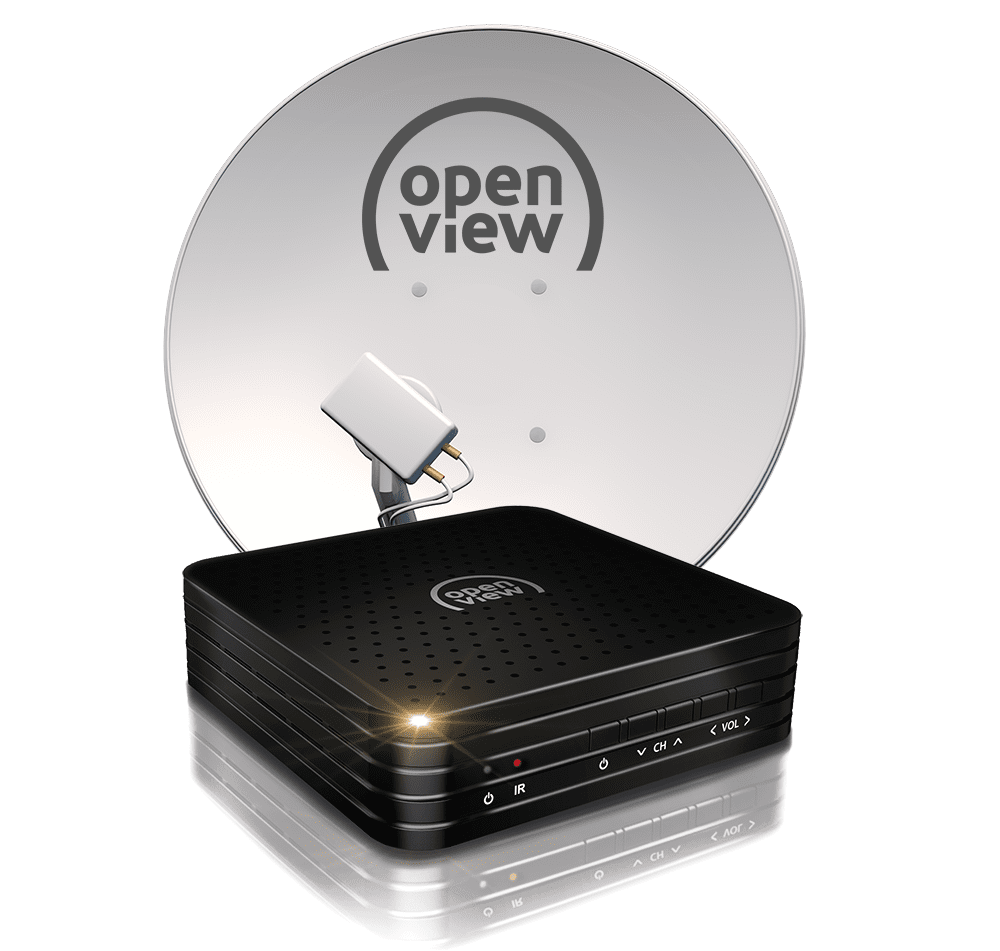
Setting up an OpenView decoder allows you to access free-to-air channels and enjoy a variety of entertainment at home. The process may seem technical at first, but with the right steps, it becomes straightforward. Learning how to set up OpenView decoder helps you get your system running correctly and ensures a clear signal. With a little attention, you can complete the setup and start watching your favorite channels.
-
Connect the Satellite Dish Cable
Start by connecting the cable from your satellite dish to the decoder.
Make sure the connection is secure to avoid signal problems.
- Locate the LNB cable
- Connect it to the decoder port
- Tighten the connection properly
-
Connect the Decoder to Your TV
Use an HDMI cable or AV cable to connect the decoder to your television.
HDMI is recommended for better picture quality.
- Plug in the HDMI or AV cable
- Connect to the correct TV port
- Switch TV input to match
-
Power On the Devices
Plug in both the decoder and the TV, then switch them on.
You should see the OpenView setup screen appear.
- Connect power cables
- Turn on the TV and decoder
- Wait for the setup screen
-
Follow the On-Screen Setup
Use your remote control to follow the instructions displayed on the screen.
This includes selecting language and scanning for channels.
- Choose preferred language
- Start channel scan
- Wait for channels to load
-
Check Signal and Save Channels
Once scanning is complete, ensure that channels are clear and working.
Save the settings to finish the setup.
- Check signal strength
- Confirm channels are working
- Save and exit setup
Also Read: How to Set Alarm on iPhone

