

How to Stop Windows Updates on a Laptop

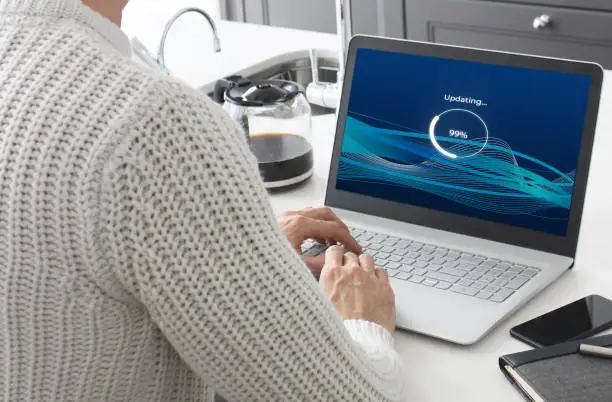
Knowing how to stop Windows updates on a laptop can be useful when an update is interrupting your work, using too much internet data, or restarting your computer at an inconvenient time. Windows updates are important for security and performance, so completely disabling them for a long period is generally not recommended. Instead, you can temporarily pause updates or use settings that give you more control over when they are installed.
-
Pause Windows Updates
The easiest way to stop Windows from downloading and installing updates temporarily is to use the Pause Updates option.
On Windows 11, open Settings, select Windows Update, and choose Pause updates. You can select the available period shown on your laptop.
- Open Settings
- Select Windows Update
- Choose Pause updates
- Select the available pause period
-
Use an Active Hours Schedule
If Windows keeps restarting your laptop after updates, changing your active hours can help prevent unexpected restarts while you are normally using the computer.
Open Windows Update settings and look for the option to adjust active hours.
- Open Settings
- Go to Windows Update
- Open Advanced options
- Adjust active hours where available
-
Set Your Connection as Metered
If you are using mobile data or a limited internet connection, setting the connection as metered can reduce automatic data usage.
Open Settings > Network & internet, select your Wi-Fi connection, and turn on the Metered connection option.
- Open Network & internet settings
- Select Wi-Fi
- Choose your connected network
- Turn on Metered connection
This can limit some automatic downloads, but it does not guarantee that every Windows update will be blocked.
-
Change Windows Update Settings
Windows provides additional update settings that can give you more control over downloads, installation, and restart notifications.
Open Settings > Windows Update > Advanced options and review the available options.
- Open Windows Update
- Select Advanced options
- Review update preferences
- Adjust notifications and restart options
The available settings can vary depending on your version of Windows and whether the laptop is managed by an organisation.
-
Avoid Permanently Disabling Updates
Completely disabling Windows Update for a long period can leave your laptop without important security fixes.
If you need to stop updates because you have limited data, an important task, or a temporary compatibility problem, pausing them is generally safer than permanently disabling the update system.
- Pause updates when necessary
- Install important security updates later
- Keep Windows reasonably up to date
- Restart the laptop when required
-
Restart and Update When Convenient
Once you have finished your work, return to Windows Update and check for available updates.
Choose a convenient time to install them and restart your laptop if necessary.
- Open Windows Update
- Check for available updates
- Install updates when convenient
- Restart the laptop if required
Also Read: How to Check If You Are Being Tracked on WhatsApp

