
Close Menu
    Facebook X (Twitter) Instagram
    Facebook X (Twitter) Instagram
    KahawatunguKahawatungu
    Button
    • NEWS
    • BUSINESS
    • KNOW YOUR CELEBRITY
    • POLITICS
    • TECHNOLOGY
    • SPORTS
    • HOW-TO
    • WORLD NEWS
    KahawatunguKahawatungu
    HOW-TO

    How to Print Back to Back

    Damaris GatwiriBy Damaris GatwiriJune 4, 2026No Comments2 Mins Read
    Facebook Twitter WhatsApp Telegram Email
    How to Print Back to Back
    Share
    Facebook Twitter WhatsApp Telegram Pinterest Email Copy Link

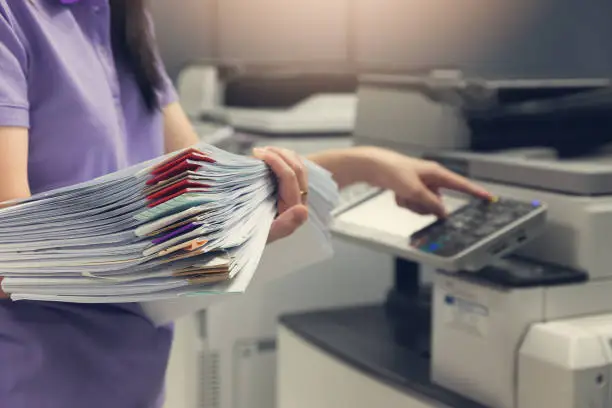
    Printing back to back, also known as double-sided printing, allows you to print on both sides of a sheet of paper. This method helps save paper, reduce printing costs, and create professional-looking documents. Learning how to print back to back can make reports, assignments, booklets, and other documents more efficient and easier to handle.

    1. Table of Contents

      Toggle
      • Check if Your Printer Supports Duplex Printing
      • Open the Print Settings
      • Enable Double-Sided Printing
      • Print Manually if Necessary
      • Check the Finished Document

      Check if Your Printer Supports Duplex Printing

    Many modern printers have an automatic duplex feature that prints on both sides of the paper.

    Check your printer’s specifications or settings before printing.

    • Confirm duplex printing support
    • Ensure the printer is connected properly
    • Load enough paper into the tray
    1. Open the Print Settings

    After preparing your document, select the print option from the application you are using.

    Access the printer settings before starting the print job.

    • Click File and then Print
    • Select the correct printer
    • Open printer preferences or settings
    1. Enable Double-Sided Printing

    Look for an option labeled “Print on Both Sides,” “Duplex Printing,” or “Double-Sided Printing.”

    Enable this feature before printing.

    • Select the double-sided option
    • Choose the preferred page orientation
    • Review the print preview if available
    1. Print Manually if Necessary

    If your printer does not support automatic duplex printing, you can print odd-numbered pages first and then reinsert the paper to print the even-numbered pages.

    Follow your printer’s instructions carefully.

    • Print one side first
    • Reinsert the pages correctly
    • Print the remaining pages
    1. Check the Finished Document

    Once printing is complete, review the pages to ensure they are in the correct order and orientation.

    This helps identify any issues before distributing or submitting the document.

    • Check page sequence
    • Confirm text is not upside down
    • Verify print quality on both sides

    Also Read: How to Write an Interview Dialogue

    Email your news TIPS to Editor@Kahawatungu.com — this is our only official communication channel

    Follow on Facebook Follow on X (Twitter)
    Share. Facebook Twitter WhatsApp LinkedIn Telegram Email
    Damaris Gatwiri

    Damaris Gatwiri is a digital journalist, driven by a profound passion for technology, health, and fashion.

    Related Posts

    How Long Do Beans Take to Grow

    June 4, 2026

    How Does Scan to Pay Work

    June 4, 2026

    How to Respond to “Happy Birthday”

    June 4, 2026

    Comments are closed.

    Latest Posts

    42-Year-old man electrocuted while using electric drill in Bungoma

    June 4, 2026

    Alliance High School Sends Students Home After Dormitory Incident

    June 4, 2026

    Maranda High School to Reopen for Form Four Students Following Unrest

    June 4, 2026

    SHA Appoints Winfred Nduku Nthiani as Assistant Director for Corporate Communication

    June 4, 2026

    EACC Summons 35 Narok MCAs

    June 4, 2026

    Four killed, 15 injured after matatu overturns along Enterprise Road

    June 4, 2026

    Who Is Kevin Sobieski? Inside Andy Cohen’s Rumored Boyfriend and His Low-Key Private Life

    June 4, 2026

    How Long Do Beans Take to Grow

    June 4, 2026
    Facebook X (Twitter) Instagram Pinterest
    © 2026 Kahawatungu.com. Designed by Okii.

    Type above and press Enter to search. Press Esc to cancel.