

How to Check Balance on RCS Card

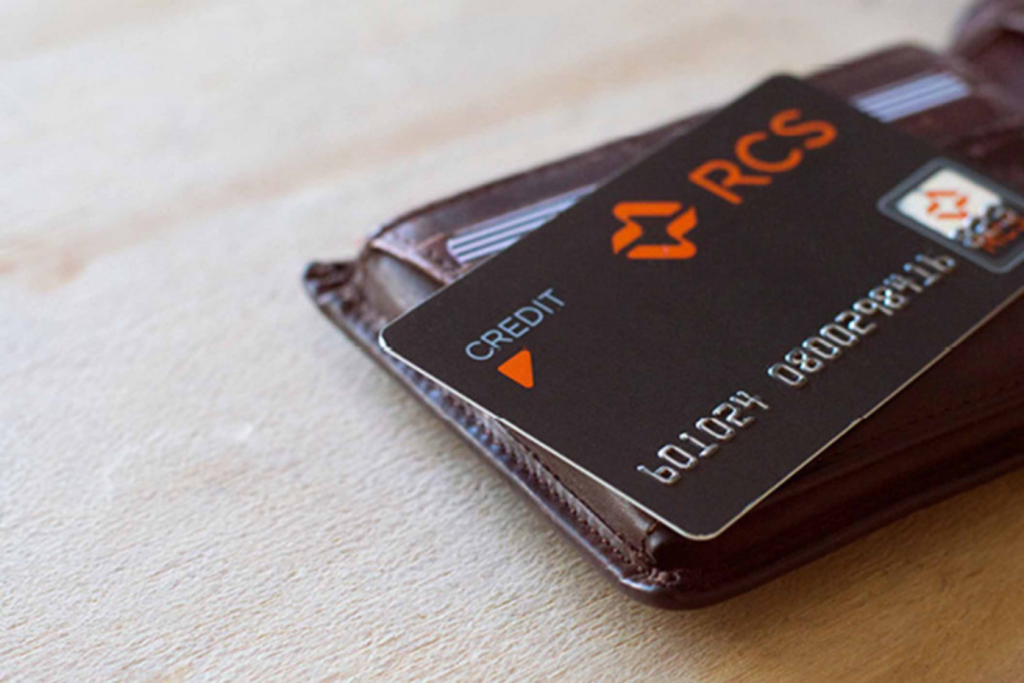
Knowing how to check balance on RCS card is useful when you want to keep track of your available credit, outstanding amount, or recent transactions. RCS cardholders can check their account information through available RCS digital and customer service channels. Keeping track of your balance helps you manage spending and avoid exceeding your available credit.
-
Check Your RCS Account Online
Start by accessing the RCS online account service using your cellphone, tablet, or computer.
Sign in with your registered account details to view your card information.
- Open the RCS online account service
- Enter your login details
- Access your card account
-
Use the RCS Mobile App if Available
If you have the RCS mobile application installed on your smartphone, open the app and sign in.
Look for the section displaying your card balance or available credit.
- Open the RCS app
- Sign in securely
- Select your card account
-
Check Your Available Credit
Once you access your RCS account, look for information such as Available Credit, Current Balance, or Outstanding Balance.
The available credit shows how much you can still spend, while the outstanding balance shows the amount currently owed.
- Check your available credit
- Review your current balance
- Check your outstanding amount
-
Review Your Recent Transactions
Open your transaction history to see recent purchases, payments, and other activity on your RCS card.
Reviewing transactions can help you identify how your available credit has changed.
- Open transaction history
- Review recent purchases
- Check recent payments
-
Contact RCS Customer Service
If you cannot access your balance online or through the app, contact RCS customer service for assistance.
You may need to verify your identity before the consultant can provide account information.
- Contact RCS customer service
- Provide the requested account information
- Complete identity verification
Also Read: How to Charge Apple Pencil

