


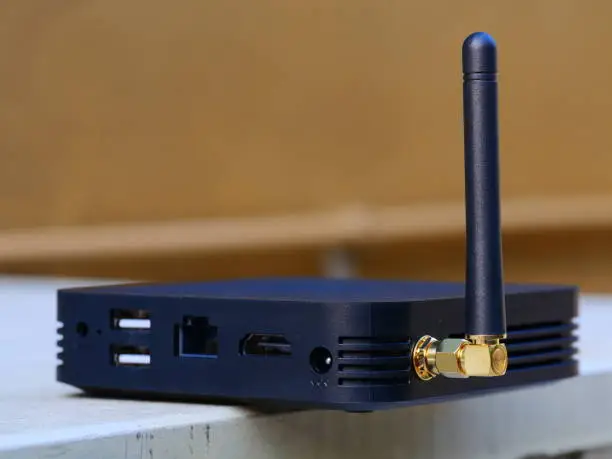
Connecting your TV box to Wi-Fi allows you to stream movies, watch live channels, browse the internet, and access apps like Netflix or YouTube without relying on cables. Most modern Android TV boxes and smart set-top boxes come with built-in Wi-Fi support, making the setup quick and simple. Here is a detailed guide on how to connect your TV box to Wi-Fi properly and ensure a stable internet connection.
- Understanding Your TV Box
A TV box, sometimes called an Android TV box or smart TV box, is a small device that connects to your television through an HDMI cable. It turns an ordinary TV into a smart one by allowing you to access apps, stream content, and browse online. Before connecting to Wi-Fi, confirm that your TV box supports wireless connectivity. If it does not, you may need a USB Wi-Fi adapter or use a wired Ethernet connection instead.
- Requirements Before You Connect
Before setting up the Wi-Fi connection, make sure that:
- Your Wi-Fi router is switched on and broadcasting a strong signal.
- You know your Wi-Fi network name (SSID) and password.
- Your TV box is powered on and connected to your TV using an HDMI cable.
- The remote control or input device is working properly.
These preparations help make the connection process smooth and error-free.
- How to Connect a TV Box to Wi-Fi
- Turn on your TV and TV box.
Use the remote control to power on both devices and ensure the TV is set to the correct HDMI input channel. - Go to the Settings menu.
On your TV box’s home screen, look for the Settings icon (usually shaped like a gear) and select it. - Find the Network or Wi-Fi option.
In the settings menu, navigate to Network & Internet, Wi-Fi, or simply Network Settings—the wording varies depending on the device. - Enable Wi-Fi.
If Wi-Fi is turned off, toggle it on. Your TV box will begin scanning for available networks. - Select your Wi-Fi network.
From the list of detected networks, choose your home Wi-Fi name (SSID). - Enter your Wi-Fi password.
Use the on-screen keyboard or remote control to type in your Wi-Fi password carefully, ensuring that uppercase and lowercase letters are correct. - Connect to the network.
After entering the password, select Connect or OK. Wait a few seconds while your TV box establishes a connection. - Test the connection.
Once connected, open an app such as YouTube or Netflix to confirm that the internet is working.
- Connecting a TV Box via Ethernet Cable (Optional)
If your Wi-Fi signal is weak or unstable, you can use a wired connection instead. Plug one end of an Ethernet cable into your TV box’s LAN port and the other into your router. Most boxes automatically detect and connect to the internet without needing further setup. Wired connections often provide faster and more stable speeds than Wi-Fi.
- Troubleshooting Common Issues
If you experience problems connecting your TV box to Wi-Fi, try the following:
- Check your password: Ensure it is entered correctly with the right capitalization.
- Restart your router and TV box: A simple reboot can often fix connectivity issues.
- Move closer to the router: Weak signal strength can cause the connection to fail.
- Forget and reconnect: In the Wi-Fi settings, select your network, choose “Forget,” and then reconnect.
- Update firmware: Outdated software may cause Wi-Fi errors. Go to system settings and check for updates.
If the issue persists, try connecting to another Wi-Fi network or use a wired Ethernet cable.
- Tips for a Stronger Wi-Fi Connection
To maintain a smooth streaming experience, follow these suggestions:
- Place your router in an open area near the TV box.
- Avoid obstructions such as walls or furniture between the router and TV box.
- Reduce the number of devices connected to the same Wi-Fi network.
- Use a dual-band router (2.4GHz and 5GHz) for better performance.
- Confirming Successful Connection
Once your TV box is connected to Wi-Fi, you should see a Wi-Fi icon or a Connected status in the network settings. Apps and streaming services should now load content without interruption.
Also Read: How To Clean Pewter
Email your news TIPS to Editor@Kahawatungu.com — this is our only official communication channel
