


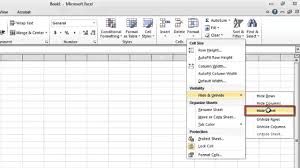
If you’re working on an Excel file and want to keep some data or sheets out of sight without deleting them, hiding the worksheet is a useful option. This helps organize your workbook, reduce clutter, or protect sensitive information while keeping the data intact. Here is how to hide a worksheet in Excel.
- Open Your Excel Workbook
Begin by launching your Excel file and navigating to the worksheet you want to hide. Ensure that the sheet you’re trying to hide is not the only one visible—Excel requires at least one sheet to remain open. - Right-Click the Sheet Tab
At the bottom of your Excel window, you’ll see tabs for each worksheet. Find the tab of the worksheet you want to hide, right-click on it, and a menu will appear with several options. - Select “Hide” from the Menu
Click on the “Hide” option in the menu. The worksheet will disappear from view, but it won’t be deleted. All the data remains stored in the background of the workbook. - To Unhide the Worksheet
If you later want to view the hidden sheet again, right-click on any of the visible sheet tabs, then select “Unhide.” A pop-up box will appear showing a list of all hidden sheets. Select the one you want to restore and click “OK.” - Use the Ribbon Method (Alternative Option)
If you prefer using the top menu, click on the worksheet you want to hide. Then go to the “Home” tab, click “Format” under the “Cells” group, and choose “Hide & Unhide,” followed by “Hide Sheet.” This will also hide the selected worksheet. - Hiding Sheets with VBA (Advanced Option)
For an extra level of hiding (where the sheet doesn’t appear even in the Unhide menu), press Alt + F11 to open the VBA editor, select the sheet in the left-hand panel, and set its Visible property to xlSheetVeryHidden. This is useful for protecting sheets you don’t want easily accessed. - Protect Hidden Sheets
If you want to prevent others from unhiding the worksheet, consider protecting the workbook with a password. Go to the “Review” tab and click “Protect Workbook.” This adds a layer of security to your hidden data.
Also Read: How To Give Yourself A Hickey
Email your news TIPS to Editor@Kahawatungu.com — this is our only official communication channel
