


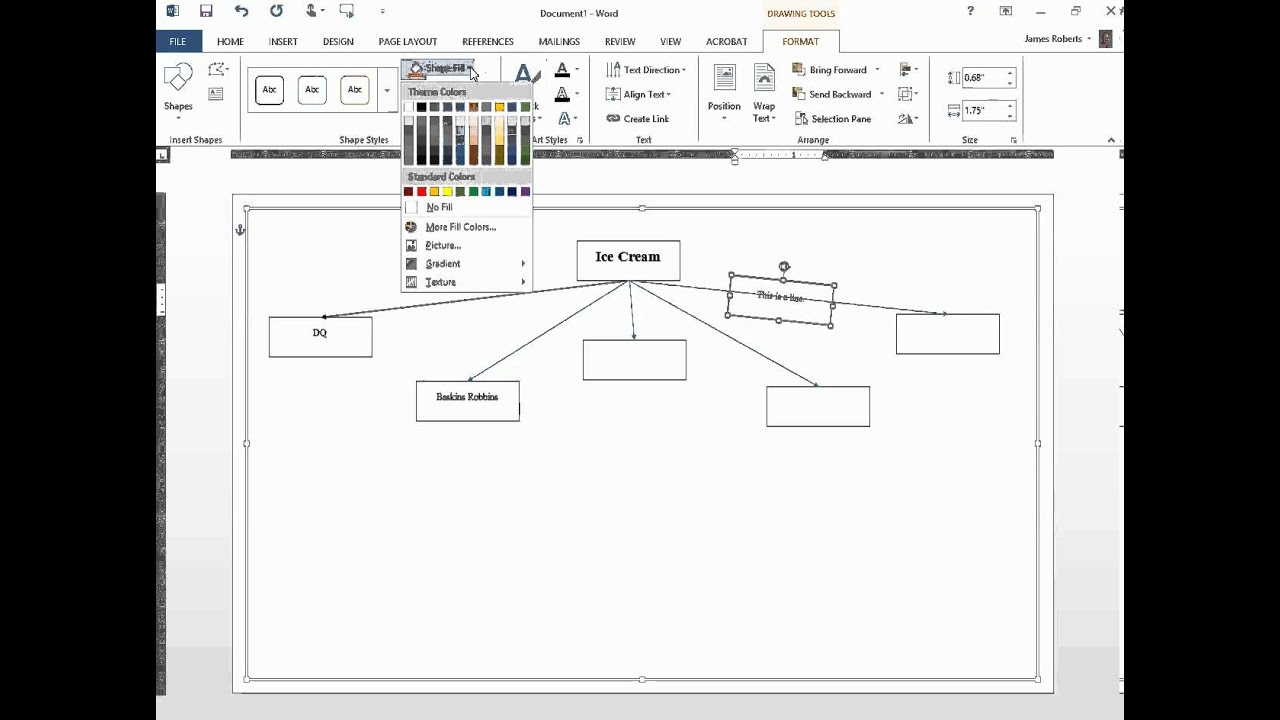
Creating a mind map in Microsoft Word is a useful way to organise thoughts, brainstorm ideas, or plan content for assignments, projects, or presentations. A mind map visually connects information around a central topic, helping you understand and remember concepts better. Word has built-in tools that make it easy to draw shapes, connect lines, and customise your layout. Here is how to make a mind map in Word.
- Open a Blank Document
Start by launching Microsoft Word and opening a new blank document. Make sure your page layout is set to landscape if you want extra space to work with. You can do this by clicking on the “Layout” tab and selecting “Orientation,” then choosing “Landscape.” - Insert the Central Idea
Click on the “Insert” tab at the top of the screen and select “Shapes.” Choose a shape like an oval or rectangle to represent your main idea. Click and drag on the page to draw the shape in the centre. Double-click inside the shape to type your main topic, such as “Healthy Living” or “School Project.” - Add Branches for Key Ideas
To add branches, go back to the “Insert” tab and select more shapes. Use lines or arrows to draw connections from your central idea to new shapes representing related subtopics. For example, if your main topic is “School Project,” your branches might include “Research,” “Materials,” and “Deadline.” - Insert Subtopics and Details
From each subtopic, you can add more branches and shapes to include supporting details. For example, under “Research,” you could add “Books,” “Websites,” and “Interviews.” Continue using lines or arrows to connect everything in a logical, easy-to-follow structure. - Customise the Design
You can make your mind map more visually appealing by changing the colours, fonts, and sizes of the shapes. Right-click on any shape or line and choose “Format Shape” to adjust colours, add shadows, or change the outline. You can also use different font styles and sizes to highlight important points or separate sections. - Organise and Rearrange
Word allows you to click and drag your shapes and lines to reposition them. Move things around to make your map clearer and more balanced. Group related items close together and keep enough space between different sections to avoid clutter. - Save and Print
Once your mind map is complete, save your document by clicking “File” and then “Save As.” You can print it or share it digitally depending on your needs.
Also Read: How To Maintain Discipline In The Classroom
Email your news TIPS to Editor@Kahawatungu.com — this is our only official communication channel
