


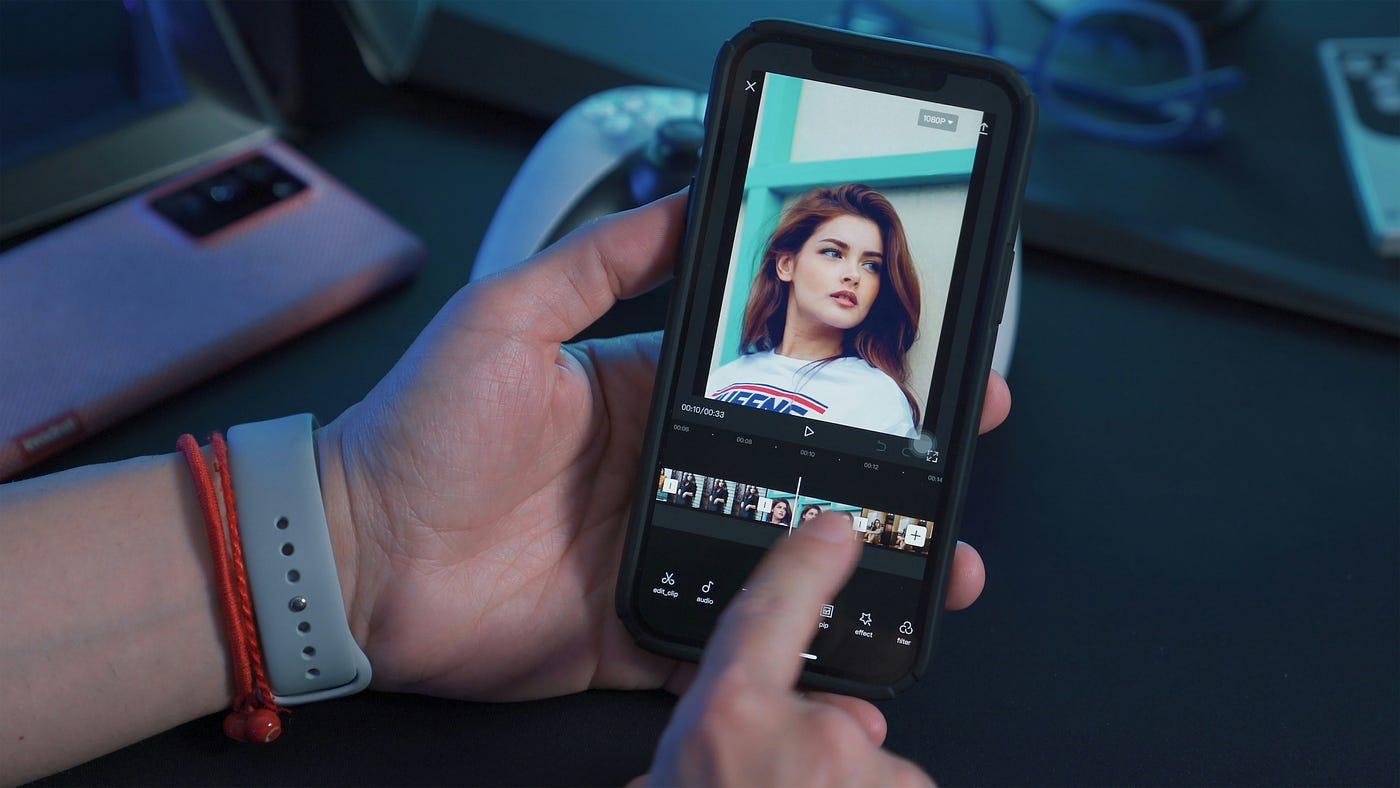
CapCut is a popular video editing app that offers a variety of features, including the ability to create smooth slow-motion videos. Whether you want to slow down an action sequence or add a dramatic effect to your content, CapCut makes it easy to adjust video speed with precision. Below is a step-by-step guide to help you on how to make a slow-motion videos on CapCut.
Step 1: Download and Open CapCut
If you haven’t already installed CapCut, download it from the Google Play Store (for Android) or Apple App Store (for iPhone). Once installed, open the app and tap “New Project” to start editing.
Step 2: Import Your Video
Choose the video you want to edit from your phone’s gallery. CapCut will load it into the timeline, where you can make adjustments. If you want to slow down only a portion of the video, consider trimming the clip before applying the slow-motion effect.
Step 3: Select the Speed Option
Tap on the video clip in the timeline to bring up editing options. From the toolbar at the bottom, select “Speed” to access speed controls.
Step 4: Choose Between Normal and Curve Speed
CapCut provides two options for adjusting speed:
- Normal Speed: Allows you to slow down or speed up the entire clip evenly.
- Curve Speed: Lets you create smooth speed variations by adjusting different points along a curve.
For simple slow motion, use Normal Speed. If you want gradual transitions in speed, use Curve Speed for a more professional look.
Step 5: Adjust the Speed
In Normal Speed, you will see a slider ranging from 0.1x to 100x. To create slow motion, drag the slider to the left (e.g., 0.5x slows the video by 50%).
If using Curve Speed, select a preset like “Bullet” or “Montage”, or customize the curve to control how the speed changes over time.
Step 6: Apply Motion Blur for Smoothness
When you slow down a video, it may look choppy. To fix this, apply motion blur:
- Tap “Effects” in the toolbar
- Go to “Video Effects” and select “Motion Blur”
- Adjust the blur strength and number of frames for smoother playback
Step 7: Export the Video
Once satisfied with your slow-motion effect, tap “Export” in the top right corner. Choose the resolution (e.g., 1080p or 4K) and frame rate (preferably 60fps for smoother slow motion). After exporting, your video will be saved to your device’s gallery, ready for sharing.
Tips
- Use high frame rate videos (e.g., 60fps or 120fps) for the best slow-motion effect
- Combine slow motion with music to enhance the cinematic feel
- Avoid excessive slowing (below 0.3x) unless using high-frame-rate footage, as it may cause lag
Also Read: How To Make Money On Twitter
Email your news TIPS to Editor@Kahawatungu.com — this is our only official communication channel
