

How to Refresh Google Maps

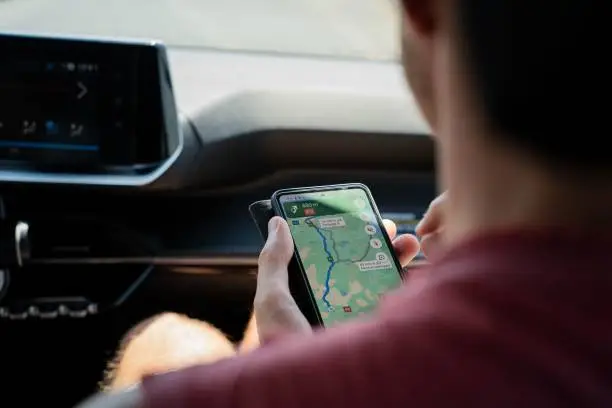
Knowing how to refresh Google Maps helps you update your location, load the latest map information and correct navigation problems. If Google Maps is showing an outdated location, displaying incorrect directions or failing to load nearby places, refreshing the application can help. Whether you use an Android phone or an iPhone, you can follow a few simple methods to refresh Google Maps.
-
Refresh Google Maps by Restarting the App
One of the easiest ways to refresh Google Maps is to close and reopen the application.
Follow these instructions:
- Open your phone’s recent apps menu.
- Find Google Maps.
- Swipe it away to close the application.
- Return to your home screen.
- Open Google Maps again.
- Wait for the map to load.
This can help resolve temporary loading problems and update the information displayed on your screen.
-
Refresh Google Maps by Reloading the Map
You can also refresh the map by moving around the screen.
- Open Google Maps on your phone.
- Make sure your internet connection is active.
- Zoom out slightly using two fingers.
- Move the map to another area.
- Return to your preferred location.
- Wait for the map details to load.
This can help Google Maps retrieve information for the area you are viewing.
-
Refresh Your Current Location
If Google Maps is showing the wrong location, you can refresh your position.
- Open Google Maps.
- Tap the location button, usually shown as a circular target icon.
- Allow the application to access your phone’s location.
- Wait for the blue location dot to appear.
- Check whether the displayed position is accurate.
If the location is still incorrect, turn your phone’s location services off and back on.
-
Refresh Google Maps on an iPhone
iPhone users can refresh Google Maps by following these steps:
- Open the App Switcher.
- Find the Google Maps application.
- Swipe upwards to close it.
- Reopen Google Maps.
- Tap the location icon to update your current position.
Ensure that Location Services are enabled under your iPhone’s Privacy and Security settings.
-
Clear Google Maps Cache on Android
If Google Maps continues displaying outdated information, clearing its cache may help.
- Open your phone’s Settings.
- Select Apps or Applications.
- Find and tap Google Maps.
- Select Storage and Cache.
- Tap Clear Cache.
- Reopen Google Maps.
Avoid selecting Clear Data unless you understand that it may remove locally stored application information.
-
Update Google Maps
An outdated application may experience loading and navigation problems.
- Open Google Play Store or Apple App Store.
- Search for Google Maps.
- Check whether an update is available.
- Tap Update.
- Open the application after installation.
Also Read: How to Refresh Laptop Drivers

