

How to Screen Record with Sound on iPhone

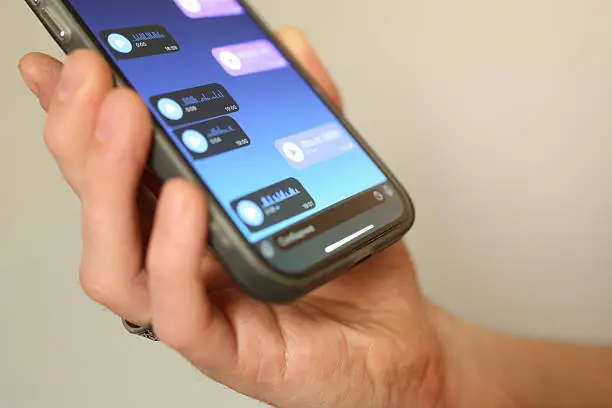
Screen recording on an iPhone is a useful feature that allows you to capture videos of your screen for tutorials, gameplay, or sharing important information. Adding sound makes your recordings even more effective, especially when explaining something or recording audio from your device. Learning how to screen record with sound on iPhone helps you create clear and complete recordings with both visuals and audio. With a few simple steps, you can start recording.
-
Enable Screen Recording in Control Center
Before you begin, make sure the screen recording feature is added to your Control Center.
Go to Settings, then Control Center, and add “Screen Recording” if it is not already included.
- Open Settings
- Go to Control Center
- Add Screen Recording
-
Open Control Center
Swipe down from the top-right corner of your screen (or up from the bottom on older iPhones) to open the Control Center.
Locate the screen recording icon.
- Access Control Center
- Find the recording button
- Prepare to start recording
-
Turn on Microphone Audio
To record sound, press and hold the screen recording icon. A menu will appear with the option to turn on the microphone.
Tap the microphone icon to enable audio recording.
- Press and hold the record icon
- Tap microphone to turn it on
- Confirm microphone is active
-
Start Recording
Tap “Start Recording” and wait for the countdown to begin. Your iPhone will start recording everything on the screen along with sound.
Make sure to stay on the screen you want to record.
- Tap start recording
- Wait for countdown
- Perform actions you want to capture
-
Stop and Save the Recording
When you are done, tap the red status bar at the top of the screen or open Control Center and press the stop button.
The video will automatically be saved to your Photos app.
- Tap stop recording
- Save automatically to Photos
- Review your video
Also Read: How to Scan a Document on a Canon Printer