

How to Turn Off Parental Controls

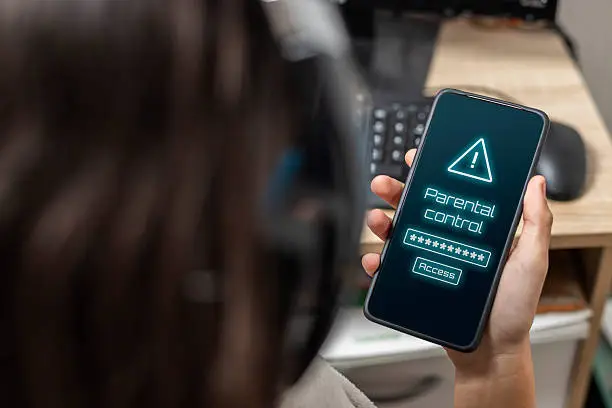
Parental controls are useful tools that help manage screen time, restrict content, and monitor device usage. However, there may come a time when you need to disable these settings, especially on your own device or with permission from the account owner. Learning how to turn off parental controls can help restore full access to apps, websites, or device features. The exact process may vary depending on the device or platform being used.
-
Identify the Device or Platform
Parental controls can be set on phones, tablets, computers, gaming consoles, or streaming services.
Knowing where the controls were activated is the first step.
- Check the device settings
- Identify the app or service involved
- Confirm the account being used
-
Access the Settings Menu
Open the settings section of the device or application where parental controls are enabled.
Look for options related to family, restrictions, or screen time.
- Open settings on the device
- Navigate to parental control options
- Select the correct account
-
Enter the Password or PIN
Most parental controls are protected by a password, PIN, or linked account verification.
You will usually need authorization to make changes.
- Enter the required PIN or password
- Verify your identity if prompted
- Use the correct parent or administrator account
-
Disable the Restrictions
Once you access the parental controls section, turn off the restrictions you no longer need.
Some systems allow you to disable all controls at once.
- Switch off parental controls
- Remove content restrictions if needed
- Save the updated settings
-
Restart and Confirm Changes
After disabling the controls, restart the device or app if necessary.
Check that the restrictions have been removed successfully.
- Restart the device if required
- Test blocked apps or websites
- Confirm unrestricted access
Also Read: How to Treat Dog Mange Home Remedy