


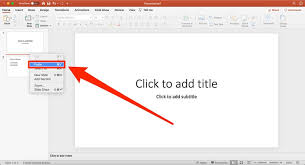
Duplicating slides in PowerPoint is a simple and efficient way to reuse content, maintain formatting, and speed up your presentation design. Whether you’re working on a business pitch or a school project, duplicating slides helps maintain consistency without starting from scratch.
Why Duplicate a Slide?
Duplicating a slide allows you to make changes to a copy without affecting the original. It’s useful when you need multiple slides with similar layouts, designs, or content but want to adjust each one slightly. This method also ensures uniformity in font, color, and structure.
Steps to Duplicate a Slide
Using Right-Click Method
- Open your PowerPoint presentation.
- In the slide navigation pane on the left, locate the slide you want to duplicate.
- Right-click on that slide.
- From the menu that appears, click “Duplicate Slide”.
- A copy of the slide will appear directly below the original.
Using Keyboard Shortcut
For quicker action:
- Click on the slide you want to duplicate.
- Press Ctrl + D (Windows) or Command + D (Mac).
- The duplicated slide will instantly appear.
Tips for Organizing Duplicated Slides
- After duplication, drag the new slide to where you want it in the sequence.
- Rename slide titles to reflect their updated purpose.
- Modify the content in the duplicated slide as needed without affecting the original.
When to Use This Feature
- Creating a consistent design across sections.
- Repeating slides with updated figures or text.
- Making variations of a key message without reformatting.
Also Read: How To Drive A Forklift
Email your news TIPS to Editor@Kahawatungu.com — this is our only official communication channel
