
Close Menu
    Facebook X (Twitter) Instagram
    Facebook X (Twitter) Instagram
    KahawatunguKahawatungu
    Button
    • NEWS
    • BUSINESS
    • KNOW YOUR CELEBRITY
    • POLITICS
    • TECHNOLOGY
    • SPORTS
    • HOW-TO
    • WORLD NEWS
    KahawatunguKahawatungu
    HOW-TO

    How To Insert Watermark In Excel

    Damaris GatwiriBy Damaris GatwiriJune 14, 2025No Comments2 Mins Read
    Facebook Twitter WhatsApp Telegram Email
    How To Insert Watermark In Excel
    How To Insert Watermark In Excel
    Share
    Facebook Twitter WhatsApp Telegram Pinterest Email Copy Link

    A watermark in Excel is useful for marking a spreadsheet as confidential, draft, or for branding purposes. Unlike Word, Excel doesn’t have a direct watermark feature, but you can still add one using the header or a background image. Here’s how to insert a watermark in Excel easily.

    1. Open Your Excel Workbook
      Start by opening the spreadsheet where you want to insert the watermark. Choose the specific worksheet if your file contains multiple sheets.
    2. Go to Insert Tab and Click Header & Footer
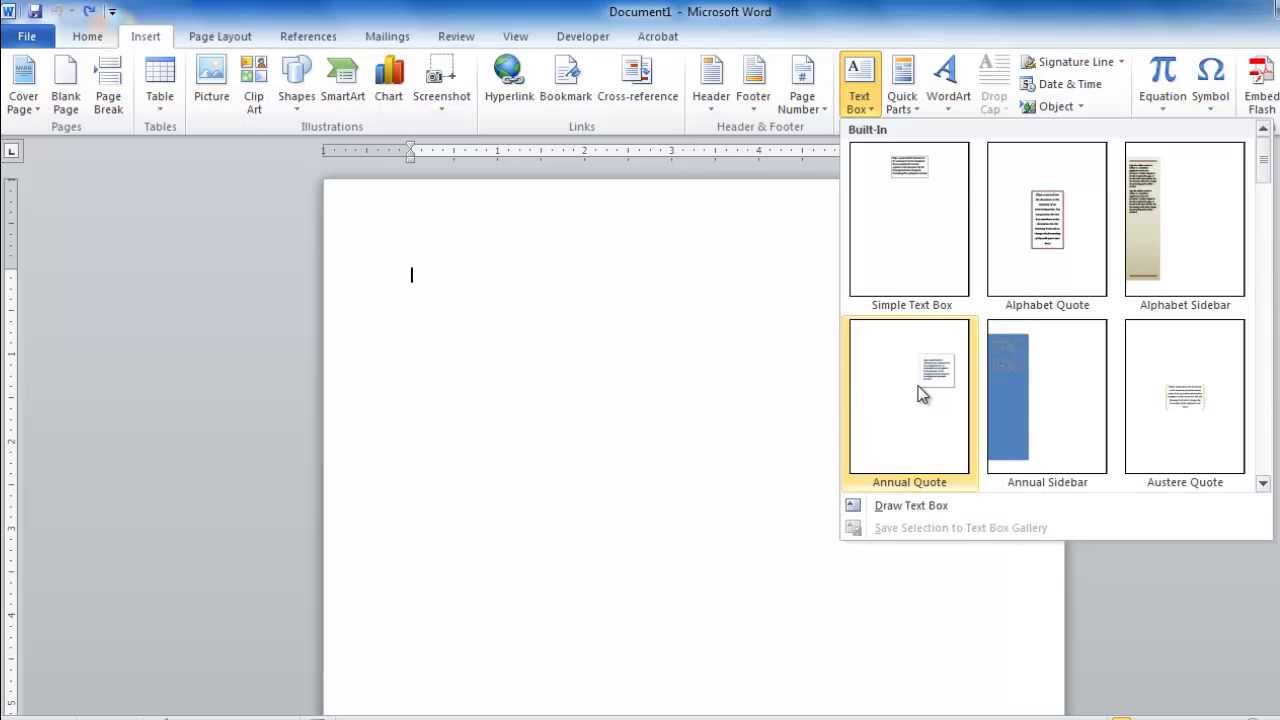
      Click the Insert tab at the top menu. In the Text group, click on Header & Footer. Excel will switch to Page Layout view and display the header area at the top of the sheet.
    3. Click in the Center Section of the Header
      Once you’re in Header & Footer Tools, click inside the center header box. Then, go to the Header & Footer Elements group on the ribbon and click Picture.
    4. Select Your Watermark Image
      You’ll be prompted to choose a picture from your device, Bing, or OneDrive. Select the image you want to use as a watermark, such as a logo or “Confidential” stamp.
    5. Format the Watermark Image
      After inserting, you’ll see a placeholder code like &[Picture]. Click anywhere outside the header to see the watermark in the background. To resize or adjust the transparency:
    • Click Header & Footer Tools > Format Picture
    • Adjust the size, brightness, contrast, and set transparency under Picture tab > Picture Corrections Options
    1. Switch Back to Normal View
      If you prefer working in Normal view after adding the watermark, go to View and select Normal. The watermark will not be visible in normal view but will appear in Page Layout or when printed.
    2. Add a Watermark as Sheet Background (Alternative Method)
      Another method is to use Page Layout > Background:
    • Click Page Layout, then choose Background
    • Insert an image to display as the sheet’s background
      Note: This method shows the watermark on-screen but does not print it.

    Also Read: How To Handle Objections In Sales

    Email your news TIPS to Editor@Kahawatungu.com — this is our only official communication channel

    Follow on Facebook Follow on X (Twitter)
    Share. Facebook Twitter WhatsApp LinkedIn Telegram Email
    Damaris Gatwiri

    Damaris Gatwiri is a digital journalist, driven by a profound passion for technology, health, and fashion.

    Related Posts

    How To Dress A Newborn In Summer

    December 20, 2025

    How To Draw Waves

    December 20, 2025

    How To Draw Vegeta And Goku

    December 20, 2025

    Comments are closed.

    Latest Posts

    Police trace Jirongo’s last movements, raid city hotel he visited

    December 21, 2025

    US has pledges of up to 7,500 security personnel for Haiti, Rubio says

    December 21, 2025

    Bowen Yang to depart SNL mid-season, last episode with buddy Ariana Grande

    December 21, 2025

    Afcon to be held every four years from 2028

    December 21, 2025

    Imran Khan and wife given further jail terms after state gift fraud case

    December 21, 2025

    Top Catering Trends and Tips in Sydney: A Delicious Guide for Every Occasion

    December 21, 2025

    Discover the Allure of Luxury Holiday Homes: 12 Inspiring Ideas for Your Next Escape

    December 21, 2025

    The Complete Guide to Wedding Rings: How to Choose, Care For, and Celebrate Your Symbol of Love

    December 21, 2025
    Facebook X (Twitter) Instagram Pinterest
    © 2025 Kahawatungu.com. Designed by Okii.

    Type above and press Enter to search. Press Esc to cancel.