


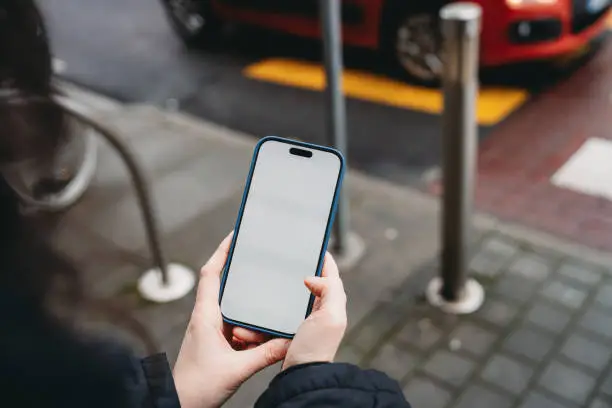
Blurring the background in photos makes your subject stand out and gives your pictures a professional, portrait-like look. iPhones have built-in features that allow you to achieve this easily, either through the Camera app or by editing your photos afterward. Whether you’re taking selfies, portraits, or product photos, learning how to blur the background on your iPhone can instantly improve your photography skills. Here is how to blur background on iPhone.
- Use Portrait Mode in the Camera App
The easiest way to blur the background on an iPhone is by using Portrait Mode, which is available on most models from the iPhone 7 Plus and newer. Open the Camera app and swipe to select Portrait. Position your subject about two to eight feet away and wait for the “Natural Light” or “Depth Effect” label to appear on the screen. Once it does, tap the shutter button to take the picture. The background will automatically blur, while your subject stays sharp and clear. - Adjust Blur After Taking a Portrait Photo
If you’ve already taken a picture in Portrait Mode, you can still control how much blur you want. Open the Photos app, select the portrait photo, and tap Edit. At the top of the screen, tap the f-stop (f) icon to adjust the depth of field. Sliding it to a lower number (like f/2.0) increases the blur, while a higher number (like f/16) makes the background sharper. This gives you full control over how soft or dramatic the blur appears. - Blur the Background in a Regular Photo
If your photo wasn’t taken in Portrait Mode, you can still blur the background using editing tools or apps. Open the picture in Photos, tap Edit, and use the built-in filters to slightly soften the background. For more precise control, download apps such as Snapseed, AfterFocus, or Focos. These apps allow you to manually select the subject and blur the rest of the image, giving you a similar effect to Portrait Mode. - Use the Focos App for Advanced Blurring
The Focos app is a popular option for iPhone users who want DSLR-style blur effects. Once you import a photo, the app automatically detects depth and allows you to adjust focus points and blur intensity. You can even change the focus area after taking the photo or apply artistic bokeh effects, giving your pictures a professional touch. - Blur Background in Videos
For videos, newer iPhones such as the iPhone 13 and above offer Cinematic Mode, which automatically blurs the background while recording. Open the Camera app, swipe to Cinematic, and start filming. The iPhone will focus on the subject and blur everything else, similar to how Portrait Mode works for photos. You can also edit the focus later in the Photos app after recording. - Use Third-Party Video Editing Apps
If your iPhone does not support Cinematic Mode, apps like CapCut, InShot, or VN Editor can help you blur video backgrounds manually. These apps let you select your subject and apply blur effects to the rest of the frame, perfect for social media videos or tutorials. - Keep Lighting and Framing in Mind
Good lighting and framing make a big difference when using blur effects. Make sure your subject is well-lit and clearly separated from the background. Avoid busy or cluttered backgrounds, as this helps the blur effect look more natural and enhances the overall image quality.
Also Read: How To Block People From Wi-Fi
Email your news TIPS to Editor@Kahawatungu.com — this is our only official communication channel
