


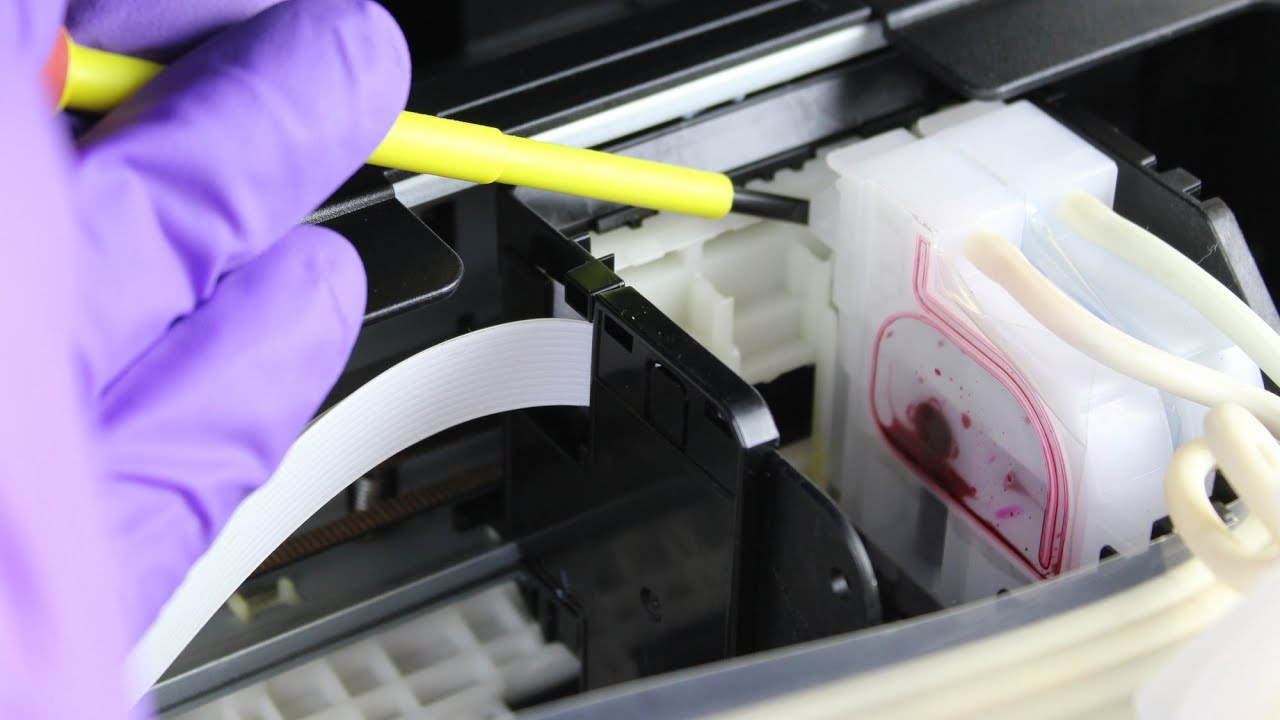
Epson printers are known for their quality, but sometimes ink can dry inside the print head, causing streaks, faded colors, or missing lines when printing. Cleaning the print head helps restore proper ink flow and improves print quality. There are different ways to clean the print head depending on how clogged it is. Below is a simple guide on how to clean an Epson printer head safely at home.
- Use the Printer’s Built-In Cleaning Feature
Most Epson printers come with a nozzle cleaning option. Go to the printer menu on the device screen or computer. Select “Maintenance” or “Printer Settings” and choose “Head Cleaning”. Allow the printer to run the cleaning cycle, which forces ink through clogged nozzles. This is the easiest and safest method. - Print a Nozzle Check Pattern
After the cleaning cycle, choose “Nozzle Check” to test the quality. The printer will print a pattern with thin lines. If lines are missing or broken, run the cleaning again. It is normal to repeat this two or three times. Avoid too many cycles in a row to prevent excess ink usage. - Clean the Print Head From a Computer
If the cleaning button is not visible on the printer panel, open the Epson Printer Utility on your computer. Click on “Head Cleaning” and follow instructions. This performs the same task but gives you more control over the process and testing printouts. - Replace Low or Empty Cartridges
Clogs can happen when ink levels are too low. Check the cartridge status and replace any that are nearly empty before cleaning again. Fresh ink helps flush blockages faster and prevents air from entering the print head. - Perform a Deep Cleaning Cycle
If the problem continues, choose “Power Cleaning” or “Deep Cleaning” in the maintenance menu. This uses more ink but removes heavier clogs. After completing the deep clean, let the printer rest for a few hours so ink can settle into the nozzles properly. - Clean the Print Head Manually (Only When Necessary)
If automatic cleaning does not work, you can remove the cartridges and clean manually. Use a lint-free cloth dampened with distilled water or a special print head cleaning solution. Gently clean around the area where the ink flows out. Do not use force or touch the electronic parts, as this may cause damage. - Print a Test Page
Once cleaning is done, print a colored image or document to check improvement. If the print quality is back to normal, the print head is successfully cleaned.
Also Read: How To Clean A Mouse Pad
Email your news TIPS to Editor@Kahawatungu.com — this is our only official communication channel
