


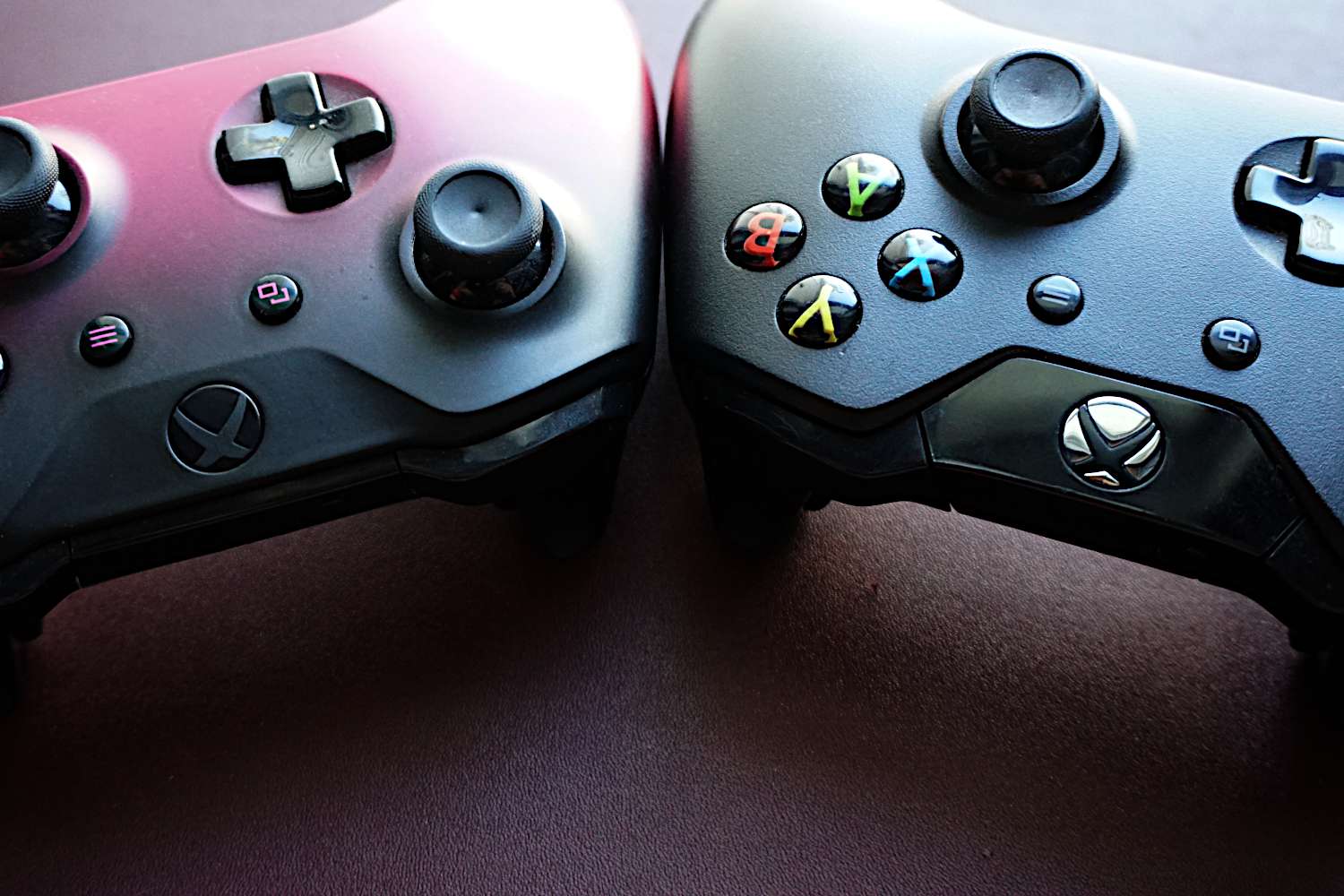
Connecting your Xbox controller to your smartphone can make gaming much more enjoyable, especially if you play mobile games or use cloud gaming services. Modern Xbox controllers are designed with Bluetooth, making it easy to pair them with Android or iPhone devices. Whether you want to play Xbox Cloud Gaming, Call of Duty Mobile, or other compatible games, here’s a simple guide on how to connect your Xbox controller to your phone.
- Check Compatibility
Before connecting, ensure your Xbox controller supports Bluetooth. Most Xbox Wireless Controllers released after 2016 are Bluetooth-enabled. You can identify them by looking at the plastic area around the Xbox button. If it’s part of the same body as the rest of the controller (not separated by glossy plastic), it supports Bluetooth.
Both Android phones and iPhones (iOS 13 or later) can connect to Bluetooth Xbox controllers. Make sure your phone’s software is updated to avoid connection issues.
- Prepare the Controller for Pairing
To make your controller discoverable, follow these steps:
- Turn on the controller by pressing the Xbox button until it lights up.
- Press and hold the Pair button (located on top near the USB port) until the Xbox button starts flashing rapidly.
This means the controller is now in pairing mode and ready to connect.
Keep it close to your phone for a stronger Bluetooth signal.
- Connect to an Android Phone
For Android users, connecting the controller is straightforward:
- Open your phone’s Settings and go to Bluetooth.
- Turn Bluetooth on if it’s off.
- Under Available devices, select Xbox Wireless Controller.
- When prompted, tap Pair.
Once connected, the Xbox button light will stop flashing and stay solid, indicating a successful connection.
You can now use your controller to navigate games, menus, and even some apps that support controller input.
- Connect to an iPhone
If you’re using an iPhone or iPad, make sure you’re running iOS 13 or later, as earlier versions don’t support Xbox controller pairing.
- Go to Settings > Bluetooth and turn Bluetooth on.
- On the list of available devices, tap Xbox Wireless Controller.
- When the controller light becomes steady, it means it’s paired successfully.
Now you can use it to play supported games from the App Store or Xbox Cloud Gaming through Safari or the Xbox app.
- Troubleshooting Connection Issues
If your controller doesn’t appear in the Bluetooth list or fails to connect, try these quick fixes:
- Turn Bluetooth off and on again on your phone.
- Restart your controller and phone.
- Unpair the controller from other devices (like your console or PC) before connecting to your phone.
- If still not working, reset the controller by turning it off and on again.
For older models, updating the controller’s firmware via an Xbox console or PC may improve compatibility.
- Using the Controller
Once connected, you can play compatible games or stream from Xbox Game Pass, Steam Link, or other gaming apps. Most games automatically detect the controller and adjust controls accordingly.
Some games may require you to adjust button mapping or sensitivity under controller settings within the game.
- Disconnecting or Reconnecting
To disconnect, simply turn off Bluetooth on your phone or press and hold the Xbox button until the light goes out.
When reconnecting later, turn Bluetooth back on and press the Xbox button; it should reconnect automatically if previously paired.
- Optional: Using a Mount
If you play often, consider getting a controller phone mount. It attaches your phone directly to the controller, making gaming more comfortable and portable.
Also Read: How To Clean A Throttle Body Without Removing It
Email your news TIPS to Editor@Kahawatungu.com — this is our only official communication channel
