


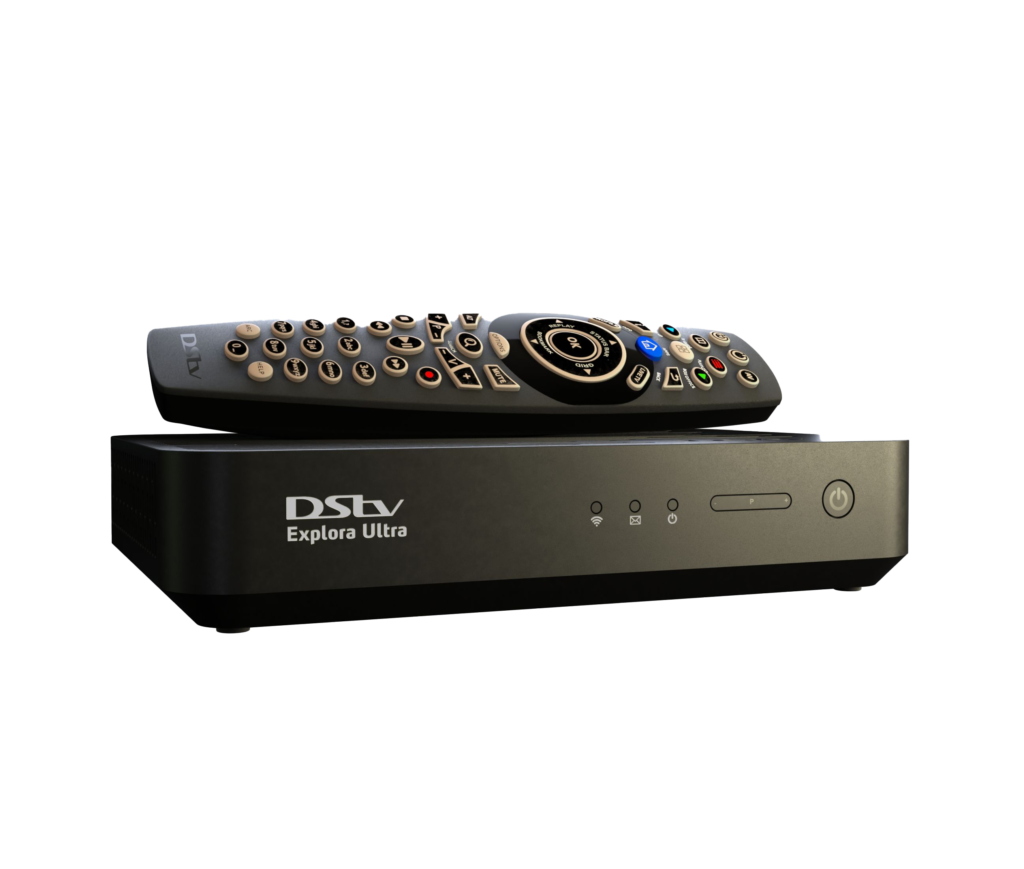
Connecting your TV to a DStv decoder allows you to access satellite channels, movies, sports, and entertainment with high-quality audio and video. Whether you are setting up a new decoder or reconnecting after moving, the process is straightforward. All you need are the right cables and a few minutes to get everything working perfectly.
- Understanding the DStv Decoder Connection
A DStv decoder receives a signal from a satellite dish and transmits it to your television. The connection can be made using an HDMI cable for high-definition (HD) output or an RCA (AV) cable for older televisions. Modern decoders such as the DStv Explora and HD Single View Decoder usually come with HDMI ports, while older TVs may require RCA cables.
Knowing which cable your devices support helps you connect correctly and enjoy the best possible picture and sound quality.
- Items You’ll Need
Before you begin, ensure you have:
- A DStv decoder (Explora, HD Single View, or other model)
- A TV set (Smart TV or standard television)
- An HDMI cable or RCA (red, white, and yellow) cable
- A satellite dish already installed and connected to the decoder
- The decoder remote control and power adapter
Once everything is ready, you can begin the setup process.
- How to Connect Using an HDMI Cable
- Switch off both devices.
Turn off your TV and DStv decoder before connecting the cables to avoid signal or hardware issues. - Insert the HDMI cable.
Plug one end of the HDMI cable into the HDMI OUT port at the back of your DStv decoder. - Connect the other end to your TV.
Insert the other end of the HDMI cable into the HDMI IN port on your TV. - Power on both devices.
Turn on your TV and decoder, then wait for the decoder to start up. - Select the HDMI input source.
On your TV remote, press the Source or Input button and choose the HDMI port you used. The DStv interface should now appear on your screen. - Check for signal.
If no picture appears, ensure the HDMI cable is properly inserted and that your TV is on the correct HDMI channel.
- How to Connect Using RCA (AV) Cables
For older TVs without HDMI ports, use the RCA (red, white, and yellow) cables instead.
- Turn off your devices.
Switch off the TV and DStv decoder before connecting. - Plug the RCA cables into the decoder.
Match each color to the corresponding port on the decoder:- Yellow: Video
- Red: Audio (right)
- White: Audio (left)
- Connect the cables to the TV.
Insert the same colored plugs into the AV IN ports at the back or side of your TV. - Switch on both devices.
Turn on the TV and DStv decoder. - Select the AV input.
On your TV remote, press Input, Source, or AV to choose the correct input channel. The DStv menu should now appear on the screen.
- Confirming the Connection
Once connected, you should see the DStv home screen or channel list. Use your decoder remote to navigate and ensure that sound and video are working correctly. If you see a “No Signal” message, check that the satellite cable (LNB cable) is properly connected to the decoder and that your dish is correctly aligned.
- Troubleshooting Common Problems
- No picture or sound: Verify the correct input source and check that cables are firmly plugged in.
- Poor picture quality: Use an HDMI cable for clearer images and sharper sound.
- Signal errors: Check your satellite dish connection and signal strength in the decoder’s settings.
- Remote not working: Replace the batteries and ensure the decoder’s front panel light blinks when pressing buttons.
- Final Setup Tips
Once your TV and decoder are connected, complete the on-screen setup by following prompts to activate your subscription or rescan for channels. For DStv Explora users, you can also connect to the internet to access Catch Up, BoxOffice, and other online features.
Also Read: How To Clean Pewter
Email your news TIPS to Editor@Kahawatungu.com — this is our only official communication channel
