


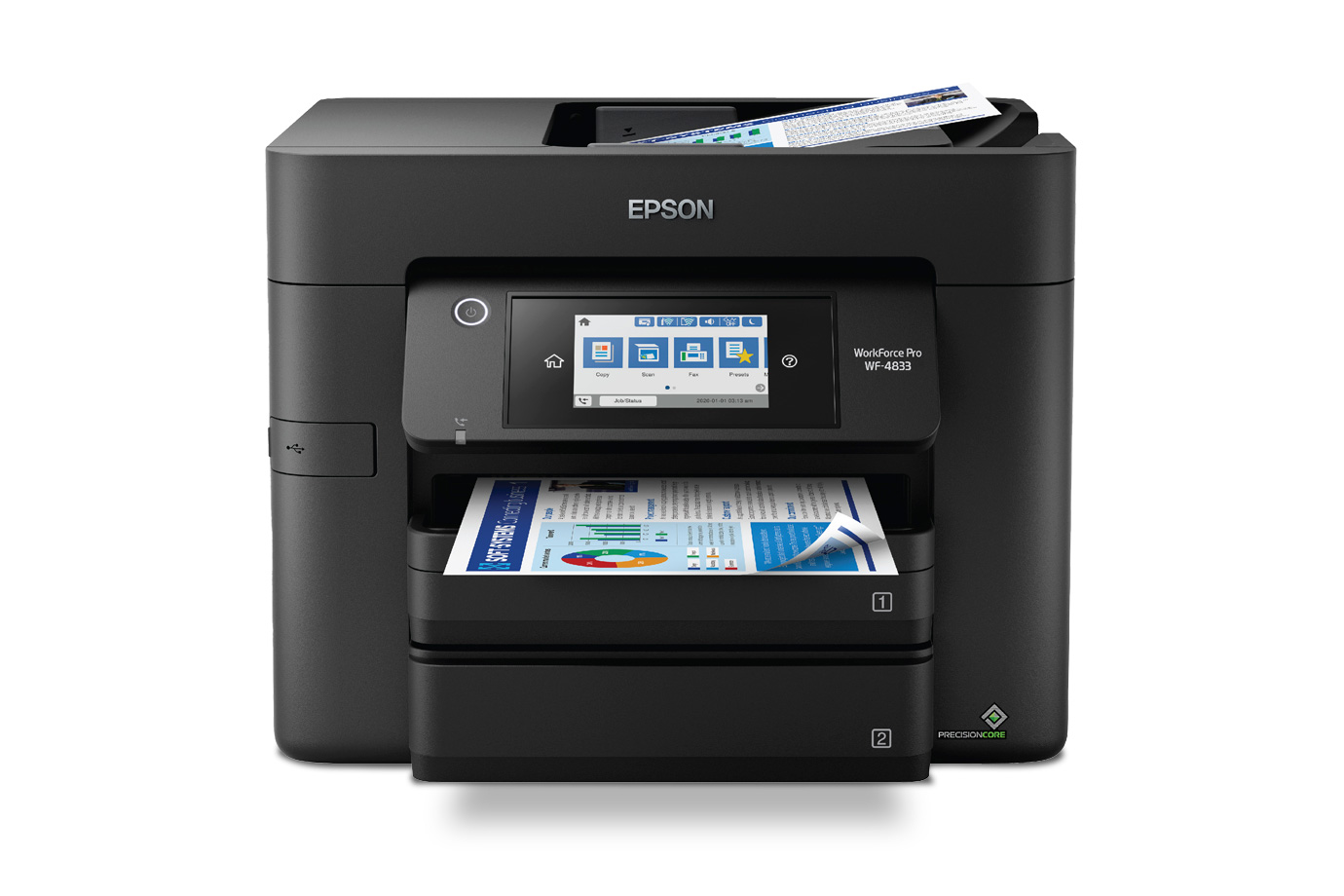
Connecting your Epson printer to WiFi allows you to print wirelessly from your phone, laptop, or tablet without using cables. It’s a convenient setup that makes home and office printing easier. Whether you have an Epson EcoTank, Expression, or Workforce model, the process is similar. Here’s how to connect Epson printer to a WiFi network quickly and correctly.
- Prepare the Printer and WiFi Network
Before you start, make sure your Epson printer is turned on and within range of your WiFi router. Check that your router is working and that you have the WiFi name (SSID) and password ready. If the printer has been connected to a different network before, it’s best to reset its network settings to avoid conflicts.
To reset, go to the printer’s control panel and select Setup → Network Settings → Restore Default Settings. Confirm the reset, and the printer will remove all previous WiFi data.
- Connect Using the Printer’s Control Panel
Most Epson printers with a screen allow you to connect to WiFi directly from the control panel.
Press the Home button, then navigate to WiFi Setup. Select WiFi Setup Wizard from the options that appear. The printer will begin scanning for available networks. When the list appears, choose your home WiFi name and press OK.
You’ll then be asked to enter your WiFi password. Use the navigation buttons to select letters and numbers. After entering the correct password, press OK or Proceed to connect. The printer will display a message like “Connected Successfully” once it joins the network.
- Connect Using the Epson Smart Panel App
If your printer does not have a screen, you can use the Epson Smart Panel app, available for Android and iOS.
Start by connecting your phone to the same WiFi network you want the printer to use. Open the Epson Smart Panel app, tap Set up a new printer, and follow the on-screen instructions. The app will detect your printer automatically and guide you through connecting it to the WiFi network.
Once the setup is complete, you can print, scan, and monitor ink levels directly from your phone.
- Connect via WPS (WiFi Protected Setup)
For routers with a WPS button, you can connect the printer to WiFi without entering a password.
On your printer, go to WiFi Setup → Push Button Setup (WPS). When prompted, press the WPS button on your router and hold it for about five seconds. The printer will automatically connect to the network within a few minutes.
Once connected, the WiFi light on your printer will stop flashing and remain steady.
- Install Printer Software on Your Computer
After connecting the printer to WiFi, you need to install the correct drivers or software on your computer. Visit the Epson support website and search for your printer model. Download the latest printer driver and installation package.
During installation, select Wireless Connection as your setup method. The software will detect your printer on the same WiFi network and complete the setup process automatically.
Once installed, you’ll be able to print wirelessly from your computer without plugging in any cables.
- Confirm the Connection
To verify that your printer is properly connected, print a Network Status Sheet. On the control panel, go to Setup → Network Settings → Print Status Sheet. Check that the IP address and connection type show your WiFi network.
You can also try printing a test page from your computer or mobile device. If the printer responds quickly, your setup is complete.
- Troubleshooting Connection Problems
If your printer fails to connect, try the following:
- Restart both the printer and WiFi router.
- Move the printer closer to the router for a stronger signal.
- Ensure you’re entering the correct WiFi password (case-sensitive).
- Update your printer’s firmware via the Epson support site.
If the problem persists, reinstall the printer’s network settings and repeat the WiFi setup process.
Also Read: How To Clean A Throttle Body Without Removing It
Email your news TIPS to Editor@Kahawatungu.com — this is our only official communication channel
