


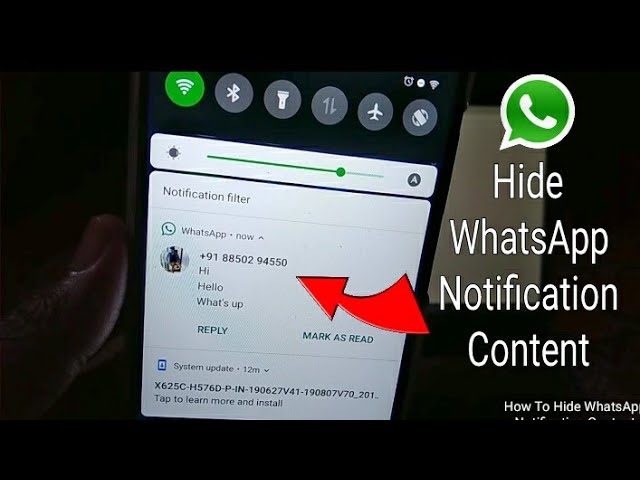
If you’re looking to keep your WhatsApp activity private, hiding notifications is a useful step. Whether you’re avoiding distractions, keeping messages confidential, or simply don’t want previews appearing on your screen, WhatsApp and your phone’s settings provide easy ways to manage or completely hide notifications. Here is how to hide WhatsApp notification.
- Turn Off Message Preview
You can stop WhatsApp from showing message content in your notifications.
- Open WhatsApp
- Tap the three dots (menu) > Settings
- Go to Notifications
- Turn off Use high priority notifications
- On Android, toggle off Show previews
- On iPhone: Go to Settings > Notifications > WhatsApp > tap Show Previews, and choose Never
This hides the actual message content but still alerts you when a message arrives.
- Disable WhatsApp Notifications Entirely
If you don’t want any alerts at all:
- On Android:
Go to Settings > Apps > WhatsApp > Notifications
Toggle off All WhatsApp notifications - On iPhone:
Go to Settings > Notifications > WhatsApp
Toggle off Allow Notifications
This way, WhatsApp messages come in silently and without showing on the lock screen or notification bar.
- Mute Notifications for Specific Chats
You can hide alerts from certain chats without turning off all notifications.
- Open the chat
- Tap the three dots > Mute notifications
- Choose 8 hours, 1 week, or Always
- Deselect Show notifications if available
This silences and hides notifications from specific people or groups while keeping others active.
- Use Do Not Disturb Mode Temporarily
If you want to pause all notifications, including WhatsApp, turn on Do Not Disturb on your device.
- On Android: Swipe down and tap the Do Not Disturb icon
- On iPhone: Open Control Center and tap the Focus or Do Not Disturb icon
Messages will still be received but won’t make a sound or show pop-ups.
- Hide WhatsApp from Lock Screen
You can stop WhatsApp notifications from appearing on your lock screen.
- On Android:
Go to Settings > Lock screen > Notifications
Choose Don’t show notifications or hide sensitive content - On iPhone:
Go to Settings > Notifications > WhatsApp
Turn off Lock Screen alerts
Also Read: How To Give Yourself A Hickey
Email your news TIPS to Editor@Kahawatungu.com — this is our only official communication channel
