
Close Menu
    Facebook X (Twitter) Instagram
    Facebook X (Twitter) Instagram
    KahawatunguKahawatungu
    Button
    • NEWS
    • BUSINESS
    • KNOW YOUR CELEBRITY
    • POLITICS
    • TECHNOLOGY
    • SPORTS
    • HOW-TO
    • WORLD NEWS
    KahawatunguKahawatungu
    HOW-TO

    How To Lock Formulas In Excel

    Damaris GatwiriBy Damaris GatwiriJune 20, 2025No Comments2 Mins Read
    Facebook Twitter WhatsApp Telegram Email
    lock-freeze-cell-formula-4
    lock-freeze-cell-formula-4
    Share
    Facebook Twitter WhatsApp Telegram Pinterest Email Copy Link

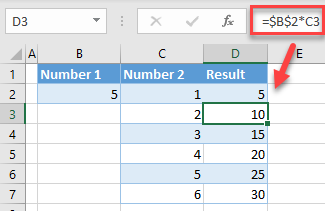
    Locking formulas in Excel protects them from being accidentally edited or deleted. This is useful when you’re sharing a file or building a spreadsheet where certain calculations must remain unchanged. Excel allows you to lock cells containing formulas and restrict editing using worksheet protection. Here is how to lock formulas in Excel.

    1. Select All Cells and Unlock Them First
      By default, all cells in Excel are locked, but this only takes effect when the sheet is protected. To lock only specific cells (like formulas), you must first unlock all the others:
    • Press Ctrl + A to select the entire sheet
    • Right-click and choose Format Cells
    • Go to the Protection tab
    • Uncheck Locked and click OK
    1. Find and Select the Formula Cells
      Next, you need to highlight only the cells that contain formulas:
    • Go to the Home tab
    • Click Find & Select on the far right
    • Choose Go To Special
    • Select Formulas and click OK
      Now all cells with formulas will be selected.
    1. Lock the Formula Cells
      With the formula cells still selected:
    • Right-click and choose Format Cells
    • Go to the Protection tab
    • Check the box labeled Locked
    • Click OK

    This marks those cells as protected, ready for the next step.

    1. Protect the Worksheet
      To enforce the lock:
    • Go to the Review tab
    • Click Protect Sheet
    • Set a password (optional) and choose what actions users can still perform (e.g., select cells, format columns)
    • Click OK

    Now, only the unlocked cells can be edited. Any attempt to change the locked formula cells will prompt an error message.

    1. Test the Protection
      Try editing both a formula cell and a normal cell. The formula cell should be protected, while the other can still be edited. If you need to make changes later, go to Review > Unprotect Sheet and enter your password if you set one.
    2. Save Your Work
      Always save your file after locking formulas to keep the protection active. You can also apply this method to specific sheets in a workbook.

    Also Read: How To Grow Strawberries In Pots

    Email your news TIPS to Editor@Kahawatungu.com — this is our only official communication channel

    Follow on Facebook Follow on X (Twitter)
    Share. Facebook Twitter WhatsApp LinkedIn Telegram Email
    Damaris Gatwiri

    Damaris Gatwiri is a digital journalist, driven by a profound passion for technology, health, and fashion.

    Related Posts

    How to Recover Files Permanently Deleted from Recycle Bin

    August 28, 2026

    How to Hotspot on an HP Laptop

    August 28, 2026

    How to Change Windows on an HP Laptop

    August 27, 2026

    Comments are closed.

    Latest Posts

    MCAs turn heat on Arati over stalled projects, poor roads

    August 29, 2026

    US government unveils Sh930 million ground to modernise Kenya police

    August 28, 2026

    Kalonzo Gives NPS, TSC and KDF Seven-Day Ultimatum Over Recruitment

    August 28, 2026

    Wetang’ula warns politicians against undermining IEBC ahead of 2027 polls

    August 28, 2026

    World’s youngest reigning traditional monarch dies aged 34

    August 28, 2026

    Three terror convicts get additional 15-year jail term for escaping from Kamiti prison

    August 28, 2026

    Kennedy Center will briefly delay plan to add Trump’s name to building

    August 28, 2026

    Court stops burial of late KCB boss Rosemary Koech 

    August 28, 2026
    Facebook X (Twitter) Instagram Pinterest
    © 2026 Kahawatungu.com. Designed by Okii.

    Type above and press Enter to search. Press Esc to cancel.