
Close Menu
    Facebook X (Twitter) Instagram
    Facebook X (Twitter) Instagram
    KahawatunguKahawatungu
    Button
    • NEWS
    • BUSINESS
    • KNOW YOUR CELEBRITY
    • POLITICS
    • TECHNOLOGY
    • SPORTS
    • HOW-TO
    • WORLD NEWS
    KahawatunguKahawatungu
    HOW-TO

    How To Partition A Hard Drive

    Damaris GatwiriBy Damaris GatwiriFebruary 25, 2025No Comments2 Mins Read
    Facebook Twitter WhatsApp Telegram Email
    How To Partition A Hard Drive
    Share
    Facebook Twitter WhatsApp Telegram Pinterest Email Copy Link

    Partitioning a hard drive allows you to divide it into separate sections, making it easier to organize data, install multiple operating systems, or improve performance. Whether you’re using Windows or macOS, partitioning is a straightforward process when done correctly. Here is how to partition a hard drive.

    Understanding Partitions

    A hard drive can have multiple partitions, each acting as an independent storage unit. You can create new partitions on an existing drive without losing data, but it’s always recommended to back up important files before making changes.

    Table of Contents

    Toggle
    • Partitioning a Hard Drive in Windows
    • Partitioning a Hard Drive on macOS

    Partitioning a Hard Drive in Windows

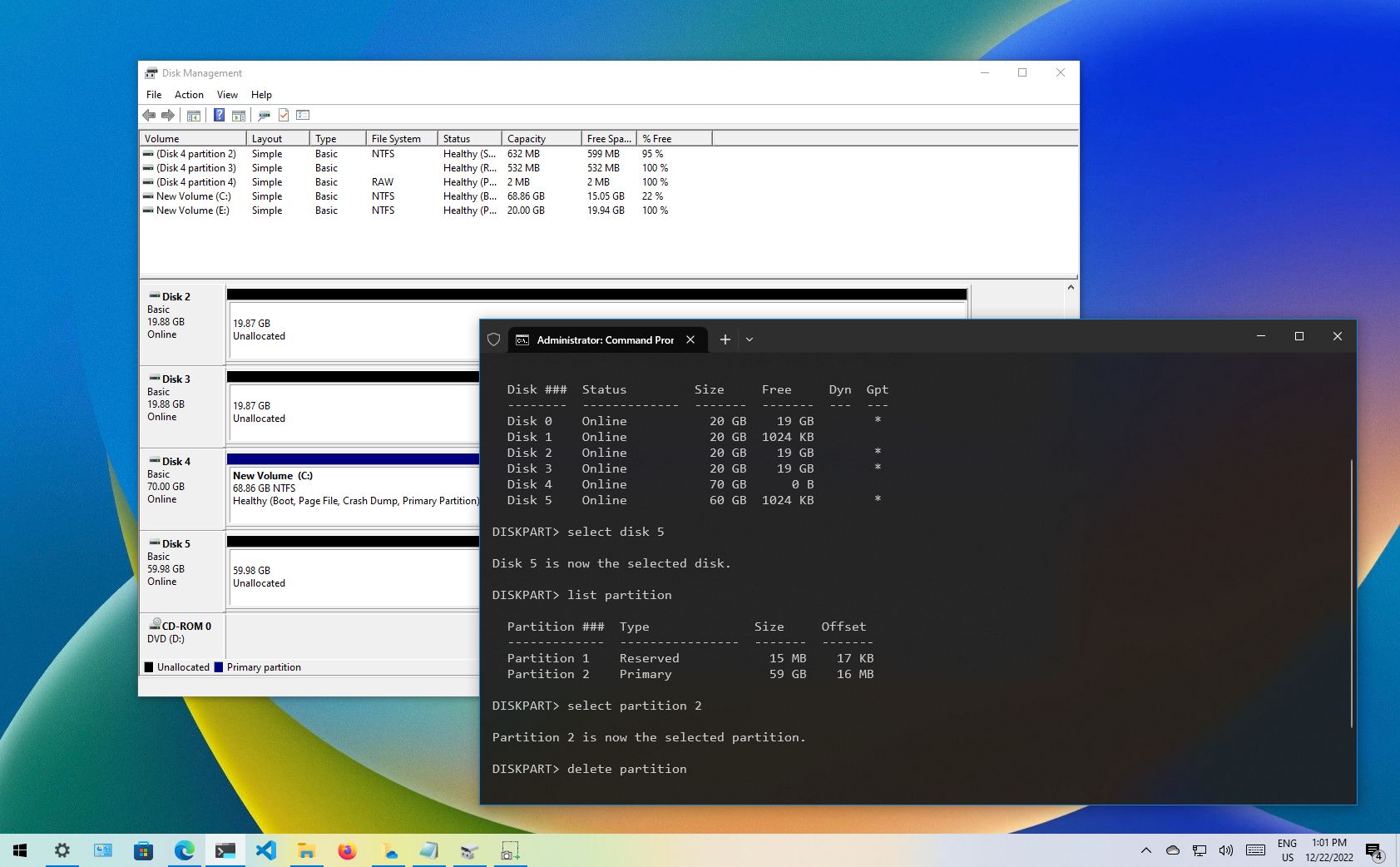
    Step 1: Open Disk Management

    1. Press Windows + R, type diskmgmt.msc, and hit Enter.
    2. The Disk Management window will open, displaying all connected storage drives.

    Step 2: Shrink an Existing Volume

    1. Right-click the drive you want to partition and select Shrink Volume.
    2. Enter the amount of space to shrink (in MB).
    3. Click Shrink, and you’ll see unallocated space appear on the disk.

    Step 3: Create a New Partition

    1. Right-click the unallocated space and select New Simple Volume.
    2. Follow the wizard, assigning a drive letter and file system (NTFS is recommended for Windows).
    3. Click Finish, and the new partition will be ready for use.

    Partitioning a Hard Drive on macOS

    Step 1: Open Disk Utility

    1. Click on the Apple menu and go to Utilities > Disk Utility.
    2. Select the hard drive you want to partition from the sidebar.

    Step 2: Create a New Partition

    1. Click on the Partition button.
    2. Click the + (Add) button to create a new partition.
    3. Choose the partition size and format (APFS or Mac OS Extended).
    4. Click Apply, then Partition to confirm the changes.

    Also Read: How To Make Money On PayPal

    Email your news TIPS to Editor@Kahawatungu.com — this is our only official communication channel

    Follow on Facebook Follow on X (Twitter)
    Share. Facebook Twitter WhatsApp LinkedIn Telegram Email
    Damaris Gatwiri

    Damaris Gatwiri is a digital journalist, driven by a profound passion for technology, health, and fashion.

    Related Posts

    How To Draw A Landscape

    December 11, 2025

    How To Draw A House Easy

    December 11, 2025

    How To Draw A Hot Air Balloon

    December 11, 2025

    Comments are closed.

    Latest Posts

    High court suspends implementation of the Sh208 billion US-Kenya health deal

    December 11, 2025

    Matiangi wave likely to sweep Kisii UDA sympathisers home

    December 11, 2025

    Drama as Somalia authorities deny deportees from Austria, Germany

    December 11, 2025

    Miner killed after gold mining tunnel collapses in Bondo

    December 11, 2025

    Child Dies in Massive Fire in Mathare; Hundreds of Homes Destroyed

    December 11, 2025

    Fried Chicken Tops Kenyans’ Cravings in 2025 – Report

    December 11, 2025

    Two women robbed of Sh600,000 after leaving bank in Kericho

    December 11, 2025

    How To Draw A Landscape

    December 11, 2025
    Facebook X (Twitter) Instagram Pinterest
    © 2025 Kahawatungu.com. Designed by Okii.

    Type above and press Enter to search. Press Esc to cancel.