

How To Reboot DStv Explora

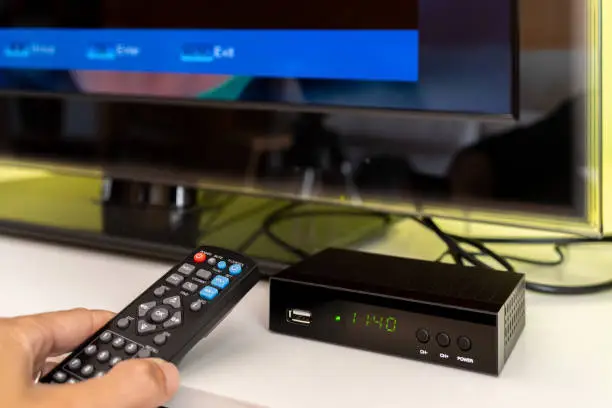
Rebooting your DStv Explora can fix common issues like freezing, missing channels, or system lag. It’s a simple process that refreshes the decoder’s system without erasing your recordings or settings. Here’s How To Reboot DStv Explora properly.
- Use the Power Button
The quickest way to reboot is by using the decoder’s physical power button.
- Press the power button on the front of the Explora to switch it off.
- Wait a few seconds, then press the button again to turn it back on.
- This soft reboot usually resolves minor problems.
If the decoder does not respond, continue with a full reboot.
- Unplug the Decoder
For a more thorough reboot, unplug the power cord.
- Switch off the decoder and remove the plug from the wall socket.
- Wait for at least 30 seconds to 1 minute.
- Plug it back in and press the power button to restart the device.
This method resets the internal hardware and helps fix stubborn glitches.
- Use the Remote Control Method
You can also restart the DStv Explora using the remote control.
- Press the blue DStv button to access the menu.
- Navigate to Settings, then go to System Settings.
- Select Reboot Decoder and confirm the action.
This method is helpful if your decoder is slow or unresponsive but still navigable.
- Check for Software Updates
Sometimes the need to reboot is caused by outdated software.
- Go to Settings > Information Central to check your current version.
- If there’s an update available, the decoder will prompt you to install it.
- After updating, a reboot is usually part of the process.
Keeping your decoder updated helps avoid frequent issues.
- Contact DStv Support if Needed
If rebooting doesn’t solve the problem, there might be a deeper issue.
- Visit the DStv website or call their customer care line.
- Explain the issue and the steps you’ve tried.
- They may walk you through a factory reset or send a technician.
Also Read: How To Make Sugar