


Embedding a document in Microsoft Word allows you to insert another file—like a Word document, Excel spreadsheet, or PDF—directly into your current Word file. This is useful when you want to include supporting material without copying and pasting the content. Here is how to embed a document in word.
Step 1: Open Your Word Document
Start by opening the Word file where you want to embed another document. Click where you want the embedded file to appear.
Step 2: Insert the File
- Click on the “Insert” tab on the toolbar at the top.
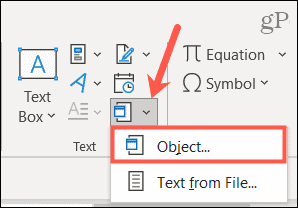
- In the “Text” group, select “Object”.
- A small menu will appear. Click “Object…” again.
- In the dialog box, click the “Create from File” tab.
- Click “Browse” to locate the document you want to embed.
- Select the file and click “Insert”.
Step 3: Choose How to Display the File
Before clicking OK:
- If you want the file to be shown as an icon (instead of displaying the contents), check the box labeled “Display as icon”.
- If you leave it unchecked, Word will attempt to display the content of the file directly in your document.
Click OK to finish. The document will now be embedded.
Step 4: Access or Edit the Embedded Document
To open the embedded file:
- Double-click the icon or embedded area.
- The file will open in its original program (like Word, Excel, or Adobe Reader), allowing you to view or edit it.
Also Read: How To Draw Hulk
Email your news TIPS to Editor@Kahawatungu.com — this is our only official communication channel
