
Close Menu
    Facebook X (Twitter) Instagram
    Facebook X (Twitter) Instagram
    KahawatunguKahawatungu
    Button
    • NEWS
    • BUSINESS
    • KNOW YOUR CELEBRITY
    • POLITICS
    • TECHNOLOGY
    • SPORTS
    • HOW-TO
    • WORLD NEWS
    KahawatunguKahawatungu
    HOW-TO

    How To Factory Reset Lenovo Laptop

    Damaris GatwiriBy Damaris GatwiriJune 4, 2025No Comments2 Mins Read
    Facebook Twitter WhatsApp Telegram Email
    How To Factory Reset Lenovo Laptop
    How To Factory Reset Lenovo Laptop
    Share
    Facebook Twitter WhatsApp Telegram Pinterest Email Copy Link

    Factory resetting a Lenovo laptop means erasing all your files and settings to return it to its original condition. This is helpful when your laptop has performance issues, viruses, or if you’re planning to sell or give it away. Here is how to factory reset Lenovo laptop.

    Before You Start

    Make sure to back up any important files, as the process will delete all your data.

    Using Windows Settings (Windows 10 or 11)

    1. Click on the Start button and select Settings (gear icon).
    2. Go to System, then choose Recovery from the side menu.
    3. Under Recovery options, click Reset this PC, then click Get started.
    4. Choose Remove everything to do a full factory reset.
    5. Select either:
      • Cloud download (downloads Windows from Microsoft),
      • or Local reinstall (uses files already on your laptop).
    6. Follow the prompts and click Reset to begin. The laptop will restart and reset itself.

    Using Lenovo OneKey Recovery (for some older models)

    1. Turn off your laptop.
    2. Look for a small Novo button (a pinhole) next to the power button. Use a paperclip to press it.
    3. From the menu that appears, choose System Recovery.
    4. Select Restore from initial backup and click Next.
    5. Follow the instructions to complete the reset.

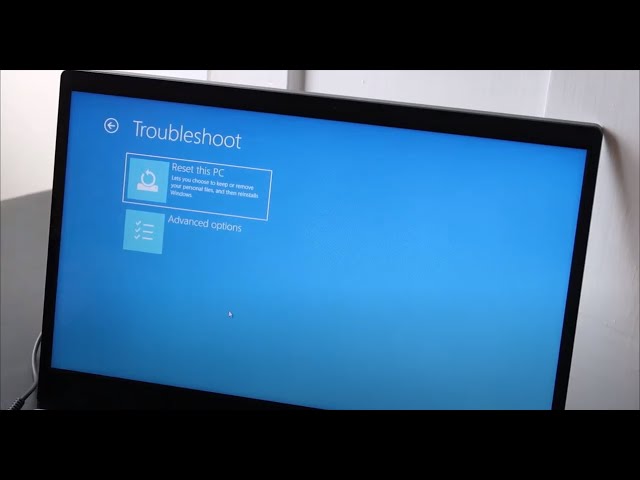
    Using Advanced Startup (if Windows won’t load)

    1. Hold the Shift key and click Restart from the login screen or start menu.
    2. Select Troubleshoot > Reset this PC.
    3. Choose Remove everything.
    4. Follow the instructions to reset your laptop.

    Also Read: How To Draw Hulk

    Email your news TIPS to Editor@Kahawatungu.com — this is our only official communication channel

    Follow on Facebook Follow on X (Twitter)
    Share. Facebook Twitter WhatsApp LinkedIn Telegram Email
    Damaris Gatwiri

    Damaris Gatwiri is a digital journalist, driven by a profound passion for technology, health, and fashion.

    Related Posts

    How To Draw Sonic The Hedgehog

    December 19, 2025

    How To Draw Shadow

    December 19, 2025

    How To Draw Planets

    December 19, 2025

    Comments are closed.

    Latest Posts

    Ex-Nascar driver and his family among seven killed in US plane crash

    December 19, 2025

    Wiz Khalifa sentenced to nine months jail in Romania for smoking cannabis on stage

    December 19, 2025

    Pope Leo names Ronald Hicks next archbishop of New York

    December 19, 2025

    Double tragedy as 21-year-old diver drowns while attempting to retrieve body of a drowned man in Chaka

    December 19, 2025

    Kenyan Munyua makes history as Van Gerwen survives scare at World Championship

    December 19, 2025

    Jinxed man fatally slashes estranged wife in Murang’a village

    December 19, 2025

    Where you are likely to find mobile courts as officials ramp up operations for the festive season

    December 19, 2025

    Four-year-old girl dies after wall collapses on her in Mumias

    December 19, 2025
    Facebook X (Twitter) Instagram Pinterest
    © 2025 Kahawatungu.com. Designed by Okii.

    Type above and press Enter to search. Press Esc to cancel.