


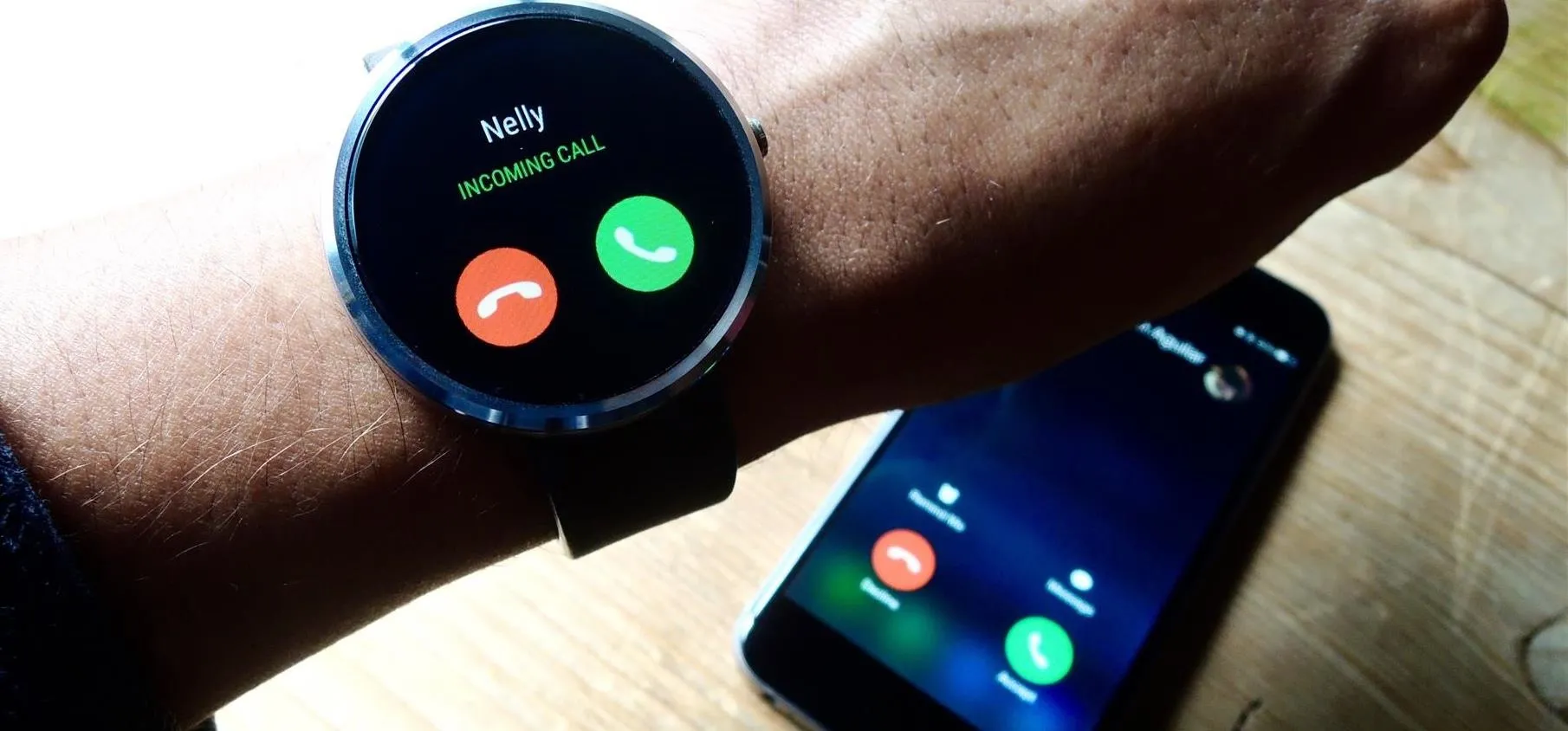
Connecting your smartwatch to an Android phone allows you to enjoy the full range of smart features such as notifications, health tracking, call alerts, and more. Whether you’re using a Samsung, Huawei, Fitbit, or other brand, pairing your smartwatch correctly ensures it syncs smoothly with your phone for real-time updates and performance tracking.
- Understanding How Smartwatch Pairing Works
A smartwatch connects to your Android phone mainly through Bluetooth and, in some cases, via a companion app that manages settings, health data, and notifications. The watch mirrors your phone’s features, allowing you to check messages, answer calls, monitor fitness, and even control music—all from your wrist.
The connection process may vary slightly depending on your watch brand, but the general steps are similar for most Android-compatible smartwatches.
- Requirements Before Connecting
Before you begin, ensure the following:
- Your smartwatch is fully charged.
- Bluetooth is turned on both on your phone and the watch.
- The smartwatch is within close range (usually less than 1 meter) of your phone.
- You have installed the official companion app for your smartwatch (such as Galaxy Wearable, Fitbit, Huawei Health, or Wear OS by Google).
Having these ready ensures a smooth connection without interruptions.
- Steps to Connect a Smartwatch to an Android Phone
- Turn on your smartwatch.
Press and hold the power button until the watch lights up. If it’s new, follow the on-screen prompts to set your language and region. - Enable Bluetooth on your Android phone.
Go to Settings > Connections > Bluetooth, then switch it on. Keep your phone visible to nearby devices. - Install the required app.
Open Google Play Store and download the smartwatch’s companion app (for example, “Galaxy Wearable” for Samsung watches or “Wear OS” for general smartwatches). - Open the app and start pairing.
Launch the app, tap Add new device or Set up a new watch, and let it scan for nearby devices. - Select your smartwatch from the list.
Once your watch appears on the screen, tap its name. You’ll see a pairing code on both devices—confirm that they match, then select Pair or Connect. - Grant permissions.
The app may request access to notifications, contacts, and location to enable full functionality. Grant the necessary permissions to ensure features like message alerts and fitness tracking work properly. - Wait for syncing to complete.
The initial sync may take a few minutes. During this time, your watch downloads settings, updates, and contacts from your phone.
- Testing the Connection
Once the pairing is complete, test the connection by checking if your smartwatch displays notifications or phone calls. You can also try controlling music playback or opening the health tracking feature to confirm synchronization.
If the watch doesn’t respond, ensure Bluetooth is still active and both devices are close to each other. Restart both devices if necessary and retry pairing.
- Troubleshooting Common Issues
- Watch not showing on Bluetooth list: Restart the smartwatch and phone, then try again.
- Pairing fails: Remove old or unused Bluetooth connections from your phone and retry.
- Notifications not appearing: Check that notification permissions are enabled in the smartwatch app.
- Frequent disconnection: Ensure your phone’s battery-saving mode is not limiting Bluetooth activity.
- Maintaining a Stable Connection
Keep your smartwatch and phone’s software updated for optimal compatibility. Avoid pairing multiple smartwatches at once unless your app supports it. Reconnect manually if you move out of Bluetooth range, and occasionally restart your watch to refresh the connection.
Also Read: How To Clean Pewter
Email your news TIPS to Editor@Kahawatungu.com — this is our only official communication channel
