
Close Menu
    Facebook X (Twitter) Instagram
    Facebook X (Twitter) Instagram
    KahawatunguKahawatungu
    Button
    • NEWS
    • BUSINESS
    • KNOW YOUR CELEBRITY
    • POLITICS
    • TECHNOLOGY
    • SPORTS
    • HOW-TO
    • WORLD NEWS
    KahawatunguKahawatungu
    HOW-TO

    How to Replace Ink Cartridge Canon Pixma

    Damaris GatwiriBy Damaris GatwiriApril 10, 2026No Comments2 Mins Read
    Facebook Twitter WhatsApp Telegram Email
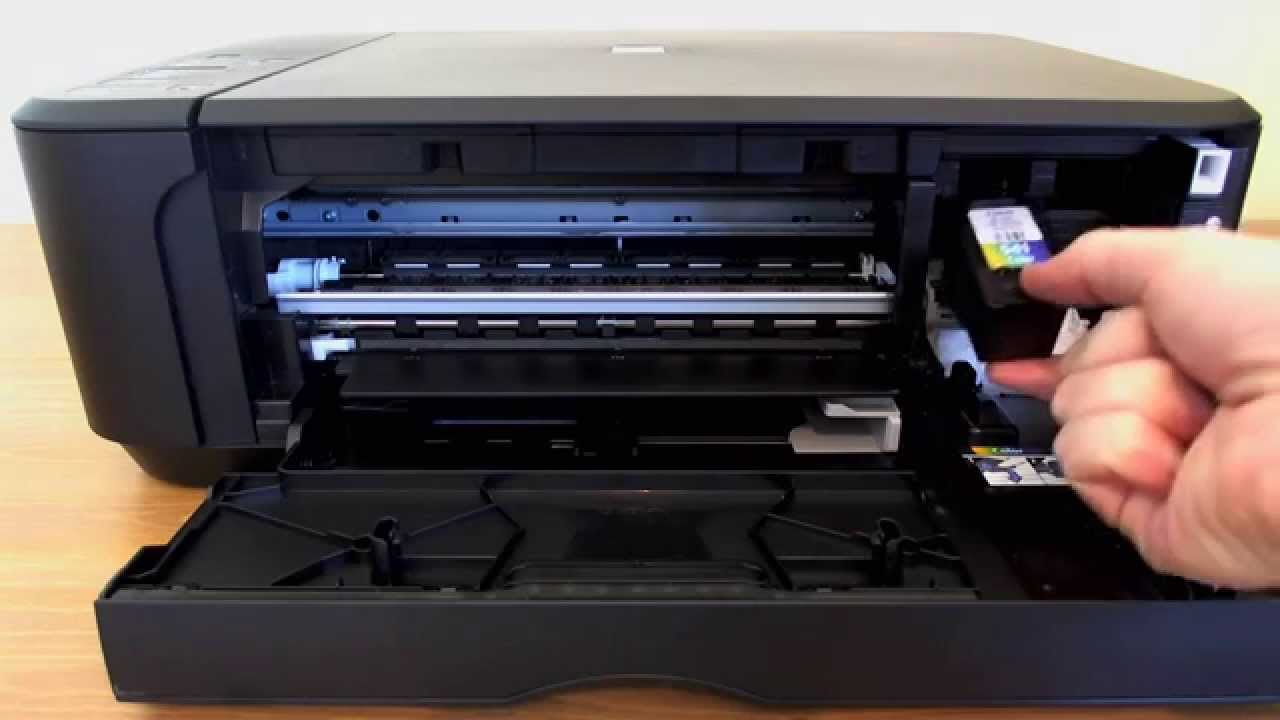
    How to Replace Ink Cartridge Canon Pixma
    Share
    Facebook Twitter WhatsApp Telegram Pinterest Email Copy Link

    Replacing ink cartridges in your printer is an essential task to keep your documents and photos printing clearly. If you own a Canon Pixma printer, knowing how to replace ink cartridge Canon Pixma models correctly will help you avoid errors and maintain print quality. The process is simple and can be done in just a few minutes with the right steps.

    1. Table of Contents

      Toggle
      • Turn On the Printer
      • Access the Ink Cartridge Holder
      • Remove the Old Cartridge
      • Insert the New Cartridge
      • Close the Printer and Test

      Turn On the Printer

    Start by switching on your Canon Pixma printer. The printer needs to be powered on so the cartridge holder can move into position.

    Open the front cover or paper output tray, depending on your printer model.

    • Ensure the printer is plugged in
    • Wait for it to fully power up
    • Do not force any parts open
    1. Access the Ink Cartridge Holder

    Once the printer is on and the cover is open, the cartridge holder will automatically move to the center for easy access.

    Wait until it stops moving before touching anything.

    • Allow the holder to stop completely
    • Avoid touching internal components
    • Ensure good lighting for visibility
    1. Remove the Old Cartridge

    Gently press down on the empty or used cartridge to release it, then pull it out of the holder.

    Be careful not to spill any remaining ink.

    • Handle cartridges carefully
    • Remove the correct cartridge
    • Dispose of it properly
    1. Insert the New Cartridge

    Take the new ink cartridge out of its packaging and remove any protective tape.

    Insert it into the correct slot and push it in until it clicks into place.

    • Match the cartridge with the correct color slot
    • Remove all protective seals
    • Press firmly but gently
    1. Close the Printer and Test

    After installing the new cartridge, close the printer cover. The printer may take a moment to recognize the new cartridge.

    Print a test page to ensure everything is working correctly.

    • Wait for the printer to initialize
    • Run a test print
    • Check print quality

    Also Read: How to Remove Paint on the Wall

    Email your news TIPS to Editor@Kahawatungu.com — this is our only official communication channel

    Follow on Facebook Follow on X (Twitter)
    Share. Facebook Twitter WhatsApp LinkedIn Telegram Email
    Damaris Gatwiri

    Damaris Gatwiri is a digital journalist, driven by a profound passion for technology, health, and fashion.

    Related Posts

    How to Start an NPO in South Africa

    April 30, 2026

    How to Start an Airbnb

    April 30, 2026

    How to Start a Water Purification Business

    April 30, 2026

    Comments are closed.

    Latest Posts

    Radko Gudas Siblings: Get to Know Karolína Gudasová

    April 30, 2026

    Mikael Granlund Siblings: Meet Markus Granlund

    April 30, 2026

    David Špaček Siblings: Get to Know Jacob Špaček

    April 30, 2026

    John Carlson Siblings: Getting to Know Andrew Carlson

    April 30, 2026

    Chris Kreider Siblings: All About Katie Kreider

    April 30, 2026

    Northern Kenya Takes Centre Stage as Wajir County Gears Up for Madaraka Day

    April 30, 2026

    KCB Targets MSMEs, Informal Sector with a Single-Digit Interest Rate Mortgage Financing Solution

    April 30, 2026

    KNEC exam plans in limbo as KRA probes Greek printer over Sh700m tax claim

    April 30, 2026
    Facebook X (Twitter) Instagram Pinterest
    © 2026 Kahawatungu.com. Designed by Okii.

    Type above and press Enter to search. Press Esc to cancel.