


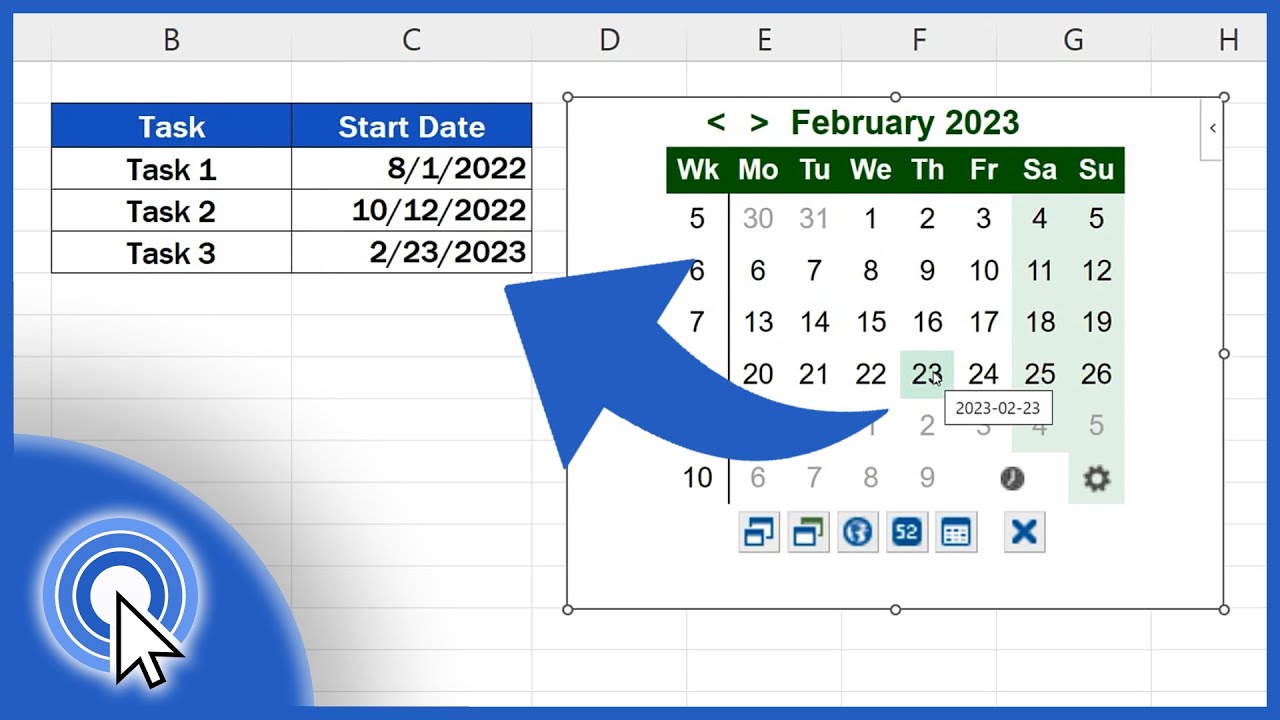
Inserting a calendar in Excel can help you plan, schedule, or track dates efficiently. Whether you’re building a timesheet, creating a booking form, or managing personal tasks, adding a calendar saves time and improves accuracy. Excel allows you to insert calendars either manually or using built-in tools and add-ins.
- Use a Calendar Template
The easiest method is using an Excel calendar template:
- Open Excel and click File > New
- In the search bar, type “calendar”
- Browse through the available templates and choose one that fits your needs
- Click Create to open the calendar in a new workbook
You can now customize the template with your events, tasks, or deadlines.
- Create a Drop-Down Calendar Using Data Validation
For interactive date selection, especially in forms:
- Click on the cell where you want the calendar
- Go to Data > Data Validation
- Under Allow, choose Date
- Set your preferred start and end date
- Although this adds date restrictions, it doesn’t add a clickable calendar by default
To add a true date picker, use the next method.
- Insert a Date Picker Control (ActiveX Control)
In some versions of Excel (mostly older or 32-bit), you can use a built-in date picker:
- Press Alt + F11 to open the Visual Basic for Applications (VBA) editor
- Click Tools > References, and enable Microsoft Date and Time Picker Control (if available)
- Insert the control into your worksheet from the Developer > Insert > More Controls option
- Place the date picker where needed
Note: This option may not appear in newer Excel versions or 64-bit Excel. In such cases, third-party add-ins may be required.
- Use Third-Party Add-Ins
If you don’t have access to the date picker, consider downloading a free calendar add-in:
- Go to Insert > Get Add-ins
- Search for “calendar” or “date picker”
- Select and install your preferred add-in
- Follow the on-screen instructions to use it in your spreadsheet
Also Read: How To Grow Strawberries In Pots

Email your news TIPS to Editor@Kahawatungu.com — this is our only official communication channel
