


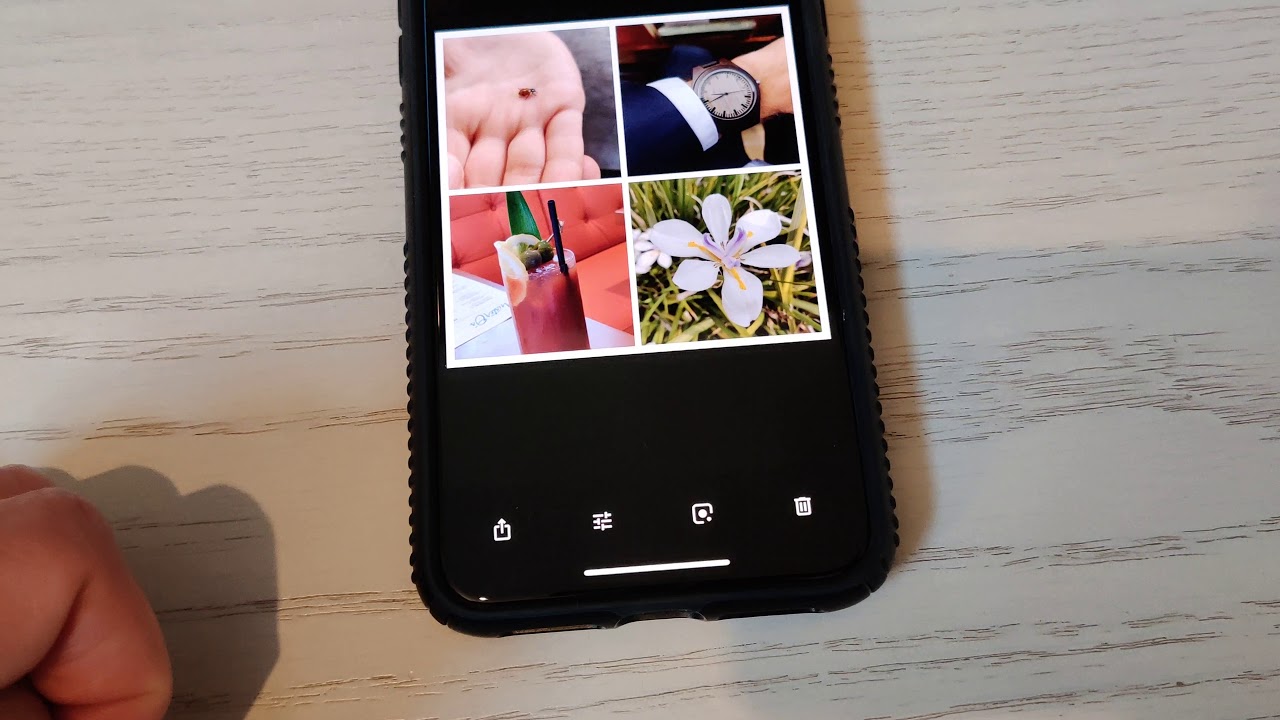
How to make a collage on your phone is a skill that allows you to combine multiple photos into one creative image using simple mobile apps. Photo collages are popular for social media, memories, presentations, and personal projects because they tell a story in a single frame. With modern smartphones, you do not need advanced editing skills or a computer to create a professional-looking collage. Using the right app and a few simple techniques, anyone can design an attractive collage directly from their phone.
-
Choose the right collage app
The first step in making a collage on your phone is selecting a suitable app. Most collage apps are easy to use and available on both Android and iPhone. Common features to look for include:
- Multiple layout templates
- Easy photo selection and editing tools
- Background and border customization
- Options to save or share directly
Popular collage apps offer both free and paid features depending on your needs.
-
Select the photos you want to use
Choosing the right photos is important for a balanced collage. Select images that complement each other in theme, color, or story. When selecting photos:
- Choose clear and high-quality images
- Limit the number of photos to avoid overcrowding
- Pick photos with similar lighting if possible
Good photo selection improves the overall look of the collage.
-
Choose a collage layout
Once photos are selected, the app will offer various layout options. Layouts determine how photos are arranged. Consider the following when choosing a layout:
- Number of photos you are using
- Shape and size of each image space
- Overall balance and symmetry
A clean layout makes the collage easy to view.
-
Adjust and position the photos
After selecting a layout, you can adjust each photo to fit perfectly. This step helps highlight important details. Common adjustments include:
- Zooming in or out
- Moving the image within its frame
- Rotating photos if needed
Proper positioning ensures each photo looks its best.
-
Customize borders and background
Borders and backgrounds help separate images and add style to your collage. Most apps allow customization options such as:
- Changing border thickness
- Adjusting spacing between photos
- Choosing background colors or patterns
Simple designs often look more polished.
-
Apply filters and basic edits
Filters can help unify the look of your collage. Light editing enhances quality without overpowering the images. You can:
- Adjust brightness and contrast
- Apply the same filter to all photos
- Enhance colors slightly for consistency
Balanced editing keeps the collage natural.
-
Add text or stickers if needed
Text and stickers can add context or personality to your collage. Use them sparingly for best results. You can add:
- Captions or short messages
- Dates or locations
- Decorative stickers or icons
Too much text can distract from the photos.
-
Save and share your collage
Once satisfied with your design, save the collage to your phone. When saving:
- Choose high resolution for better quality
- Select the correct aspect ratio for social media
- Share directly to platforms or messaging apps
Saving properly ensures your collage looks good wherever it is shared.
Also Read: How to Make a Cardboard Guitar
Email your news TIPS to Editor@Kahawatungu.com — this is our only official communication channel
