


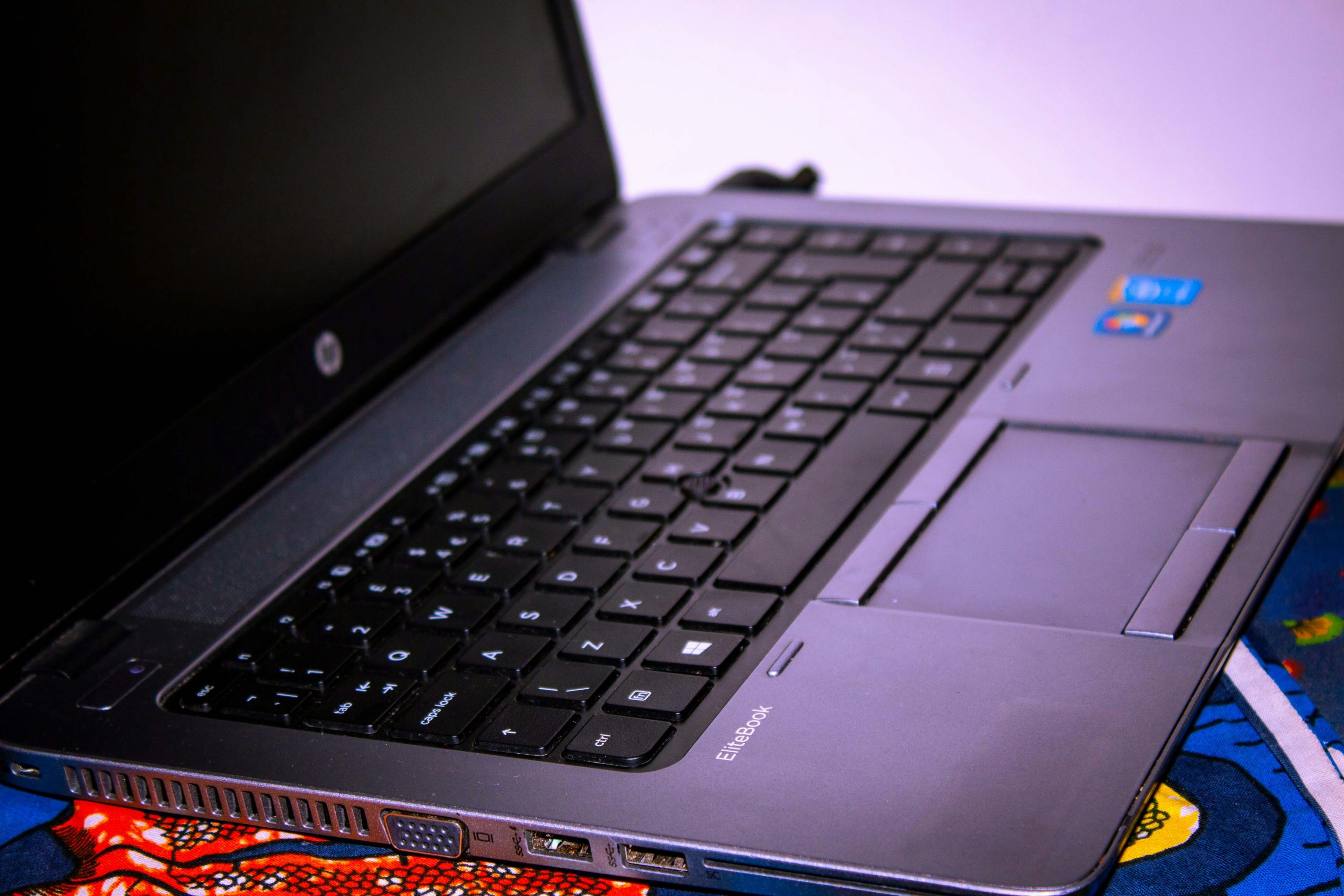
Taking a screenshot, also known as printing the screen, is a quick way to capture what’s displayed on your HP laptop. Whether you want to save an error message, share a moment from a video, or keep a copy of a webpage, there are several ways to do it depending on your needs. Here’s how to print screen on HP laptop.
- Use the Print Screen (PrtScn) Key
Most HP laptops have a PrtScn key, sometimes labeled as PrtSc or Print Screen, often located in the top row of the keyboard.
- To capture the entire screen, press the PrtScn key.
- This copies the image to the clipboard, and you can paste it into a program like Microsoft Word, Paint, or an email by pressing Ctrl + V.
You won’t see a confirmation, but the screen will be copied behind the scenes.
- Use Alt + PrtScn for Active Window Only
If you only want to capture the current window (not the whole screen):
- Hold down the Alt key and press PrtScn.
- This also copies the screenshot to your clipboard.
- Open a document or image editor and press Ctrl + V to paste the screenshot.
This is useful for cleaner images, especially when multitasking.
- Use Windows + Shift + S for Snipping Tool
For more flexibility, use the Snip & Sketch tool on Windows 10 and Windows 11:
- Press Windows + Shift + S together.
- Your screen will dim slightly and show a small snipping toolbar at the top.
- Choose the snip shape: rectangle, freeform, window, or full screen.
- After capturing, the screenshot is copied to the clipboard and appears as a preview in the bottom corner.
- Click the preview to edit or save it.
This method allows you to select exactly what you want to capture.
- Use the Snipping Tool App
You can also use the full Snipping Tool application:
- Type “Snipping Tool” in the Start menu and open it.
- Click New and drag your mouse to select the area you want to capture.
- You can then edit, annotate, or save the screenshot.
This tool is built into Windows and doesn’t require internet.
- Save Your Screenshot
To save a screenshot taken with any method:
- Paste it into Paint or another image editor.
- Click File > Save As.
- Choose a location and save the file in formats like .png, .jpg, or .bmp.
You can name the file and select where to store it for easy access later.
Also Read: How To Make Steam Pudding
Email your news TIPS to Editor@Kahawatungu.com — this is our only official communication channel
