


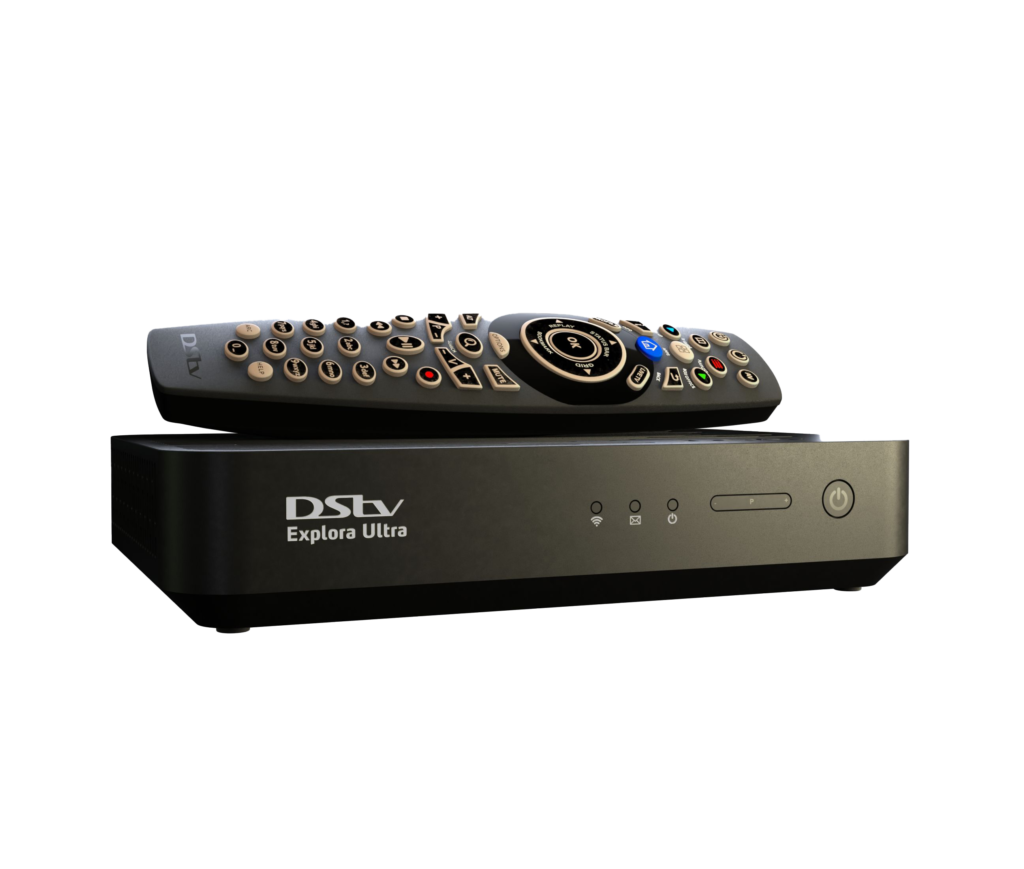
Knowing how to refresh DStv after payment helps restore your television channels when they remain unavailable even after you have paid your subscription. Sometimes, your decoder may take time to receive payment confirmation or update its viewing status. If you have cleared your DStv bill but are still seeing error messages such as E16, E30 or E32, you can follow several methods to refresh your decoder and restore your channels.
-
Refresh DStv Using the MyDStv App
One of the easiest ways to refresh your DStv subscription is through the MyDStv application.
Follow these instructions:
- Open the MyDStv app on your smartphone.
- Log in using your registered details.
- Select your DStv account or smartcard.
- Check whether your payment has been received.
- Look for the Fix Errors or Clear Error option.
- Select the relevant decoder.
- Follow the instructions to clear the error.
Wait a few minutes for the decoder to receive the updated subscription information.
-
Refresh DStv Through the DStv Website
You can also refresh your decoder through the official DStv website.
- Open your internet browser.
- Visit the DStv website for your country.
- Log in to your account.
- Navigate to the self-service section.
- Select your decoder or smartcard.
- Look for the option to clear errors or restore viewing.
- Follow the instructions provided.
This allows you to request a signal refresh without visiting a DStv service centre.
-
Restart Your DStv Decoder
Restarting your decoder can help it receive updated subscription information.
Here is what to do:
- Switch off your DStv decoder.
- Unplug it from the power source.
- Wait for approximately one minute.
- Reconnect the power cable.
- Switch on the decoder.
- Allow it to load completely.
- Check whether your channels are available.
Avoid repeatedly switching the decoder on and off within a short period.
-
Check Your Payment Status
If your channels are still unavailable, confirm that your payment was successfully processed.
You can:
- Check your mobile money or bank transaction message.
- Confirm that you used the correct DStv account or smartcard number.
- Check whether the payment reflects in your DStv account.
- Confirm that you paid the correct subscription amount.
- Contact DStv customer support if the payment has not reflected.
A payment sent to the wrong account may not restore your channels.
-
Check Your DStv Signal
Sometimes channels remain unavailable because of signal problems rather than payment issues.
To check your signal:
- Press the Menu button on your remote.
- Navigate to Settings or Satellite Settings.
- Select Signal Information.
- Check the signal strength and quality.
- Confirm that your satellite cable is properly connected.
If there is no signal, you may need assistance from a qualified DStv technician.
-
Contact DStv Customer Support
If you have paid and tried the available refreshing methods without success, contact DStv customer support.
Provide the following information:
- Your DStv smartcard or account number.
- Your payment confirmation message.
- The error code displayed on your television.
- Your decoder model.
The support team can help confirm your payment and investigate why your channels have not been restored.
Also Read: How to Refresh Facebook Marketplace Feed

Email your news TIPS to Editor@Kahawatungu.com — this is our only official communication channel
