
Close Menu
    Facebook X (Twitter) Instagram
    Facebook X (Twitter) Instagram
    KahawatunguKahawatungu
    Button
    • NEWS
    • BUSINESS
    • KNOW YOUR CELEBRITY
    • POLITICS
    • TECHNOLOGY
    • SPORTS
    • HOW-TO
    • WORLD NEWS
    KahawatunguKahawatungu
    HOW-TO

    How To Flush A Huawei Phone

    Damaris GatwiriBy Damaris GatwiriJune 9, 2025No Comments2 Mins Read
    Facebook Twitter WhatsApp Telegram Email
    How To Flush A Huawei Phone
    How To Flush A Huawei Phone
    Share
    Facebook Twitter WhatsApp Telegram Pinterest Email Copy Link

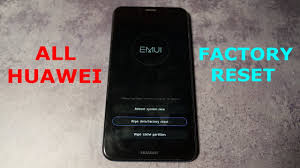
    Flushing a Huawei phone means performing a full software reset or reinstalling the system software to remove errors, viruses, or slow performance. This process wipes all data and restores the phone to its original state. Whether your phone is lagging or stuck, here is how to flush a Huawei phone.

    1. Back Up Your Data

    Before flushing your Huawei phone, ensure all important data is backed up. This includes contacts, photos, messages, and apps. You can use Huawei Cloud, Google account, or a computer to save your files. Flushing will erase everything on the device.

    1. Charge Your Phone

    Make sure your phone has at least 50% battery charge. A full flush or reset process can take several minutes, and interruption due to low battery can cause system errors or damage.

    1. Use Factory Reset (via Settings)

    If the phone is working normally and you can access the screen:

    • Open Settings
    • Tap on System & updates
    • Select Reset
    • Choose Factory data reset
    • Confirm by tapping Reset phone

    The phone will restart and begin the flushing process. Once complete, it will reboot to the original factory setup screen.

    1. Use Recovery Mode (if the phone is stuck or not booting)

    If your Huawei phone is frozen or not turning on properly, use recovery mode:

    • Turn off the phone completely
    • Press and hold the Volume Up and Power buttons at the same time
    • Release the buttons when the Huawei logo appears
    • In recovery mode, use the volume keys to navigate to Wipe data/factory reset
    • Press the Power button to select it
    • Confirm the reset when prompted

    This will flush the phone and erase all content. After the reset, choose Reboot system now.

    1. Optional: Use HiSuite on a PC

    For advanced users, you can also use HiSuite (Huawei’s official PC software):

    • Download and install HiSuite on your computer
    • Connect your phone via USB
    • Choose System recovery or Reset device

    Also Read: How To Eat Persimmon Fruit

    Email your news TIPS to Editor@Kahawatungu.com — this is our only official communication channel

    Follow on Facebook Follow on X (Twitter)
    Share. Facebook Twitter WhatsApp LinkedIn Telegram Email
    Damaris Gatwiri

    Damaris Gatwiri is a digital journalist, driven by a profound passion for technology, health, and fashion.

    Related Posts

    How To Draw An Eagle

    December 9, 2025

    How To Draw A Drum

    December 9, 2025

    How To Draw A Donkey

    December 9, 2025

    Comments are closed.

    Latest Posts

    Electric Dirt Bikes vs. Gas Dirt Bikes: Which Is Better for Modern Riders

    December 9, 2025

    What’s a Currency Trading System: A Beginner’s Guide to Trading Forex in Kenya

    December 9, 2025

    Protecting business data: How to prevent unauthorized access? 

    December 9, 2025

    Sacked agents sue FBI, saying they were punished for taking the knee

    December 9, 2025

    Trump ban on wind energy permits ‘unlawful’, court rules

    December 9, 2025

    Congress ups pressure to release boat strike video with threat to Hegseth’s travel budget

    December 9, 2025

    Raul Malo, the soulful tenor and frontman of The Mavericks, has died at age 60

    December 9, 2025

    EU launches antitrust probe into Google’s data use for AI

    December 9, 2025
    Facebook X (Twitter) Instagram Pinterest
    © 2025 Kahawatungu.com. Designed by Okii.

    Type above and press Enter to search. Press Esc to cancel.