
Close Menu
    Facebook X (Twitter) Instagram
    Facebook X (Twitter) Instagram
    KahawatunguKahawatungu
    Button
    • NEWS
    • BUSINESS
    • KNOW YOUR CELEBRITY
    • POLITICS
    • TECHNOLOGY
    • SPORTS
    • HOW-TO
    • WORLD NEWS
    KahawatunguKahawatungu
    HOW-TO

    How To Make A Mind Map In Word

    Damaris GatwiriBy Damaris GatwiriFebruary 18, 2025No Comments2 Mins Read
    Facebook Twitter WhatsApp Telegram Email
    How To Make A Mind Map In Word
    Share
    Facebook Twitter WhatsApp Telegram Pinterest Email Copy Link

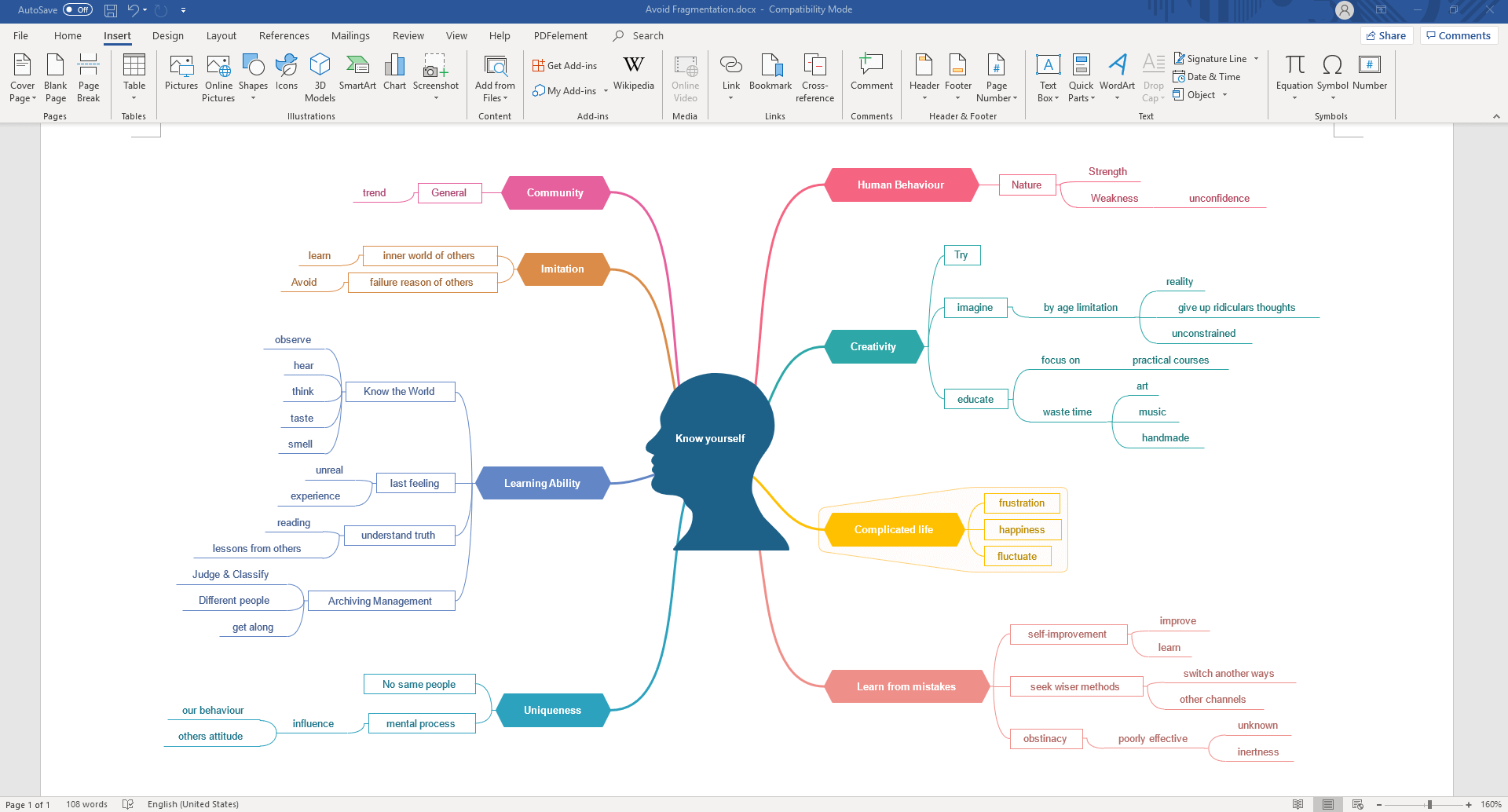
    A mind map is a great tool for brainstorming, organizing ideas, and visualizing information. Microsoft Word offers several ways to create a mind map using shapes, SmartArt, or drawing tools. This guide will walk you through the process of how to make mind map in Word step by step.

    Step 1: Open a Blank Document

    Start by opening Microsoft Word and creating a new blank document. This will give you a clear workspace to build your mind map.

    Step 2: Enable Drawing Tools

    To manually create a mind map, go to the Insert tab and click on Shapes. You can use circles, rectangles, and lines to create a custom layout.

    Step 3: Add the Central Idea

    In a mind map, the central idea is the main topic. Select the Oval shape from the Shapes menu and draw it in the middle of the page. Click inside the shape and type your main idea.

    Step 4: Add Branches

    Mind maps expand by connecting related ideas. Use Lines or Arrows from the Shapes menu to connect the central idea to subtopics. You can also use Text Boxes for adding descriptions.

    Step 5: Insert Subtopics

    For a quicker method, use SmartArt:

    • Click on the Insert tab and choose SmartArt
    • Select a diagram like Hierarchy or Radial to represent a mind map
    • Type your main idea in the center and add subtopics by clicking the text boxes

    Step 6: Customize the Design

    To make your mind map visually appealing, change colors, fonts, and line styles:

    • Click on a shape and go to Format > Shape Fill to change colors
    • Use Bold, Italic, or different fonts to emphasize key points
    • Adjust line thickness or use Dotted Lines for variations in connections

    Step 7: Save and Share

    Once your mind map is complete, save the document. You can also export it as a PDF or an image by taking a screenshot.

    Also Read: How To Make Crumbed Chicken

    Email your news TIPS to Editor@Kahawatungu.com — this is our only official communication channel

    Follow on Facebook Follow on X (Twitter)
    Share. Facebook Twitter WhatsApp LinkedIn Telegram Email
    Damaris Gatwiri

    Damaris Gatwiri is a digital journalist, driven by a profound passion for technology, health, and fashion.

    Related Posts

    Home Remedies to Avoid Common Cold during Cold Season

    June 3, 2026

    How to Write an Interview Dialogue

    June 3, 2026

    How Can Social Justice Help to Fight Poverty?

    June 3, 2026

    Comments are closed.

    Latest Posts

    Court allows detention of Utumishi Girls students for 21 days in deadly arson probe

    June 3, 2026

    Kenya Leads Africa in Nicotine Pouch Regulation

    June 3, 2026

    John O’Hurley Siblings: Meet Carol, Neal and Bruce

    June 3, 2026

    Clancy Brown Siblings: Remembering Elizabeth Ellen Brown

    June 3, 2026

    Ido Mosseri Siblings: Getting to Know Tal Mosseri

    June 3, 2026

    Mark Hamill Siblings: Meet the Siblings Squad Behind the American Actor

    June 3, 2026

    Mary Jo Catlett Siblings: Get to Know Patricia Marie Catlett

    June 3, 2026

    Court dismisses application to compel govt to produce missing Mbijiwe

    June 3, 2026
    Facebook X (Twitter) Instagram Pinterest
    © 2026 Kahawatungu.com. Designed by Okii.

    Type above and press Enter to search. Press Esc to cancel.