
Close Menu
    Facebook X (Twitter) Instagram
    Facebook X (Twitter) Instagram
    KahawatunguKahawatungu
    Button
    • NEWS
    • BUSINESS
    • KNOW YOUR CELEBRITY
    • POLITICS
    • TECHNOLOGY
    • SPORTS
    • HOW-TO
    • WORLD NEWS
    KahawatunguKahawatungu
    TECHNOLOGY

    How to Use Canon Printer

    Damaris GatwiriBy Damaris GatwiriMay 18, 2026No Comments2 Mins Read
    Facebook Twitter WhatsApp Telegram Email
    How to Use Canon Printer
    Share
    Facebook Twitter WhatsApp Telegram Pinterest Email Copy Link

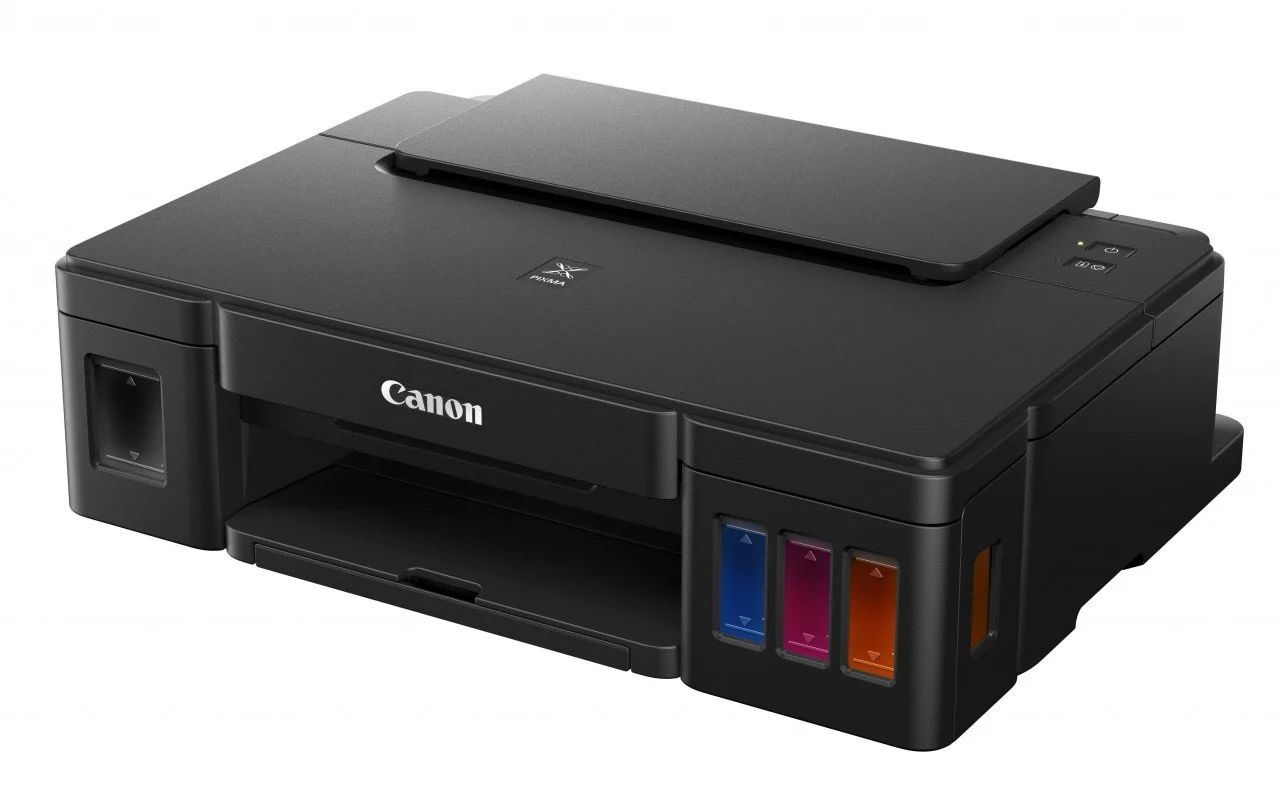
    Canon printers are widely used for printing documents and photos at home, school, and the office. Whether you are using a wired or wireless model, understanding the basic setup and printing process helps you get the best performance from the device. Learning how to use Canon printer functions correctly can make printing faster, easier, and more efficient. With a few simple steps, you can start printing and managing your tasks smoothly.

    1. Table of Contents

      Toggle
      • Set Up the Printer Properly
      • Connect the Printer to Your Device
      • Install Canon Printer Software
      • Print Your Document or Photo
      • Maintain the Printer Regularly

      Set Up the Printer Properly

    Begin by placing the printer on a stable surface and connecting it to a power source.

    Install the ink cartridges and load paper into the tray.

    • Plug in the printer
    • Install ink cartridges correctly
    • Load suitable paper into the tray
    1. Connect the Printer to Your Device

    You can connect the printer using a USB cable or wireless connection depending on the model.

    Follow the setup instructions on the printer screen or manual.

    • Use USB or WiFi connection
    • Connect to your computer or phone
    • Confirm successful connection
    1. Install Canon Printer Software

    Install the necessary drivers or Canon printing software on your device.

    This helps your computer or smartphone communicate with the printer properly.

    • Download Canon drivers if needed
    • Complete the installation process
    • Restart the device if required
    1. Print Your Document or Photo

    Open the file you want to print and select the print option from your device.

    Choose your Canon printer from the list and adjust the print settings if needed.

    • Open the file to print
    • Select the Canon printer
    • Choose print preferences and confirm
    1. Maintain the Printer Regularly

    Proper maintenance helps improve print quality and extend the life of the printer.

    Clean the printer and monitor ink levels regularly.

    • Check ink levels frequently
    • Clean print heads when necessary
    • Remove paper jams carefully

    Also Read: How to Use Bendy Hair Rollers

    Email your news TIPS to Editor@Kahawatungu.com — this is our only official communication channel

    Follow on Facebook Follow on X (Twitter)
    Share. Facebook Twitter WhatsApp LinkedIn Telegram Email
    Damaris Gatwiri

    Damaris Gatwiri is a digital journalist, driven by a profound passion for technology, health, and fashion.

    Related Posts

    Enhancing Data Protection Through Preventative Risk Control

    May 16, 2026

    Top Kenya Railways officials found in contempt for demolition of Wamatangi businesses 

    May 14, 2026

    Understanding Online Video Chat and Insights About LivU

    May 12, 2026

    Comments are closed.

    Latest Posts

    Mbadi says Ruto to chair high-level fuel price meeting after Azerbaijan trip

    May 18, 2026

    Matatu Strike Disrupts Transport in Parts of Country as Police Move to Restore Order

    May 18, 2026

    Teacher killed in fire incident in house at school in Kitui County

    May 18, 2026

    Man injured in Moyale protests dies in hospital

    May 18, 2026

    How to Use Citro Soda

    May 18, 2026

    How to Use Chopsticks for Noodles

    May 18, 2026

    How to Use Capitec Cellphone Banking

    May 18, 2026

    How to Use Canon Printer

    May 18, 2026
    Facebook X (Twitter) Instagram Pinterest
    © 2026 Kahawatungu.com. Designed by Okii.

    Type above and press Enter to search. Press Esc to cancel.