
Close Menu
    Facebook X (Twitter) Instagram
    Facebook X (Twitter) Instagram
    KahawatunguKahawatungu
    Button
    • NEWS
    • BUSINESS
    • KNOW YOUR CELEBRITY
    • POLITICS
    • TECHNOLOGY
    • SPORTS
    • HOW-TO
    • WORLD NEWS
    KahawatunguKahawatungu
    HOW-TO

    How To Add A Gmail Account On iPhone

    Damaris GatwiriBy Damaris GatwiriSeptember 13, 2025No Comments2 Mins Read
    Facebook Twitter WhatsApp Telegram Email
    How To Add A Gmail Account On iPhone
    Share
    Facebook Twitter WhatsApp Telegram Pinterest Email Copy Link

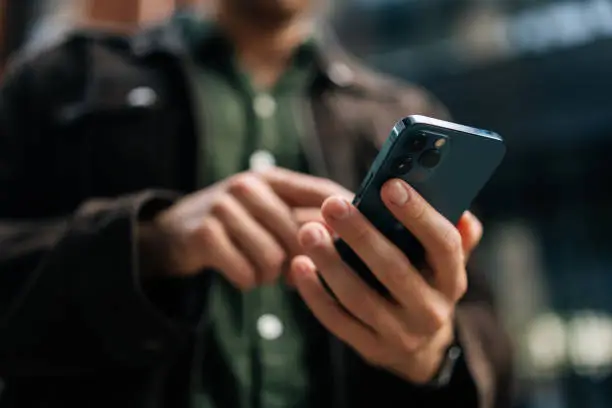
    Email has become an essential part of daily communication, whether for personal use, work, or studies. Gmail, offered by Google, is one of the most popular email services in the world because of its reliability, free storage, and integration with many online tools. For iPhone users, adding a Gmail account to the device is very useful since it allows you to receive emails instantly, sync contacts, keep your calendar updated, and even back up important notes. Instead of checking your Gmail through a browser, linking it directly to your iPhone makes it quicker and more convenient to manage your communication. Fortunately, the process is simple and only takes a few minutes. Below is a step-by-step guide on how to add a Gmail account on iPhone.

    1. Open Settings
      Unlock your iPhone and tap the Settings app. This is where you manage most functions on your device, including email accounts.
    2. Go to Mail Settings
      Scroll down the Settings menu and tap Mail. Inside Mail, select Accounts to view and manage your linked accounts.
    3. Add a New Account
      Tap Add Account and you will see a list of email providers. Choose Google because Gmail is a Google service.
    4. Sign in to Gmail
      A login page will appear. Enter your Gmail address and password. If you use two-step verification, confirm your identity with a code or prompt.
    5. Choose What to Sync
      After signing in, you will be asked what you would like to sync with your iPhone. You can enable Mail, Contacts, Calendars, and Notes depending on your needs.
    6. Save Your Account
      Tap Save and your Gmail account will now appear under Accounts. To access it, open the Mail app where your inbox will be ready.
    7. Optional: Use the Gmail App
      If you prefer Google’s own interface, download the Gmail app from the App Store. Sign in with your account and enjoy features like labels, smart filters, and easy account switching.

    Also Read: How Old Must You Be To Open A Bank Account

    Email your news TIPS to Editor@Kahawatungu.com — this is our only official communication channel

    Follow on Facebook Follow on X (Twitter)
    Share. Facebook Twitter WhatsApp LinkedIn Telegram Email
    Damaris Gatwiri

    Damaris Gatwiri is a digital journalist, driven by a profound passion for technology, health, and fashion.

    Related Posts

    How To Draw A Landscape

    December 11, 2025

    How To Draw A House Easy

    December 11, 2025

    How To Draw A Hot Air Balloon

    December 11, 2025

    Comments are closed.

    Latest Posts

    KDF soldiers detained for ten days for stealing, trafficking Sh192 million meth in Mombasa 

    December 11, 2025

    After a 314 km run, Kisii UDA youth Caleb Ondieki yet to meet Ruto

    December 11, 2025

    Court orders Arati to compesate top staff for wrongful dismissal 

    December 11, 2025

    Former Bolivian President Luis Arce arrested in corruption probe

    December 11, 2025

    Hundreds in Japan get car driving licences suspended for drink cycling

    December 11, 2025

    Pakistan’s military sentences its former spy chief to 14 years in jail

    December 11, 2025

    Ghana deports Israelis in retaliation for alleged mistreatment of Ghanaians

    December 11, 2025

    Mistakes To Avoid When Protesting Property Taxes In Houston

    December 11, 2025
    Facebook X (Twitter) Instagram Pinterest
    © 2025 Kahawatungu.com. Designed by Okii.

    Type above and press Enter to search. Press Esc to cancel.