
Close Menu
    Facebook X (Twitter) Instagram
    Facebook X (Twitter) Instagram
    KahawatunguKahawatungu
    Button
    • NEWS
    • BUSINESS
    • KNOW YOUR CELEBRITY
    • POLITICS
    • TECHNOLOGY
    • SPORTS
    • HOW-TO
    • WORLD NEWS
    KahawatunguKahawatungu
    HOW-TO

    How to Reboot an Apple Watch

    Damaris GatwiriBy Damaris GatwiriMarch 30, 2026No Comments2 Mins Read
    Facebook Twitter WhatsApp Telegram Email
    How to Reboot an Apple Watch
    Share
    Facebook Twitter WhatsApp Telegram Pinterest Email Copy Link

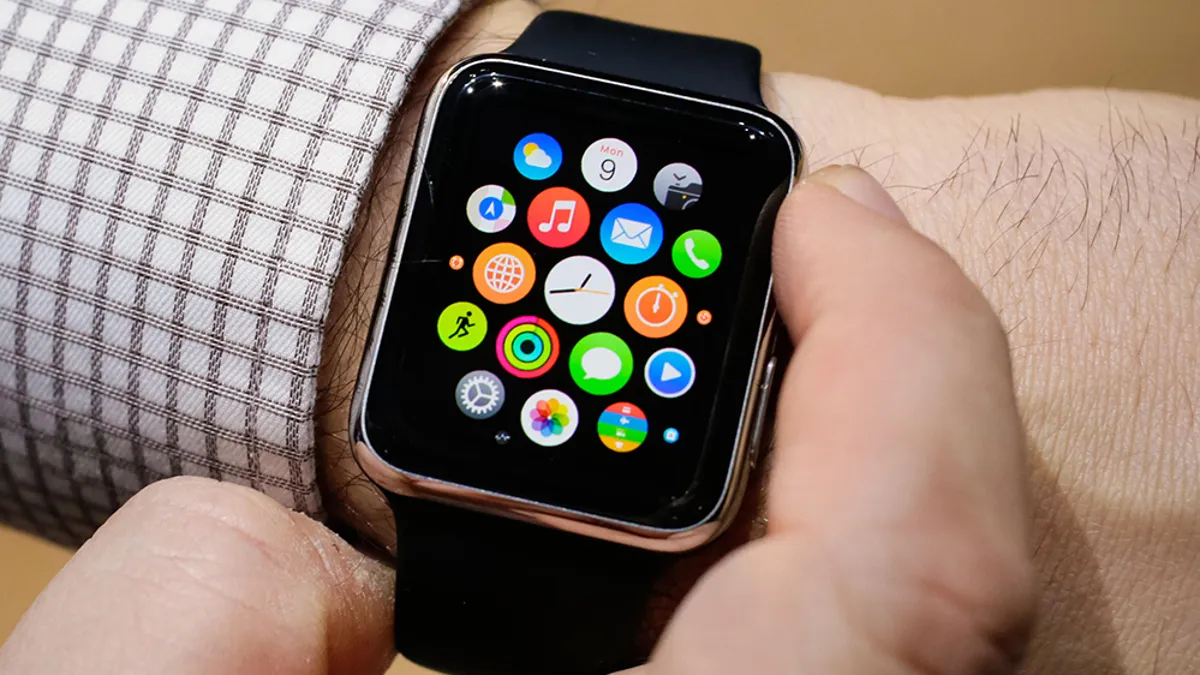
    Learning how to reboot an Apple Watch can help fix minor issues such as freezing, slow performance, or unresponsive apps. Apple Watch devices are designed to run smoothly, but like any technology, they may occasionally need a restart.

    Rebooting your Apple Watch is simple and can often resolve common problems quickly.

    1. Table of Contents

      Toggle
      • Turn Off the Apple Watch
      • Turn the Apple Watch Back On
      • Force Restart (If Unresponsive)
      • Ensure Sufficient Battery
      • Check for Software Issues
      • Use Regular Reboots for Maintenance

      Turn Off the Apple Watch

    Start by powering down the device.

    • Press and hold the side button
    • Wait for the power options to appear on the screen
    • Tap and drag the Power Off slider
    • Wait for the watch to turn off completely

    This safely shuts down the device.

    1. Turn the Apple Watch Back On

    Restart the watch after it has powered off.

    • Press and hold the side button again
    • Keep holding until the Apple logo appears
    • Release the button and wait for it to start

    The watch will reboot and return to normal use.

    1. Force Restart (If Unresponsive)

    If the watch is frozen, you can force a restart.

    • Press and hold both the side button and the Digital Crown
    • Keep holding for about 10 seconds
    • Release when the Apple logo appears

    This method is useful when the screen is not responding.

    1. Ensure Sufficient Battery

    Battery level can affect rebooting.

    • Make sure the watch has enough charge
    • Place it on the charger if needed
    • Wait a few minutes before trying again

    A charged device ensures a successful restart.

    1. Check for Software Issues

    Sometimes problems may persist after rebooting.

    • Update your watch software if available
    • Restart again if needed
    • Monitor for repeated issues

    Keeping software updated improves performance.

    1. Use Regular Reboots for Maintenance

    Occasional restarts can help maintain performance.

    • Reboot your watch if it becomes slow
    • Restart after installing updates
    • Avoid excessive force restarts

    Regular maintenance keeps your device running smoothly.

    Also Read: How to Read Comments on Twitter

    Email your news TIPS to Editor@Kahawatungu.com — this is our only official communication channel

    Follow on Facebook Follow on X (Twitter)
    Share. Facebook Twitter WhatsApp LinkedIn Telegram Email
    Damaris Gatwiri

    Damaris Gatwiri is a digital journalist, driven by a profound passion for technology, health, and fashion.

    Related Posts

    How to Stop Oily Face During the Day

    May 2, 2026

    How to Stop Human Trafficking

    May 2, 2026

    How to Stop Human Rights Violations

    May 2, 2026

    Comments are closed.

    Latest Posts

    Sakaja Warns Errant Planning Officers Will Be Held Accountable

    May 4, 2026

    Rubio to visit Vatican, Rome after Trump row

    May 4, 2026

    Ferguson taken to hospital as precaution before Man Utd v Liverpool

    May 4, 2026

    Iran says US has responded to its latest peace proposal

    May 4, 2026

    Police officer lowered into crocodile-infested river to recover human remains

    May 4, 2026

    Ichung’wah, Kang’ata clash escalates in public spat over political claims

    May 4, 2026

    Kang’ata Signals Political Shift Ahead of 2027, Calls for Economic Policy Reset

    May 4, 2026

    Orion Stars Online Casino: What US Players Should Know

    May 4, 2026
    Facebook X (Twitter) Instagram Pinterest
    © 2026 Kahawatungu.com. Designed by Okii.

    Type above and press Enter to search. Press Esc to cancel.