
Close Menu
    Facebook X (Twitter) Instagram
    Facebook X (Twitter) Instagram
    KahawatunguKahawatungu
    Button
    • NEWS
    • BUSINESS
    • KNOW YOUR CELEBRITY
    • POLITICS
    • TECHNOLOGY
    • SPORTS
    • HOW-TO
    • WORLD NEWS
    KahawatunguKahawatungu
    HOW-TO

    How to Add an SSD to a Laptop

    Damaris GatwiriBy Damaris GatwiriJune 23, 2026No Comments2 Mins Read
    Facebook Twitter WhatsApp Telegram Email
    How to Add an SSD to a Laptop
    Share
    Facebook Twitter WhatsApp Telegram Pinterest Email Copy Link

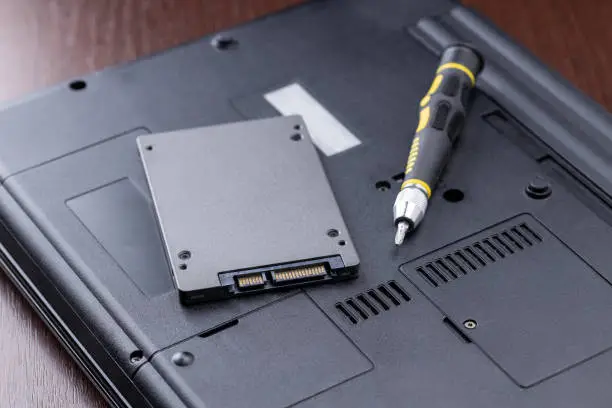
    Upgrading your laptop with a Solid State Drive (SSD) is one of the best ways to improve performance. An SSD can significantly speed up boot times, application loading, and overall system responsiveness. Learning how to add an SSD to a laptop can help extend the life of your device and enhance your computing experience.

    1. Table of Contents

      Toggle
      • Check SSD Compatibility
      • Back Up Your Data
      • Power Off and Open the Laptop
      • Install the SSD
      • Reassemble and Start the Laptop
      • Initialize and Set Up the SSD

      Check SSD Compatibility

    Before purchasing an SSD, determine which type is compatible with your laptop.

    Most laptops support either a 2.5-inch SATA SSD or an M.2 SSD.

    • Check your laptop specifications
    • Identify the supported SSD type
    • Confirm storage and size requirements
    1. Back Up Your Data

    Before making any hardware changes, back up important files and documents.

    This helps protect your data in case of unexpected issues.

    • Save files to an external drive
    • Use cloud storage if available
    • Verify the backup is complete
    1. Power Off and Open the Laptop

    Shut down the laptop completely and disconnect any power source.

    Carefully remove the bottom cover according to the manufacturer’s instructions.

    • Turn off the laptop
    • Unplug the charger
    • Remove the back panel carefully
    1. Install the SSD

    Locate the SSD slot or drive bay inside the laptop.

    Insert the SSD securely and fasten it if screws are required.

    • Locate the correct slot
    • Insert the SSD gently
    • Secure it in place
    1. Reassemble and Start the Laptop

    Replace the laptop cover and reconnect the power.

    Turn on the device to ensure the SSD is detected.

    • Reattach the cover
    • Power on the laptop
    • Check that the SSD is recognized
    1. Initialize and Set Up the SSD

    If the SSD is being used as additional storage, initialize and format it through your operating system.

    If it will be the main drive, you may need to install or clone your operating system.

    • Open disk management tools
    • Initialize and format the drive if needed
    • Install or transfer the operating system

    Also Read: How to Add Speaker Notes in PowerPoint

    Email your news TIPS to Editor@Kahawatungu.com — this is our only official communication channel

    Follow on Facebook Follow on X (Twitter)
    Share. Facebook Twitter WhatsApp LinkedIn Telegram Email
    Damaris Gatwiri

    Damaris Gatwiri is a digital journalist, driven by a profound passion for technology, health, and fashion.

    Related Posts

    How to Cancel Data Refill on Vodacom

    July 29, 2026

    How to Cancel Call Divert on MTN

    July 29, 2026

    How to Cancel Apple Music

    July 29, 2026

    Comments are closed.

    Latest Posts

    Tips to Maintain Robot Mowers with Mulching Blades

    July 29, 2026

    Fifa offers $40m if nations back controversial plan

    July 29, 2026

    Oscar-winning songwriter Glen Hansard killed in crash

    July 29, 2026

    French DJ and electronic ‌musician Kavinsky dies aged 50

    July 29, 2026

    Anthony Fauci refuses to answer questions during US Senate hearing about Covid origins

    July 29, 2026

    Starlets face Senegal with renewed hope at WAFCON

    July 29, 2026

    Mental health researcher Dr Victoria Mutiso shot dead by gunmen on motorcycle in Nairobi

    July 29, 2026

    Cristian Volpato Siblings: Getting to Know Natascia Volpato

    July 29, 2026
    Facebook X (Twitter) Instagram Pinterest
    © 2026 Kahawatungu.com. Designed by Okii.

    Type above and press Enter to search. Press Esc to cancel.