
Close Menu
    Facebook X (Twitter) Instagram
    Facebook X (Twitter) Instagram
    KahawatunguKahawatungu
    Button
    • NEWS
    • BUSINESS
    • KNOW YOUR CELEBRITY
    • POLITICS
    • TECHNOLOGY
    • SPORTS
    • HOW-TO
    • WORLD NEWS
    KahawatunguKahawatungu
    HOW-TO

    How to Change Ink in an HP Printer

    Damaris GatwiriBy Damaris GatwiriAugust 5, 2026No Comments2 Mins Read
    Facebook Twitter WhatsApp Telegram Email
    How to Change Ink in an HP Printer
    Share
    Facebook Twitter WhatsApp Telegram Pinterest Email Copy Link

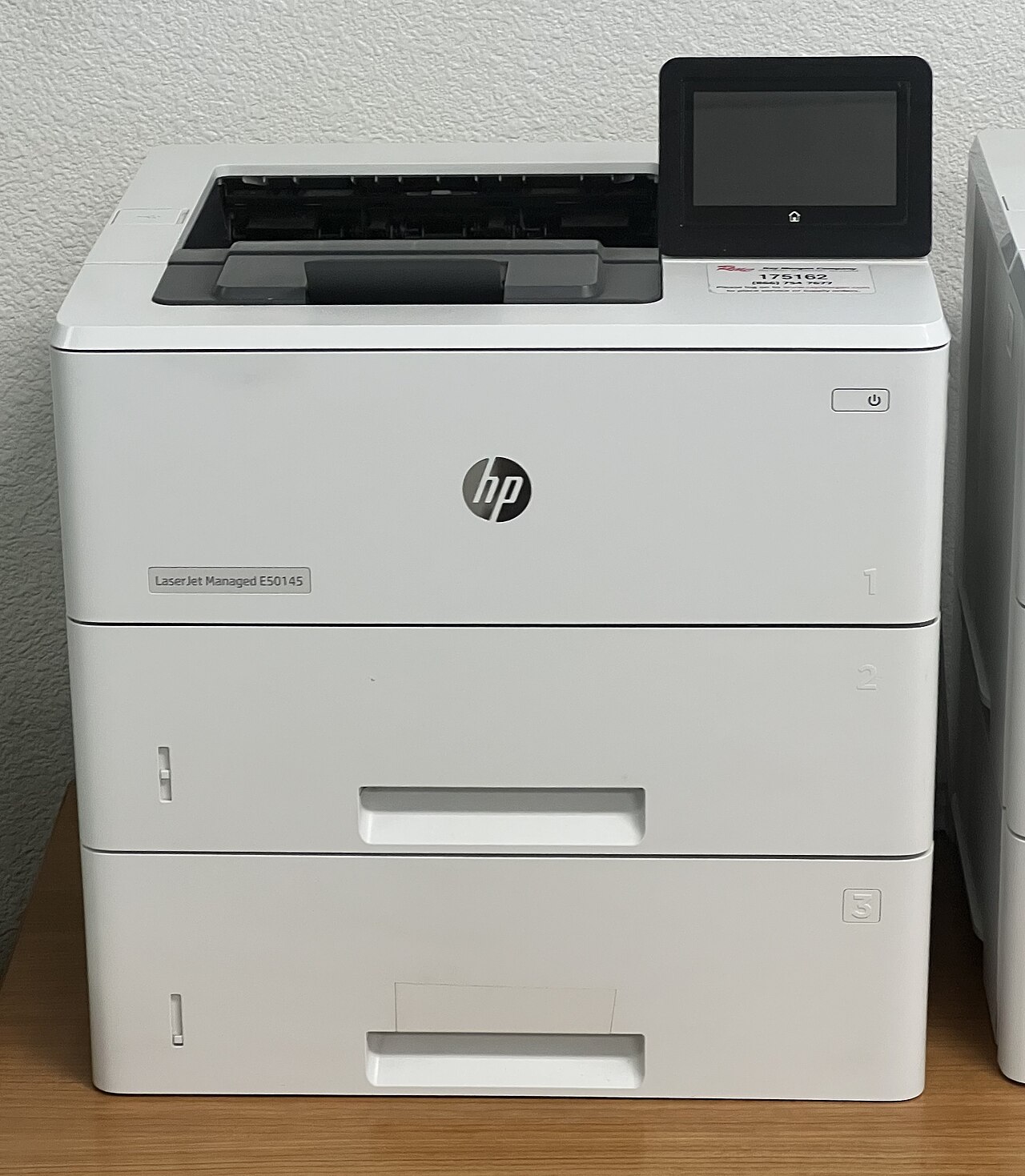
    Knowing how to change ink in an HP printer helps you maintain high-quality printing and prevent interruptions when your ink runs low. HP printers are designed to make ink cartridge replacement quick and straightforward, but following the correct procedure helps avoid damage to the printer or cartridges. Whether you are replacing black or colour ink, changing the cartridge correctly ensures your printer continues to produce clear and reliable prints.

    1. Table of Contents

      Toggle
      • Turn On the Printer and Open the Ink Access Door
      • Remove the Empty Ink Cartridge
      • Prepare the New Ink Cartridge
      • Install the New Ink Cartridge
      • Close the Printer and Test It

      Turn On the Printer and Open the Ink Access Door

    Begin by switching on your HP printer and waiting until it is fully powered on.

    Open the ink cartridge access door and allow the cartridge carriage to move to the centre of the printer. Wait until it stops moving before touching it.

    • Turn on the printer
    • Open the ink access door
    • Wait for the cartridge carriage to stop
    1. Remove the Empty Ink Cartridge

    Locate the ink cartridge you want to replace and gently press it down to release it from its slot.

    Carefully pull the cartridge out without using excessive force.

    • Press the cartridge gently
    • Remove the empty cartridge
    • Dispose of it properly if necessary
    1. Prepare the New Ink Cartridge

    Remove the new HP ink cartridge from its packaging.

    Take off the protective tape or plastic cover without touching the copper contacts or ink nozzles, as this could affect print quality.

    • Unpack the new cartridge
    • Remove the protective tape
    • Avoid touching the contacts
    1. Install the New Ink Cartridge

    Insert the new cartridge into the correct slot and push it forward until it clicks securely into place.

    Ensure you place each cartridge in the correct colour-coded slot.

    • Insert the new cartridge
    • Push until it clicks
    • Check that it is firmly installed
    1. Close the Printer and Test It

    Close the ink access door and allow the printer to recognise the new cartridge.

    If prompted, print an alignment page or a test page to ensure the cartridge is installed correctly and the printer is producing clear prints.

    • Close the printer cover
    • Wait for the printer to initialise
    • Print a test or alignment page

    Also Read: How to Change Gears

    Email your news TIPS to Editor@Kahawatungu.com — this is our only official communication channel

    Follow on Facebook Follow on X (Twitter)
    Share. Facebook Twitter WhatsApp LinkedIn Telegram Email
    Damaris Gatwiri

    Damaris Gatwiri is a digital journalist, driven by a profound passion for technology, health, and fashion.

    Related Posts

    How to Change Huawei Pocket WiFi Password Using a Cell Phone

    August 5, 2026

    How to Change Hollywood Password

    August 5, 2026

    How to Change Gears

    August 4, 2026

    Comments are closed.

    Latest Posts

    How to Change Ink in an HP Printer

    August 5, 2026

    How to Change Huawei Pocket WiFi Password Using a Cell Phone

    August 5, 2026

    How to Change Hollywood Password

    August 5, 2026

    DCI arrests college director over alleged fake academic certificates

    August 5, 2026

    Kenya Power technician dies after falling from electric pole in Garissa

    August 5, 2026

    Construction worker found murdered in Isinya

    August 5, 2026

    Body exhumed and returned to families after mortuary mix-up in Makueni

    August 5, 2026

    DCI confirms arrest of DCP-linked blogger over alleged hate speech

    August 5, 2026
    Facebook X (Twitter) Instagram Pinterest
    © 2026 Kahawatungu.com. Designed by Okii.

    Type above and press Enter to search. Press Esc to cancel.