
Close Menu
    Facebook X (Twitter) Instagram
    Facebook X (Twitter) Instagram
    KahawatunguKahawatungu
    Button
    • NEWS
    • BUSINESS
    • KNOW YOUR CELEBRITY
    • POLITICS
    • TECHNOLOGY
    • SPORTS
    • HOW-TO
    • WORLD NEWS
    KahawatunguKahawatungu
    HOW-TO

    How to Use Smart TV

    Damaris GatwiriBy Damaris GatwiriMay 22, 2026No Comments2 Mins Read
    Facebook Twitter WhatsApp Telegram Email
    How to Use Smart TV
    Share
    Facebook Twitter WhatsApp Telegram Pinterest Email Copy Link

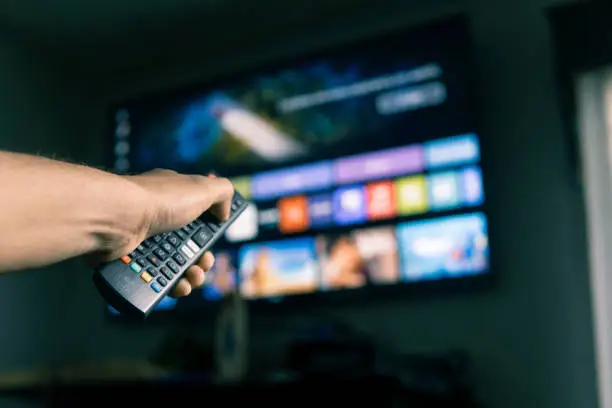
    A smart TV allows you to watch digital television channels, stream movies, browse apps, and connect to the internet all from one device. Learning how to use smart TV features properly can help you enjoy entertainment more easily and get the most out of your device. Most smart TVs work in a similar way, even though menus and buttons may vary depending on the brand.

    1. Table of Contents

      Toggle
      • Set Up and Power On the TV
      • Connect to the Internet
      • Sign In or Set Up Accounts
      • Explore Apps and Features
      • Adjust Settings for Better Viewing

      Set Up and Power On the TV

    Start by placing the TV in a suitable location and connecting it to a power source.

    Turn it on using the remote control.

    • Plug the TV into a power outlet
    • Insert batteries into the remote
    • Press the power button to start
    1. Connect to the Internet

    Most smart features require an internet connection.

    You can connect using WiFi or a LAN cable.

    • Open settings on the TV menu
    • Select network or internet options
    • Connect to WiFi and enter password
    1. Sign In or Set Up Accounts

    Some apps may require you to sign in to access content.

    You may also need to create or log into a TV account.

    • Sign in to streaming apps
    • Create accounts if required
    • Sync preferences if needed
    1. Explore Apps and Features

    Smart TVs come with apps for streaming, music, and browsing.

    You can download additional apps depending on your TV model.

    • Open app store on the TV
    • Download streaming apps like YouTube or Netflix
    • Navigate using the remote control
    1. Adjust Settings for Better Viewing

    You can improve your experience by adjusting picture and sound settings.

    This helps match your preferences and room conditions.

    • Adjust brightness and volume
    • Change picture mode if needed
    • Set parental controls if required

    Also Read: How to Use FNB eBucks

    Stay connected via Google News
    Follow us for the latest news updates and guides.
    Add as preferred source on Google

    Email your news TIPS to Editor@Kahawatungu.com — this is our only official communication channel

    Follow on Facebook Follow on X (Twitter)
    Share. Facebook Twitter WhatsApp LinkedIn Telegram Email
    Damaris Gatwiri

    Damaris Gatwiri is a digital journalist, driven by a profound passion for technology, health, and fashion.

    Related Posts

    How to Refresh Facebook Marketplace Feed

    November 10, 2026

    How to Refresh Facebook Reels Feed

    November 10, 2026

    How to Refresh FYP on TikTok

    November 10, 2026

    Comments are closed.

    Latest Posts

    Makena picks vital lessons as she begins her rise in the fencing world

    November 10, 2026

    Eight killed in al-Shabaab ambush on Mandera Road construction workers identified

    November 10, 2026

    Abigael Chepkirui bags silver for Kenya in Dakar

    November 10, 2026

    Saudi Arabia sentences Kenya domestic worker to 100 lashes for birth outside marriage

    November 10, 2026

    DP Kindiki urges UDA and ODM to stop infighting, focus on serving the people

    November 10, 2026

    15 bodies linked to River Yala killings buried unclaimed, IPOA says

    November 10, 2026

    Kenya to close embassy in Switzerland, open new mission me in Azerbaijan and Congo

    November 10, 2026

    Ruto tears into Gachagua over treatment of young politicians

    November 10, 2026
    Facebook X (Twitter) Instagram Pinterest
    © 2026 Kahawatungu.com. Designed by Okii.

    Type above and press Enter to search. Press Esc to cancel.