


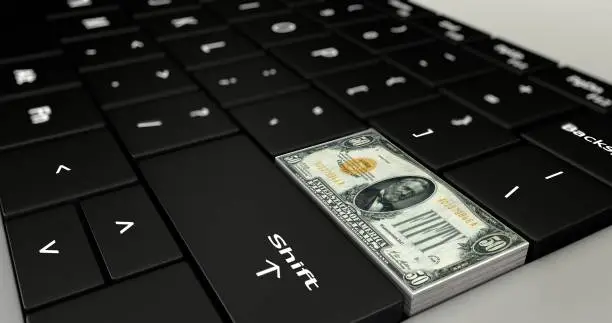
The dollar sign ($) is commonly used when writing prices, entering financial information, creating documents or working with spreadsheets. If you are unsure how to type it on your laptop, the correct key combination is usually simple. Learning how to press $ on laptop keyboard will help you enter the symbol quickly whenever you need it. The exact combination can depend on your keyboard layout and language settings.
-
Try Shift + 4
On most standard English laptop keyboards, the dollar sign is located above the number 4 key.
Hold down the Shift key and press 4 at the same time.
The result should be:
$
- Hold Shift
- Press 4
- Release both keys
- Check that the $ symbol appears
-
Look at the Number 4 Key
Check the top row of your laptop keyboard where the numbers are located.
If you see the $ symbol printed above the number 4, Shift + 4 is the correct combination for your keyboard layout.
This is commonly used on standard US and many English keyboard layouts.
-
Check Your Keyboard Layout
If Shift + 4 produces a different symbol, your laptop may be using a different keyboard layout.
The symbols assigned to keys can change depending on the language and keyboard settings selected on your computer.
Check your keyboard language settings and select the layout that matches your physical keyboard.
- Open keyboard settings
- Check the selected language
- Select the appropriate keyboard layout
- Try Shift + 4 again
-
Use the On-Screen Keyboard
If you cannot find the correct key combination, you can use the Windows On-Screen Keyboard.
Search for On-Screen Keyboard from the Start menu and open it.
The virtual keyboard will show the symbols available under your current keyboard layout.
- Open the Start menu
- Search for On-Screen Keyboard
- Open the virtual keyboard
- Locate and select $
-
Copy and Paste the Dollar Sign
If your laptop keyboard is not working properly, you can copy the dollar sign and paste it wherever you need it.
Here is the symbol:
$
Select it, press Ctrl + C to copy it and then press Ctrl + V to paste it.
This method works in most text fields, documents and online forms.
-
Use the Alt Code on Windows
If your laptop has a numeric keypad, Windows can also use an Alt code to enter the dollar sign.
Hold the Alt key and type 36 using the numeric keypad, then release Alt.
The dollar sign should appear.
This method may not work on laptops without a physical numeric keypad.
-
Insert $ in Microsoft Word
If you are working in Microsoft Word and the keyboard shortcut does not work, you can insert the symbol through the menu.
Go to Insert, select Symbol and choose the dollar sign.
This provides another way to add the symbol without relying on the keyboard shortcut.
-
Test the Dollar Sign in Notepad
If you are unsure whether your keyboard is working correctly, open Notepad or another simple text application.
Click inside the text area and try Shift + 4.
If the dollar sign appears, your keyboard is working correctly and you can use the same combination in other applications.
-
Check the Shift Key
If pressing Shift + 4 does not work, test the Shift key by typing a capital letter.
For example, hold Shift and press A.
If a capital A appears, the Shift key is working. You may then need to check your keyboard layout.
-
Use the Dollar Sign Correctly
When writing an amount in English, the dollar sign normally comes before the number without a space.
For example:
$50
$100
$1,000
The dollar symbol can represent different currencies that use the dollar, so you may need to specify the currency when the context is unclear.
Also Read: How to Improve Hair Growth

Email your news TIPS to Editor@Kahawatungu.com — this is our only official communication channel
