


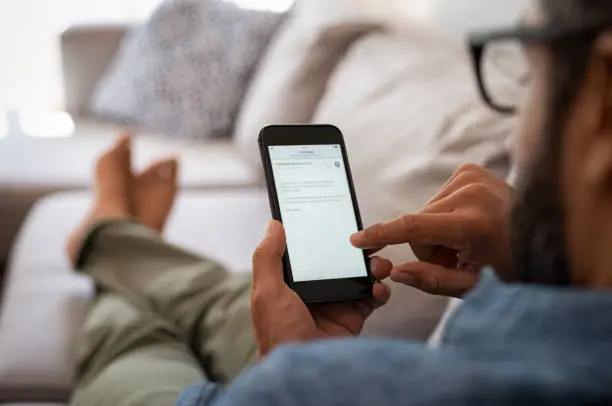
Learning how to remove an email account from a phone can help you protect your privacy, stop unwanted notifications, or remove an account you no longer use. The process depends on whether you have an Android phone or an iPhone. Fortunately, you can remove an email account through your phone’s settings or email application without necessarily deleting the email address permanently.
-
How to Remove an Email Account on Android
If you are using an Android phone, you can remove an email account through the settings menu.
- Open Settings on your phone.
- Tap Passwords and accounts, Accounts, or Users and accounts.
- Select the email account you want to remove.
- Tap Remove account.
- Confirm your choice and enter your phone’s PIN if requested.
The account will be removed from your phone. If it is a Google account, some synced services, including Gmail, contacts, and calendars, may no longer be available on that device until you sign in again.
-
How to Remove an Email Account on an iPhone
iPhone users can remove email accounts through the device settings.
- Open Settings on your iPhone.
- Tap Apps, then Mail. On older iOS versions, select Mail directly.
- Tap Mail Accounts or Accounts.
- Choose the email account you want to remove.
- Tap Delete Account or Sign Out, depending on the account type.
- Confirm your selection.
This removes the account from the phone’s Mail settings but does not necessarily delete the email address itself.
-
How to Remove an Email Account From the Gmail App
If you want to remove an account from Gmail, follow these instructions.
- Open the Gmail app.
- Tap your profile picture in the top-right corner.
- Select Manage accounts on this device.
- Choose the account you want to remove.
- Tap Remove account and confirm.
On Android, removing a Google account this way may also affect other Google applications using the same account.
-
How to Remove an Outlook or Yahoo Email Account
If you use Outlook, Hotmail, or Yahoo Mail, you can usually remove the account through the relevant application’s settings.
- Open the email application.
- Navigate to the account settings.
- Select the email account you want to remove.
- Look for Remove account or Delete account from this device.
- Confirm the action.
The exact options may vary depending on the application and phone model.
-
What Happens After Removing an Email Account?
Removing an email account from your phone generally stops that account from syncing emails and displaying new notifications on the device. However, emails stored on the email provider’s servers usually remain available when you sign in again.
Before removing the account, ensure you remember your password and can access any required recovery phone number or email address.
Also Read: How to Attract Your Crush

Email your news TIPS to Editor@Kahawatungu.com — this is our only official communication channel
